Taskbar Went Vertical? Move It Back to Horizontal
Your taskbar can end up on the left, right, or top of the screen after an accidental drag, and it makes everything feel unfamiliar. On current Windows, the taskbar position is normally at the bottom, and you can return it there from Settings. You do not need to reinstall anything.
TL;DR / Quick Fix
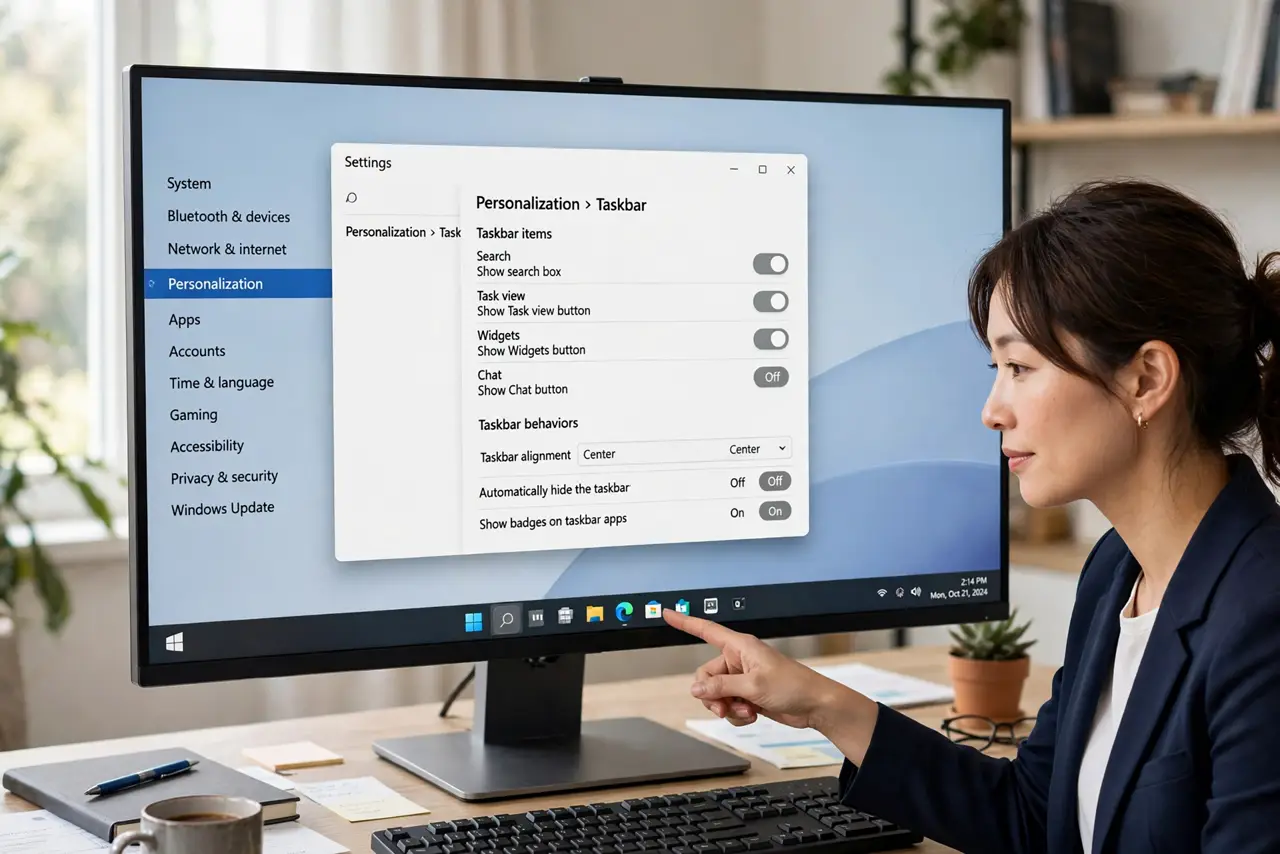
Quick fix: open Settings, then Personalization, then Taskbar, and check Taskbar behaviors. Set Taskbar alignment and position to the bottom where available, then lock the taskbar. If the taskbar is only hidden, check the auto-hide setting before changing anything else.
Follow these steps
- Check if it is hidden, not moved. Move the mouse to each edge of the screen. If the taskbar slides into view at the bottom, it is set to auto-hide, not moved. That is a different setting, and you can turn auto-hide off in Taskbar behaviors.
- Open Taskbar settings. Right-click an empty part of the taskbar and choose Taskbar settings. You can also open Settings, then Personalization, then Taskbar. Keep this window open while you test, so you can undo a change quickly.
- Set alignment to the bottom. In Taskbar behaviors, look for Taskbar alignment and the position options for your Windows version. Choose the bottom position. On some Windows versions the taskbar can only be moved by dragging, so follow the on-screen options for your version.
- Drag it only if Settings does not offer a move. If your version allows dragging, click an empty part of the taskbar, drag it to the bottom edge, and release it there. Do not drag from an app icon, because that may move the icon instead of the taskbar.
- Lock the taskbar. Turn on Lock the taskbar if that option is shown. Locking stops accidental drags from moving it again. If you later want to move it on purpose, unlock it first, move it, then lock it again.
- Restart Explorer only if it looks stuck. If the taskbar does not move and looks frozen, save your work, then restart Windows Explorer from Task Manager if you are comfortable. If you are unsure, a normal restart of the computer is safer.
What NOT to do
- Do not drag app icons to move the taskbar. Dragging an icon moves or unpins that app, not the taskbar, and it can confuse the layout further.
- Do not change registry settings to move the taskbar. Registry edits can break Windows and are not needed for a normal taskbar move.
- Do not assume the monitor is broken. A vertical taskbar is a position setting, not a display fault, so check Settings before arranging a repair.
- Do not hide the taskbar as a fix for a moved taskbar. Hiding it only makes it harder to find, and it does not return it to the bottom.
Frequently asked questions
Why did my taskbar move by itself?
Usually an accidental drag while the taskbar was unlocked moved it. A locked taskbar is much harder to move by accident.
Can I put the taskbar on the left on purpose?
It depends on your Windows version. Some versions only support the bottom, so use the options shown in Taskbar settings for your computer.
What if the taskbar is missing entirely?
First move the mouse to each screen edge, then check Taskbar settings and auto-hide. A missing taskbar is often hidden, not deleted.