Text Too Small on a New Monitor? Fix It
Text looks tiny on a new monitor when the screen is large or high resolution but the scale is still set for a small screen. Raising the scale, not squinting or zooming every app, is the lasting fix.
TL;DR / Quick Fix
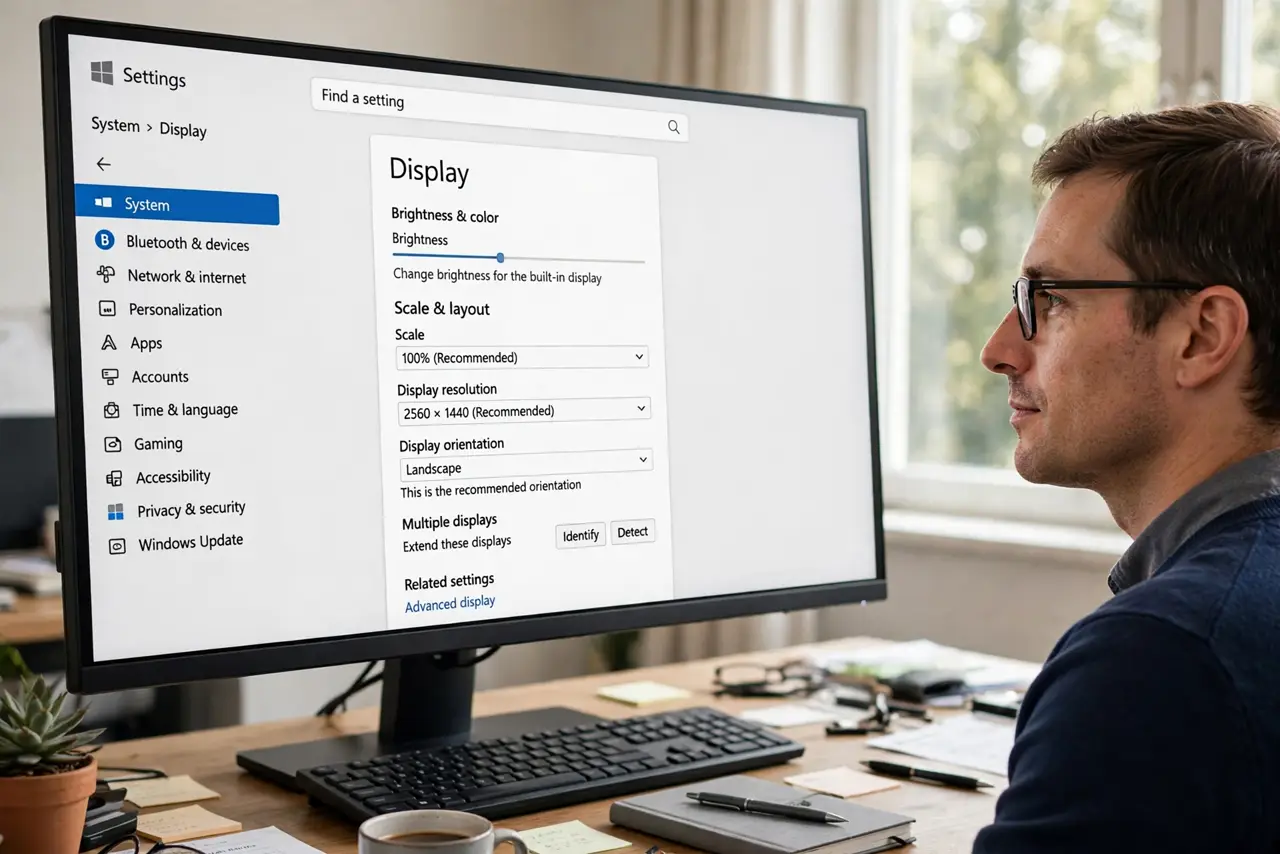
Quick fix: open Settings, then System, then Display, and raise Scale to the recommended value or one step above it. Sign out and back in if Windows asks, then check a document and a web page. If text is still tiny, confirm the resolution is the recommended one.
Follow these steps
- Set the recommended resolution first. Open Settings, then System, then Display, and set the resolution to the recommended value. A wrong resolution makes text small or blurry before scale even matters.
- Raise the display scale. On the same Display page, raise Scale to the recommended percentage, or one step above if text still feels small. Scale enlarges text and icons across Windows.
- Sign out and back in if asked. Some scale changes need a sign-out to apply fully. Save your work, sign out, and sign back in, then check text again.
- Check text size separately. In Settings, then Accessibility, then Text size, adjust the slider if body text still feels small. This setting changes text without changing icon size.
- Test a document and a browser page. Open a document and a web page and read a paragraph on each. If both are comfortable, the scale is right. If only one is small, that app has its own zoom.
- Leave app zoom for single apps. If one app still looks small, use that app zoom or view setting. Do not raise system scale further for one app, or everything else becomes too large.
What NOT to do
- Do not lower the resolution to make text bigger. Lower resolution makes text blurry and wastes the new monitor, while scale keeps it sharp.
- Do not set scale to the maximum at once. Huge scale hides windows and buttons, so raise it one step at a time and test.
- Do not change every app zoom to compensate. Fix system scale once, and only adjust the odd app that still looks wrong.
- Do not sit closer to the screen as a permanent fix. A comfortable scale is better for your eyes than leaning in all day.
Frequently asked questions
Why is text tiny only on the new monitor?
The new monitor may have higher resolution or a larger size, so the old scale no longer fits. Raising scale adapts Windows to the new screen.
Scale made icons huge but text still small. Why?
You may have changed icon size or a single app zoom instead of system scale. Check Display scale and Accessibility text size separately.
Do I need to restart after changing scale?
Usually a sign-out is enough. Save work first, sign out, and sign back in so the new scale applies everywhere.