Upstream vs Downstream?
Your plan advertises one big speed number, but internet actually flows two directions — and they are rarely equal. Downloads get the glory; uploads quietly decide whether your video calls freeze and your backups crawl. Understanding the split explains half of all 'slow internet' complaints.
TL;DR / Quick Fix
Quick fix: downstream is download speed — used by streaming and browsing. Upstream is upload speed — what you send out, used by video calls and backups. Most plans are asymmetric: fast down, slow up. If video calls stutter while streaming works fine, your upstream is the bottleneck.
Follow these steps
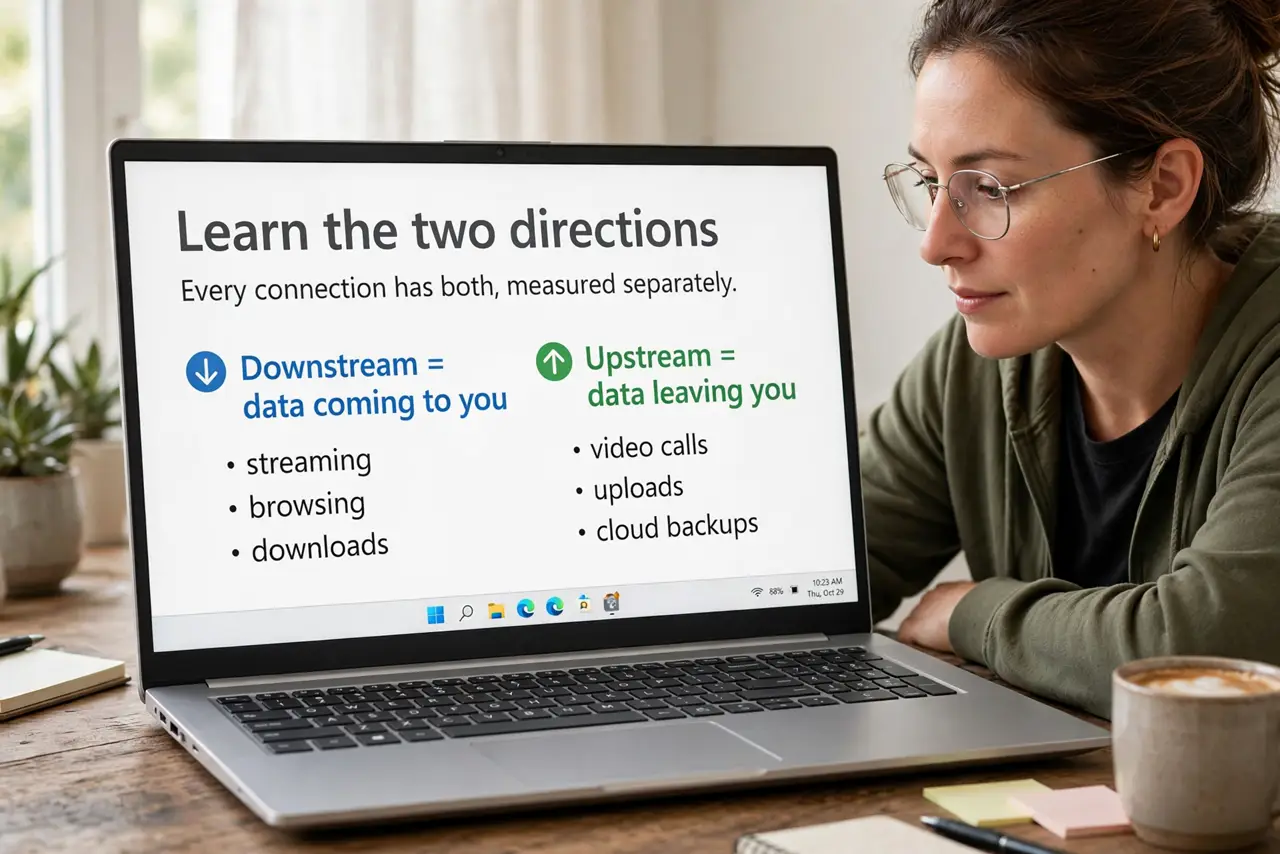
- Learn the two directions. Downstream = data coming to you (streaming, browsing, downloads). Upstream = data leaving you (video calls, uploads, cloud backups). Every connection has both, measured separately.
- Check your plan's real numbers. Look past the advertised headline — the fine print lists upload speed separately. Cable and DSL are asymmetric by design: fast down, much slower up. Fiber is often symmetric.
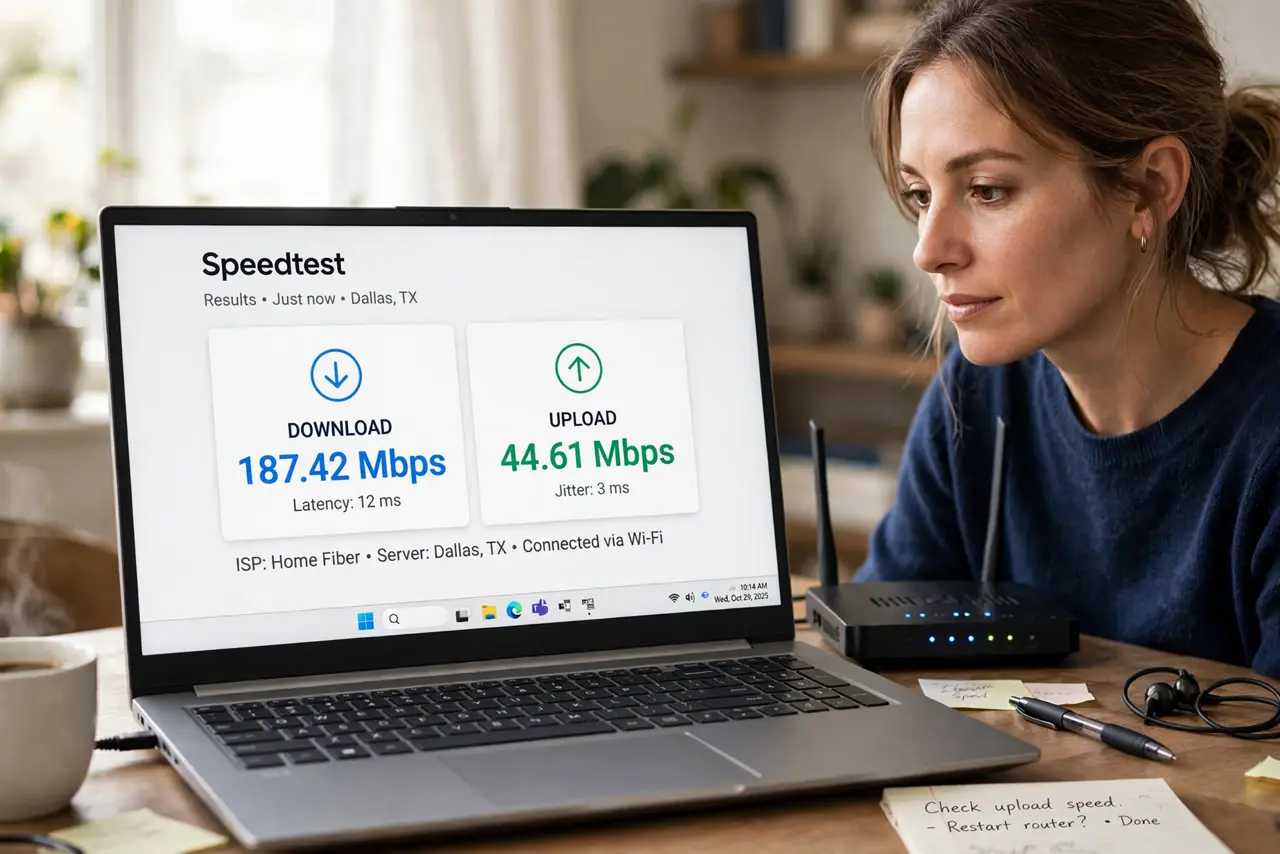
- Run a proper speed test. Use a wired connection and a reputable test to measure both directions. Compare against your plan — and read the results correctly with a speed test guide.
- Match symptoms to direction. Buffering streams = downstream problem. Frozen video calls, slow photo uploads, crawling backups = upstream problem. Diagnosing the right direction saves hours.
- Protect your upstream during calls. Pause cloud backups and big uploads before important video calls. One backup saturating a thin upstream will wreck every call in the house.
- Know when to upgrade. If upstream is the constant bottleneck and your plan caps it low, only a plan change fixes it — no settings tweak manufactures upload bandwidth. See why upload matters before you call.
What NOT to do
- Do not judge a plan by the download number alone. A '500 Mbps' plan with 10 Mbps upload will still choke on video calls and backups.
- Do not run speed tests over Wi-Fi and blame the provider. Test wired first — Wi-Fi issues masquerade as plan problems constantly.
- Do not expect settings to create upload speed. QoS can prioritize traffic, but it cannot exceed what your plan provides upstream.
- Do not confuse this with latency. Ping affects responsiveness; upstream/downstream affect how much data moves — different problems, different fixes.
Frequently asked questions
Why is upload always slower than download?
Most residential tech (cable, DSL) allocates more capacity downstream because homes historically download more. Fiber is the exception — often symmetric.
How much upload do I need for video calls?
Roughly 3-5 Mbps per HD call, more for 4K or multiple callers. Add headroom for background uploads happening at the same time.
Will a new router improve my upload speed?
No — the router cannot exceed the upstream your plan provides. It can improve Wi-Fi delivery of that speed around the house, which is a different win.