Meeting Background Blur Fails? Fix It
Background blur needs a clear view of you, enough light, and permission to process the camera feed. When any of those is missing, blur fails or flickers, and the fix is usually in the setup, not the camera.
TL;DR / Quick Fix
Quick fix: turn blur off and on again in the meeting settings, improve the light on your face, and sit clearly in the frame. If blur still fails, update the meeting app and test with a plain background. Last, restart the meeting app if blur still fails to confirm it.
Follow these steps
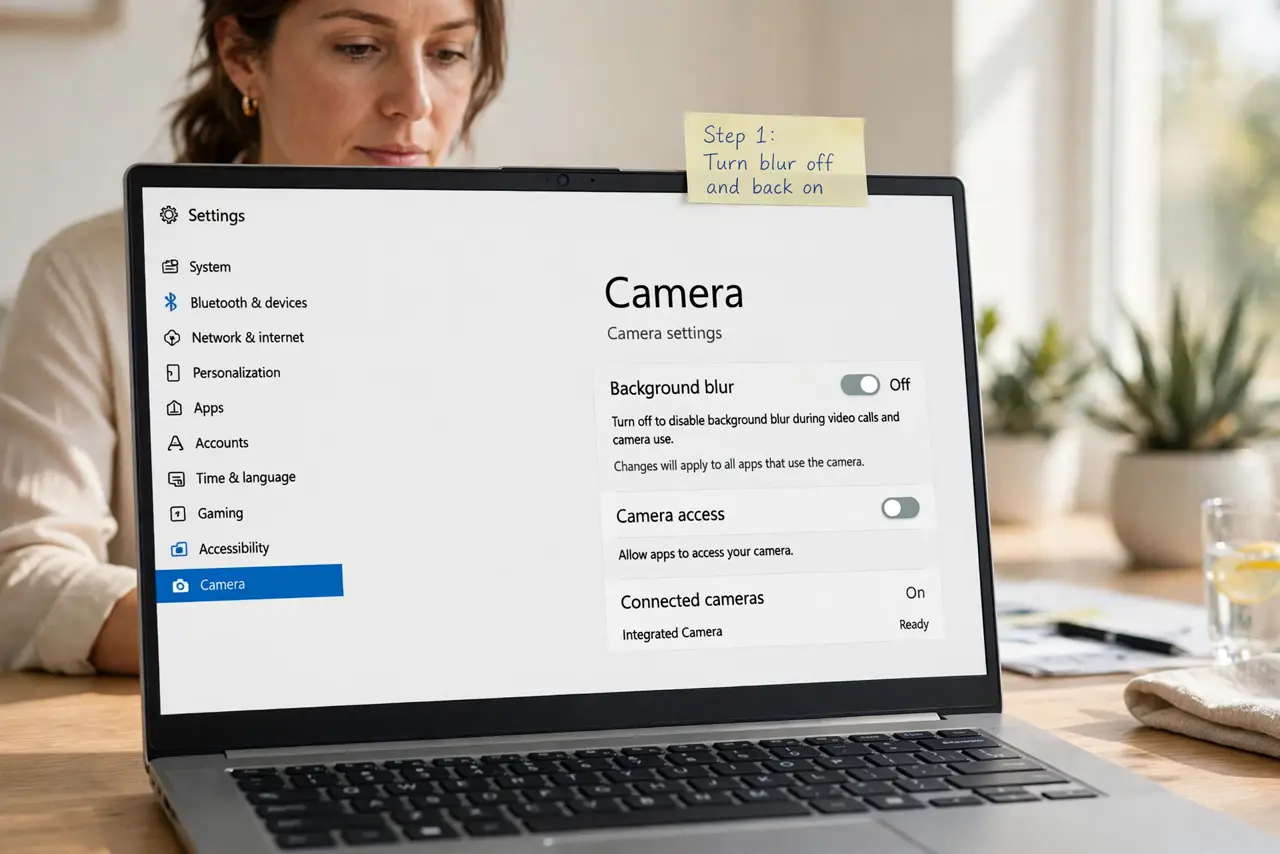
- Turn blur off and back on. Open the meeting video settings, turn background blur off, wait a second, and turn it on again. A blur effect that failed to start often recovers with a clean restart.
- Improve the light on your face. Face a window or a lamp, so light falls on your face rather than behind you. Strong backlight confuses blur, because the camera cannot separate you from the background.
- Sit clearly in the frame. Sit centered, with your head and shoulders visible and a little space around you. Blur works best when the app can clearly see where you end and the room begins.
- Use a plain background for the test. Test blur against a plain wall or a tidy background. A busy background with patterns or moving objects makes blur flicker or fail.
- Check camera permission and the app version. Confirm the meeting app can use the camera, and check for app updates. An outdated app can lose blur support after a system update.
- Restart the meeting app if blur still fails. Close the meeting app fully, reopen it, and rejoin or start a test call. A full restart clears a stuck video effect.
What NOT to do
- Do not rely on blur for privacy in a sensitive call. If blur fails, the real background shows, so tidy the room or use a virtual background you tested.
- Do not sit in near darkness and expect blur to work. Blur needs a usable camera image first.
- Do not install a third-party blur tool mid-call. Use the meeting app's own effect, which is tested with its video path.
- Do not keep toggling blur during a live presentation. Test it before the call, so the audience never sees the flicker.
Frequently asked questions
Why does blur work sometimes and fail other times?
Lighting, background clutter, and camera position change between calls, and blur is sensitive to all three.
Does blur need a powerful computer?
It needs some processing power, so an old or overloaded computer may drop blur to keep video smooth.
Is a virtual background better than blur?
Sometimes. A still virtual background is easier to hold steady than blur on a busy real background.