Meeting Link Asks to Install Again? Fix It
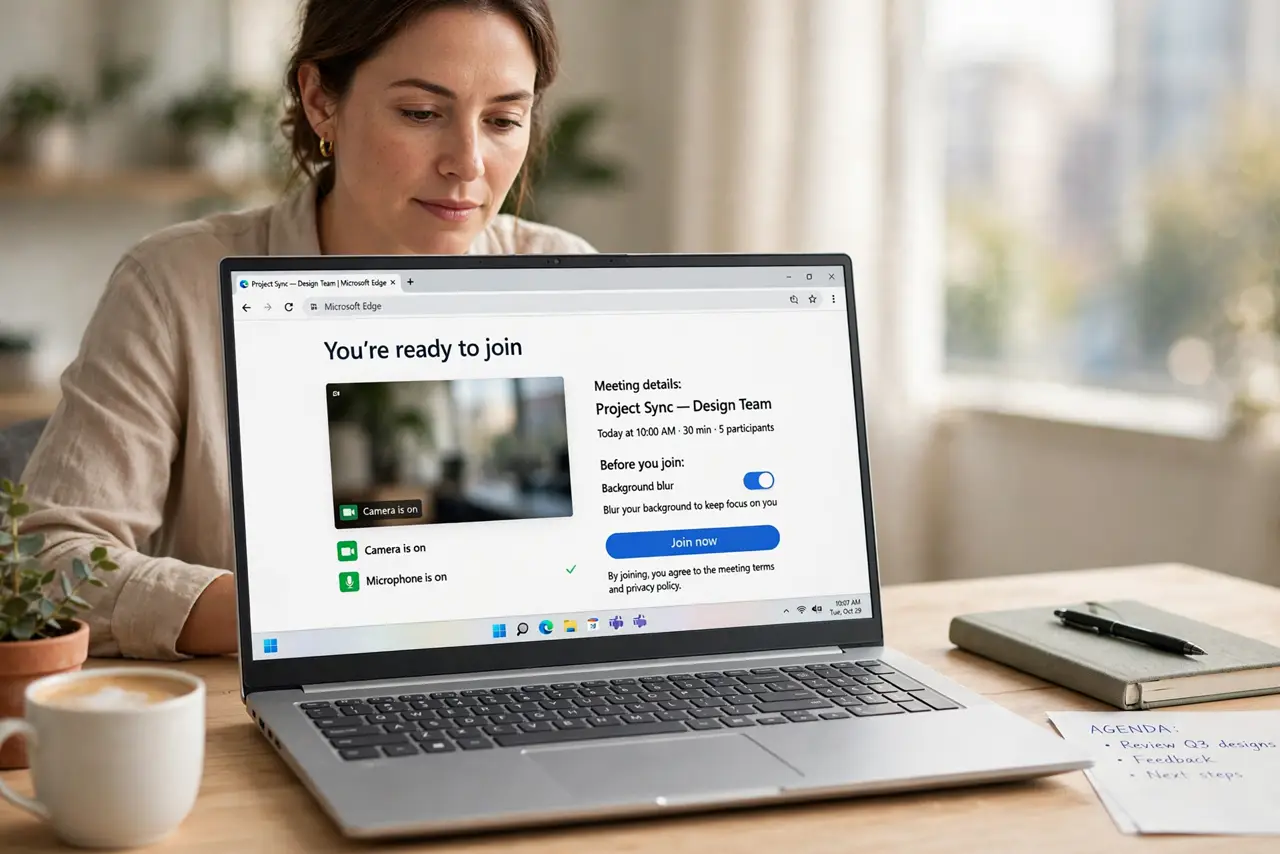
A meeting link asks to install again when the browser does not recognize the installed app, or the app itself needs an update. Joining from the browser first gets you into the meeting while you sort the app out.
TL;DR / Quick Fix
Quick fix: choose the join from browser option to enter the meeting now, then check the meeting app is installed and updated. If the prompt repeats, set the meeting app as the handler for meeting links. Last, restart the browser and retry the link to confirm it.
Follow these steps
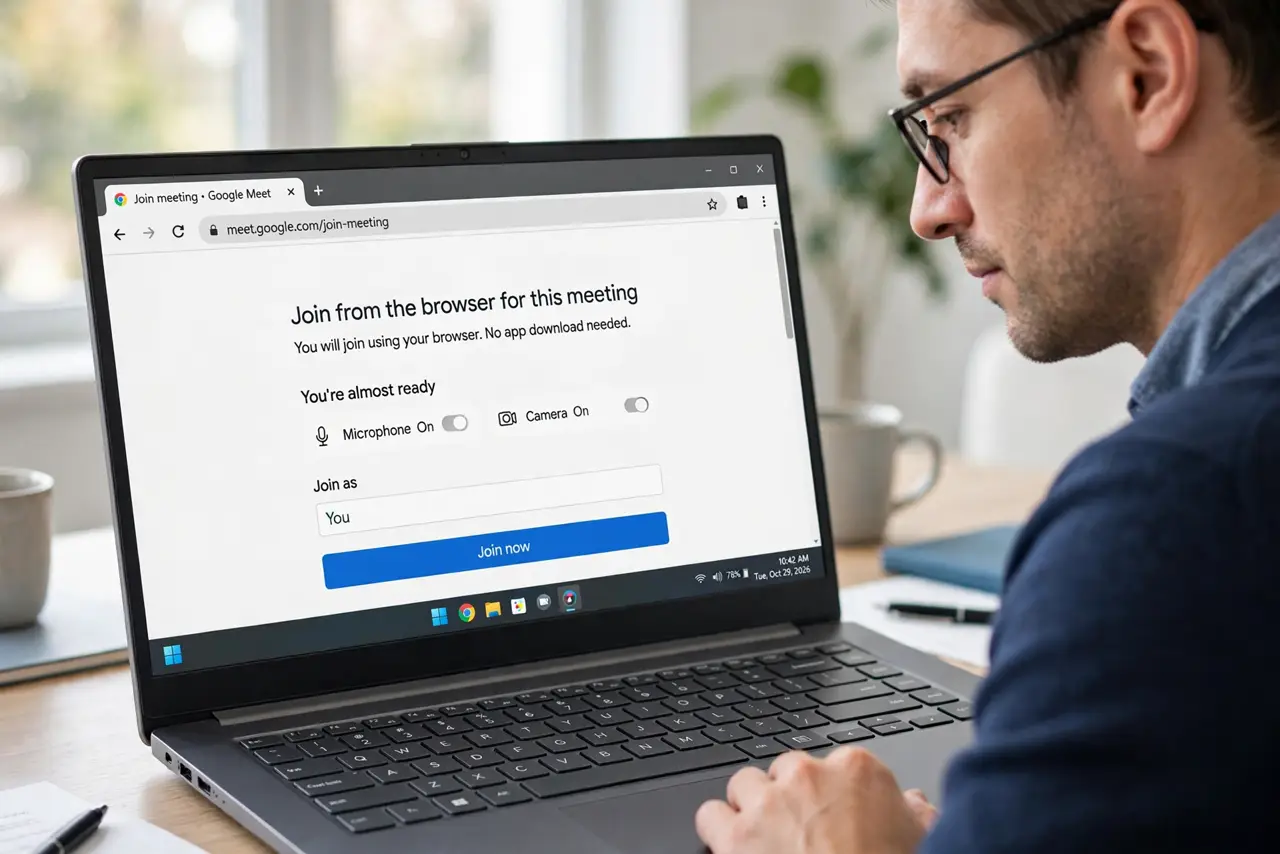
- Join from the browser for this meeting. On the meeting page, look for a join from browser or join on the web option and use it. This gets you into the meeting without installing anything new.
- Check the meeting app is actually installed. Open the installed programs list and confirm the meeting app is present. A link can prompt to install when the app was removed or never fully installed.
- Update the meeting app. Open the app, if it exists, and check for updates. An outdated app can fail the handoff from the browser, which looks like a missing install.
- Allow the browser to open the app. When the browser asks whether to open the meeting app, allow it and check the remember choice option if offered. Blocking that prompt repeats the install request.
- Set the meeting app as the link handler. In system settings, check which app handles meeting links, and set it to the meeting app. A wrong handler sends the link back to the installer.
- Restart the browser and retry the link. Close the browser fully, reopen it, and click the meeting link again. The handoff should now open the installed app directly.
What NOT to do
- Do not download the meeting app from a search result ad. Use the official site or the link the meeting host provided.
- Do not install a second copy of the app to fix the prompt. Two copies can fight over the same links.
- Do not allow every site to open external apps. Allow the meeting service you use, not every page that asks.
- Do not miss the meeting while fixing the app. Join from the browser first, then fix the install afterwards.
Frequently asked questions
Why does the link ask to install an app I have?
The browser may not recognize the app, the app may be outdated, or the link handler may point elsewhere.
Is joining from the browser safe?
Yes, when the link came from a host you trust. The browser version offers the same meeting, with fewer features in some cases.
What if the browser option is missing?
Some meetings require the app. In that case, update or reinstall the app from the official source, then retry the link.