Wi-Fi Calling Handover Drops Your Call
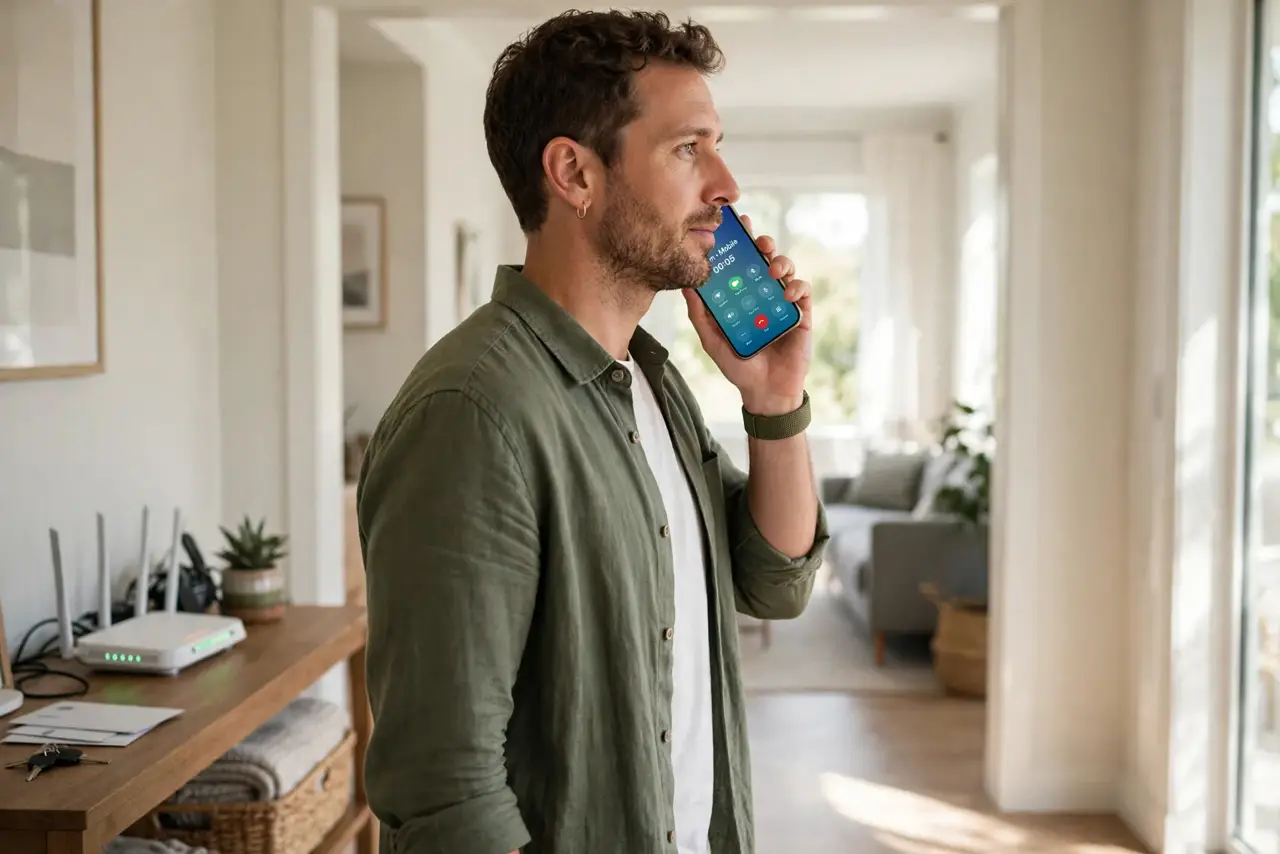
Wi-Fi calling is perfect until you walk too far from the router — then the call should hand over to the mobile network, but instead it just dies. The handover settings and a weak handoff zone are usually to blame.
TL;DR / Quick Fix
Quick fix: stay closer to the router during calls, and check that Wi-Fi calling is set to prefer Wi-Fi with cellular handover allowed. Update carrier settings, restart the phone, and test by walking the route that usually kills the call.
Follow these steps
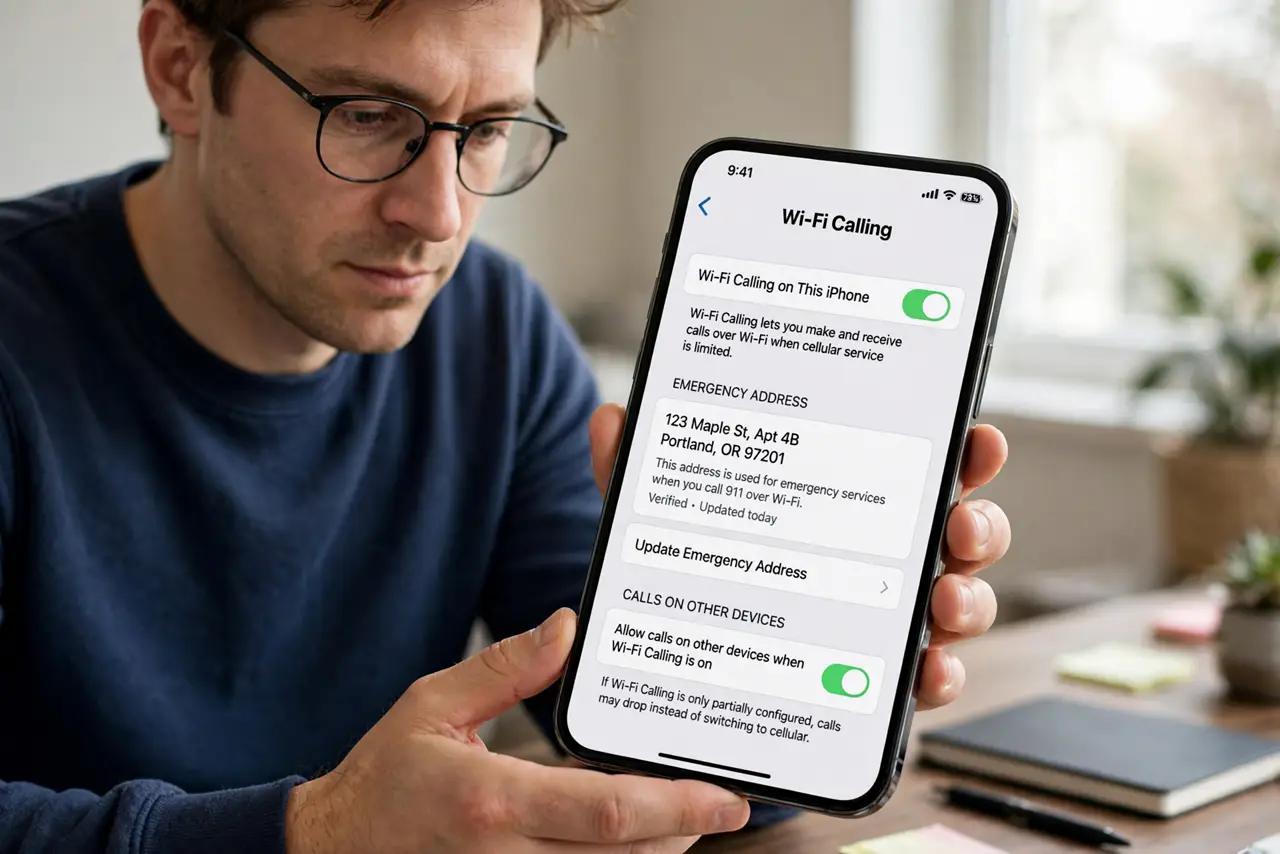
- Confirm Wi-Fi calling is fully on. Open phone settings and check Wi-Fi calling is enabled with your emergency address set. A half-configured feature drops calls instead of handing them over.
- Allow handover to the mobile network. Look for a prefer-Wi-Fi or handover setting and make sure switching to cellular is allowed. If handover is blocked, the call has nowhere to go when Wi-Fi fades.
- Find your dead zone by walking it. Walk the path that kills calls while watching the Wi-Fi signal. The drop happens where Wi-Fi dies before the phone decides to switch, so knowing the spot helps you avoid it.
- Update carrier settings. On iPhone, open Settings, then General, then About, and accept any carrier update. Carriers tune handover behavior through these quiet updates.
- Restart the phone after changes. A restart lets the phone re-register Wi-Fi calling with the new settings. Test with a real call to a patient friend, not an important meeting.
- Compare with a dropped Wi-Fi call pattern. If calls drop even standing still near the router, the problem matches the dropped Wi-Fi call pattern rather than the handover. Fix the stationary drops first.
What NOT to do
- Do not pace the whole house during important calls. Take calls near the router, where handover never needs to happen in the first place.
- Do not disable Wi-Fi calling over one dropped handover. Fix the handover zone or the setting, and keep the better indoor call quality.
- Do not test handovers on emergency or critical calls. Walk-test with a casual call, so a failed handover costs you nothing.
- Do not assume every drop is the handover. A router that keeps dropping will kill calls standing still too, so check the basics first.
Frequently asked questions
Why does the call die instead of switching?
Because the phone clings to dying Wi-Fi too long, or handover to cellular is blocked in settings, leaving the call with no network at all.
Should I prefer Wi-Fi or cellular?
Prefer Wi-Fi at home for quality, with handover allowed. That combination gives good calls indoors and survival when you walk away.
Does walking speed matter?
A little. Fast movement through the dead zone gives the phone less time to switch, so slow down near the edge of your Wi-Fi.