Neighbor Channels Overlap Yours? Fix It
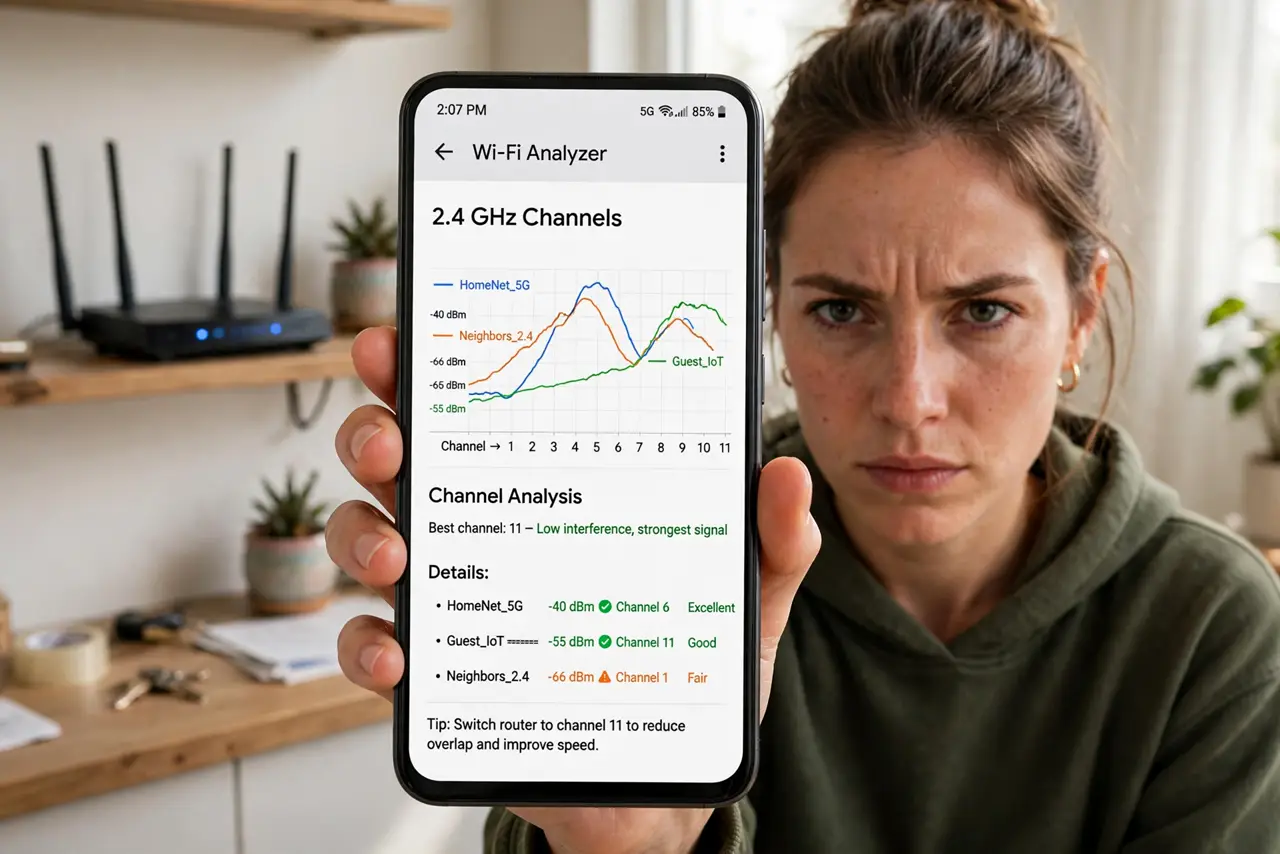
Your Wi-Fi was fine until the new neighbors moved in — now evenings crawl. On the crowded 2.4 GHz band, nearby networks on overlapping channels shout over each other, and everyone slows down. Picking one of the three clean channels fixes most cases in five minutes.
TL;DR / Quick Fix
Quick fix: open your router's admin page, find the wireless settings, and switch the 2.4 GHz channel to 1, 6, or 11 — the only non-overlapping choices. Use a Wi-Fi analyzer app to see which channels neighbors use. Retest speed afterward. Pick the emptiest one.
Follow these steps
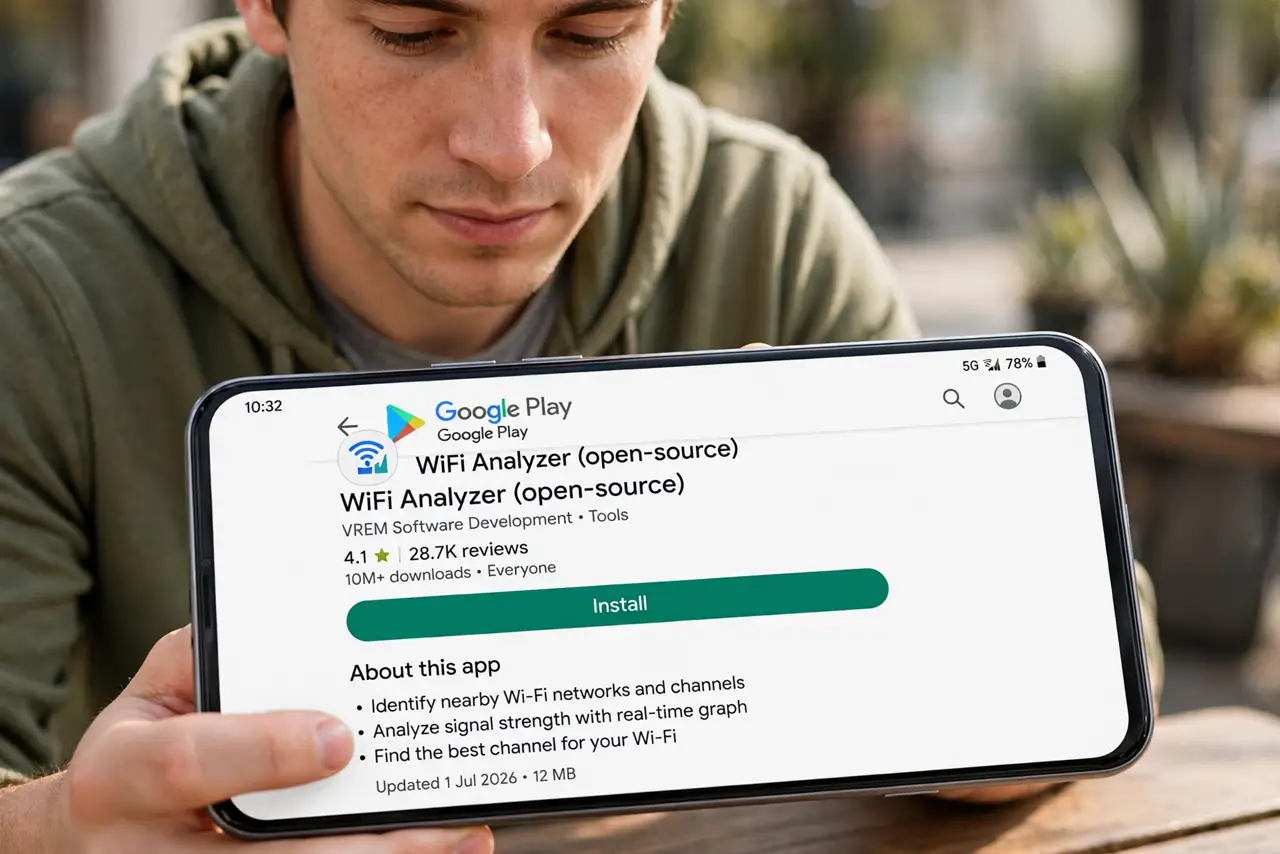
- See the congestion first. Install a free Wi-Fi analyzer app and look at the 2.4 GHz graph. Tall overlapping humps on your channel confirm the diagnosis.
- Open your router's admin page. Browse to the router's address (often 192.168.1.1 or 192.168.0.1) and sign in. The wireless settings hold the channel control.
- Switch 2.4 GHz to 1, 6, or 11. These three channels do not overlap each other. Pick whichever shows the fewest neighbor networks in your analyzer scan.
- Leave 5 GHz on auto for now. The 5 GHz band has many more channels and auto-selection usually copes. Fix 2.4 GHz first; it is where overlap hurts.
- Retest at the problem time. Check speed in the evening, when neighbor networks are busiest. A good channel choice shows its value at peak hours.
- Learn to [[change channels|change-wifi-channel]] confidently. Channel picking is a repeatable skill — neighbors change routers, and re-scanning twice a year keeps you on the cleanest channel.
What NOT to do
- Do not pick channel 3 or 9 to ‘split the difference’. In-between channels overlap two clean channels and make everything worse.
- Do not set 2.4 GHz to auto and hope. Many routers pick badly and never re-evaluate; a manual choice beats it.
- Do not expect miracles in an apartment tower. With 40 networks visible, 1/6/11 just picks the least-bad option — 5 GHz matters more there.
- Do not change channels daily. Pick the emptiest, then leave it; constant hopping confuses your devices.
Frequently asked questions
Why only channels 1, 6, and 11?
Each 2.4 GHz channel is wider than its spacing, so neighbors overlap. Only 1, 6, and 11 are spaced far enough apart to avoid mutual interference.
Will this help on 5 GHz too?
Rarely needed — 5 GHz has many non-overlapping channels and shorter range, so neighbor overlap is a mostly 2.4 GHz problem.
My router has no manual channel option — now what?
Some ISP routers hide it. Look for ‘advanced wireless’ settings, or consider a router that gives you real control.