Isolate Wi-Fi Clients
Every device on your Wi-Fi can theoretically see every other — phones probing laptops, smart bulbs chatting with who-knows-what. Client isolation (AP isolation) puts each device in its own lane: internet yes, snooping on neighbors no. It is the right default for guest networks and smart-home gear you do not fully trust.
TL;DR / Quick Fix
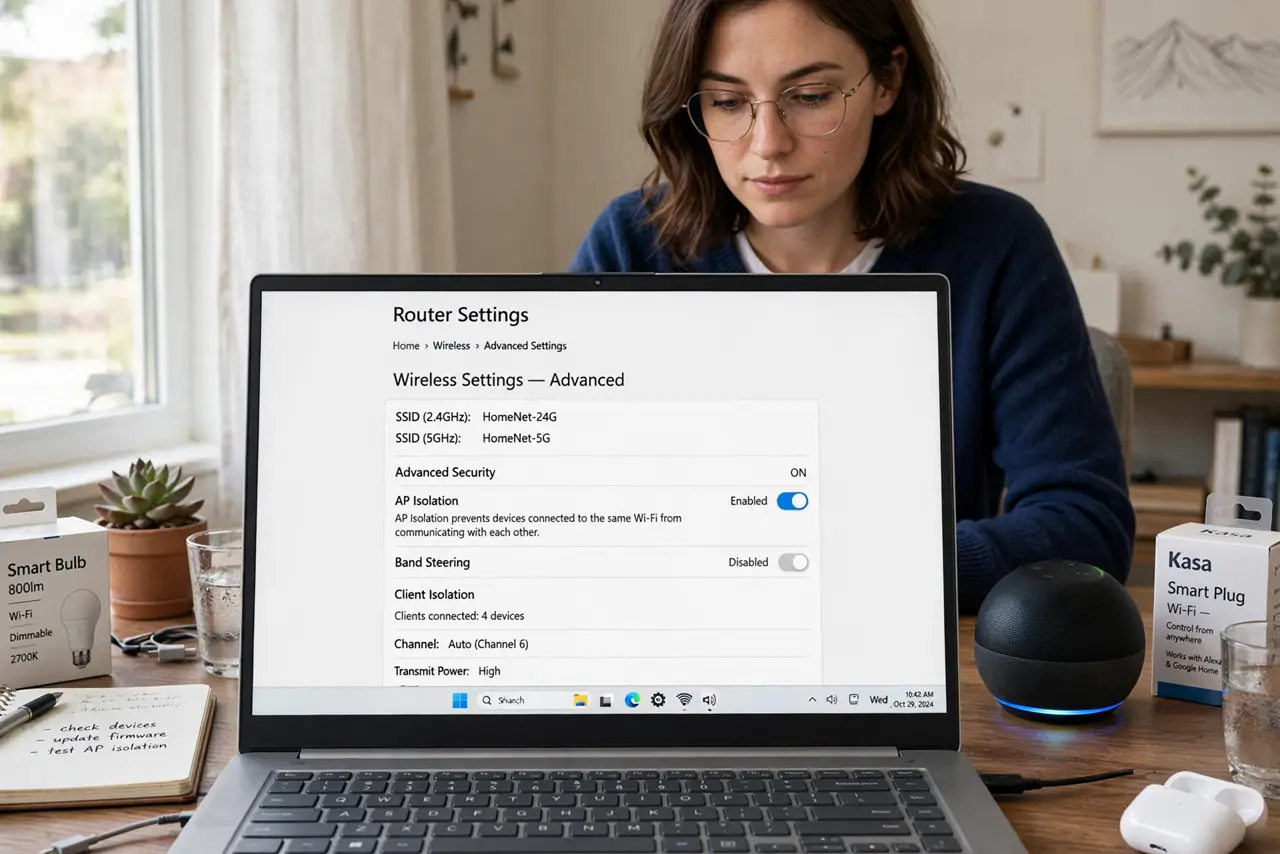
Quick fix: in your router settings, enable AP or client isolation on the guest network — and consider it for the smart-home network too. Devices keep full internet access but cannot see each other. Leave it off on your main network, where casting and printing need device-to-device chatter.
Follow these steps
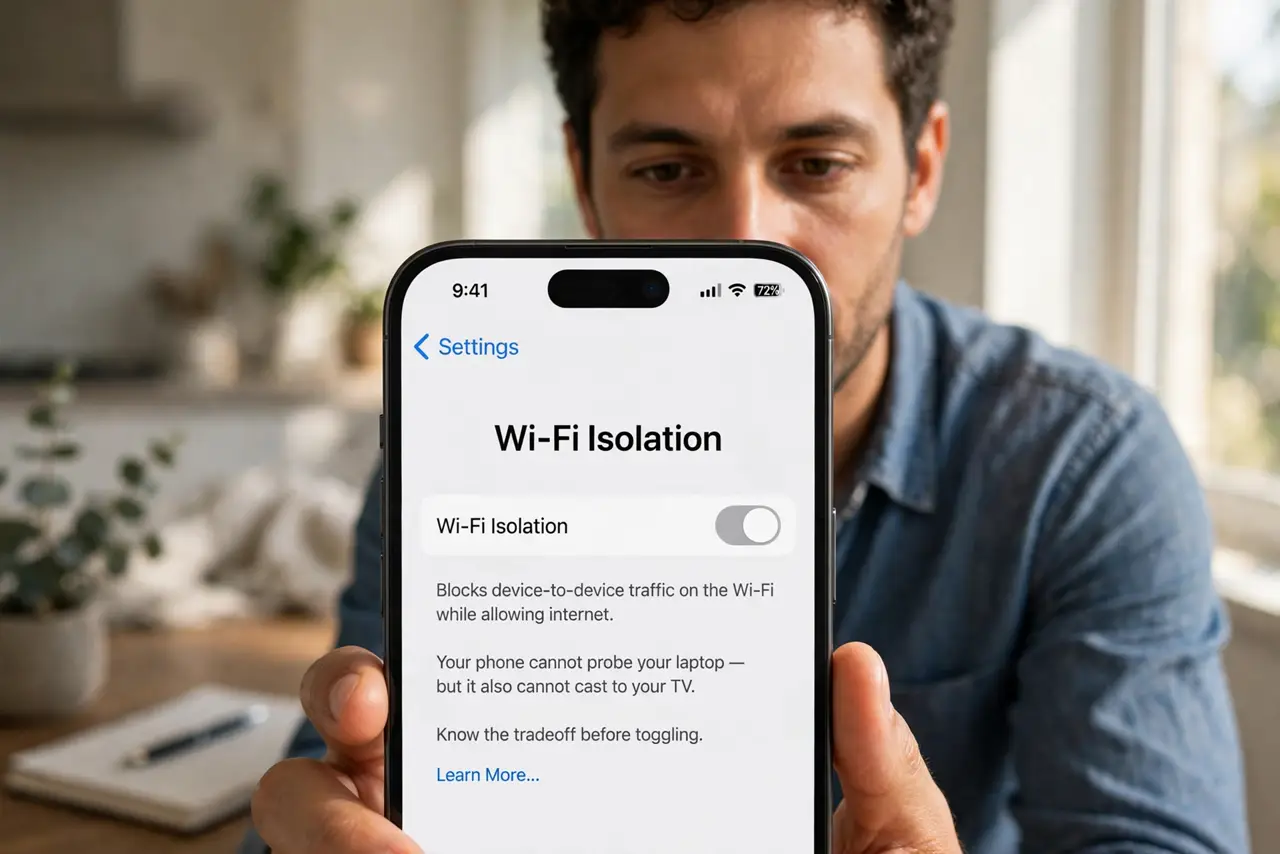
- Understand what isolation does. It blocks device-to-device traffic on the Wi-Fi while allowing internet. Your phone cannot probe your laptop — but it also cannot cast to your TV. Know the tradeoff before toggling.
- Enable it on the guest network. Guests get internet, not a tour of your devices. This is the textbook use — the setting usually lives under Wireless, Advanced, or the guest network page.
- Consider it for smart home gear. Cheap cameras and bulbs have spotty security histories. An isolated smart-home network contains a compromised gadget — it can phone home but cannot roam your LAN.
- Leave the main network open. Casting, AirPlay, network printing, file shares — all need device-to-device. Isolation on the main network breaks the conveniences you actually use.
- Test after enabling. Verify the printer still prints and the TV still casts from the main network. Isolation is per-network — confirm you toggled the right one.
- Pair with a strong guest password. Isolation plus a real password is the complete guest story. Open guest networks invite abuse; isolated-plus-password invites only guests.
What NOT to do
- Do not enable it on your main network blindly. Broken casting and printing are the immediate symptoms — guest and IoT networks only.
- Do not assume isolation equals encryption. It blocks local snooping; your internet traffic still needs its own protections.
- Do not forget wired devices. Isolation typically covers Wi-Fi only — a wired intruder is a different problem.
- Do not use it as the only smart-home security. Unique passwords and firmware updates matter as much as network walls.
Frequently asked questions
What is AP isolation?
A router feature blocking Wi-Fi clients from talking to each other — internet works, local snooping does not.
Will it break my Chromecast?
On the isolated network, yes — casting needs device discovery. Keep casting devices on the main network.
Should guests be isolated?
Yes, always. Guests need the internet, not your file shares — isolation is the polite default.