Client Steering? Explained
Your phone clings to the slow 2.4 GHz band while the fast 5 GHz band sits empty — because the phone chooses, and phones choose lazily. Client steering (band steering) is the router nudging devices onto the better band. Here is how it works and when it backfires.
TL;DR / Quick Fix
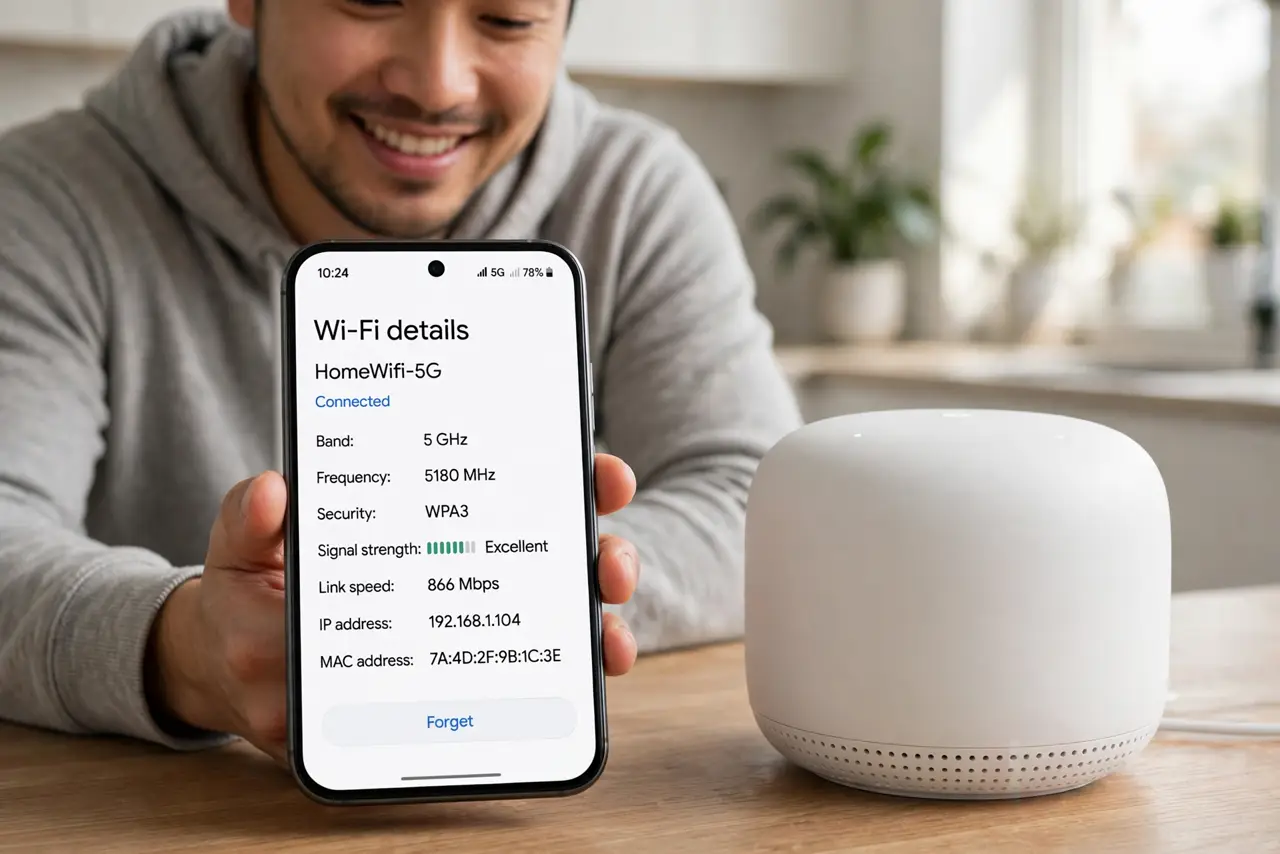
Quick fix: in your router or mesh settings, turn on band steering (often called client steering) so devices move to the faster 5 GHz band automatically. If a gadget keeps dropping after enabling it, turn steering off for that band.
Follow these steps
- Understand who decides the band. The client device picks its band, not the router. Steering just makes the router ‘suggest’ 5 GHz more persuasively — some devices still ignore it.
- Find the steering toggle. Look for ‘band steering’, ‘client steering’, or ‘smart connect’ in wireless settings. Mesh systems usually enable it by default.
- Turn it on and observe for a day. Most phones and laptops migrate to 5 GHz within hours. Check connected devices in the router app to confirm the migration.
- Watch for the stubborn gadget. Some IoT devices and old printers get confused by steering and drop repeatedly. Give them a dedicated 2.4 GHz-only network instead.
- Disable per-band if needed. If one band misbehaves, most routers let you disable steering for that band only — no need to nuke the whole feature.
- Know its roaming cousin. Steering picks bands; roaming aggressiveness picks access points. Both fight the same lazy-client problem.
What NOT to do
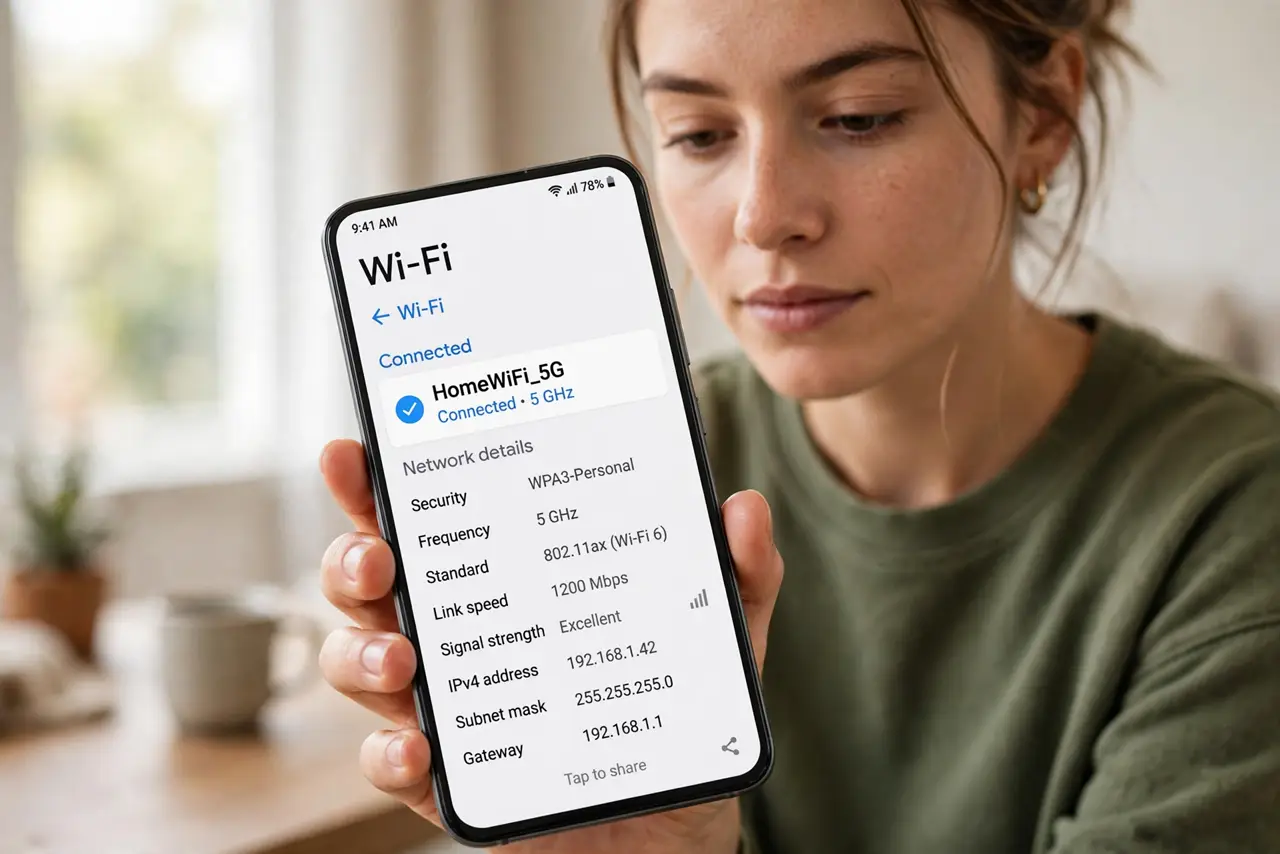
- Do not enable steering and assume every device moved. Check the client list — some devices need a nudge (toggle their Wi-Fi) to migrate.
- Do not use steering as a fix for weak 5 GHz coverage. If 5 GHz barely reaches a room, steering just pushes devices onto a bad signal.
- Do not forget IoT devices. Steering and cheap smart gadgets are a classic conflict pair; separate them early.
- Do not confuse steering with a mesh handoff. Steering changes bands on one router; roaming changes access points.
Frequently asked questions
Why does my phone stay on 2.4 GHz when 5 GHz is faster?
Phones prefer the stronger signal, and 2.4 GHz travels farther. The phone does not know 5 GHz would be faster — steering teaches the router to insist.
Will steering disconnect my devices?
Briefly, during the transition. A well-behaved steer is a quick re-association, not a painful drop.
Is Smart Connect the same as band steering?
Essentially yes — Smart Connect is a brand name for combining bands under one network name with steering between them.