Update Router Firmware
Your router has been running the same software since the day you plugged it in — years ago. Router firmware updates fix security holes, squash bugs, and sometimes add features, and most routers never install them on their own. Checking for an update takes five minutes and is the single most neglected piece of home-network hygiene.
TL;DR / Quick Fix
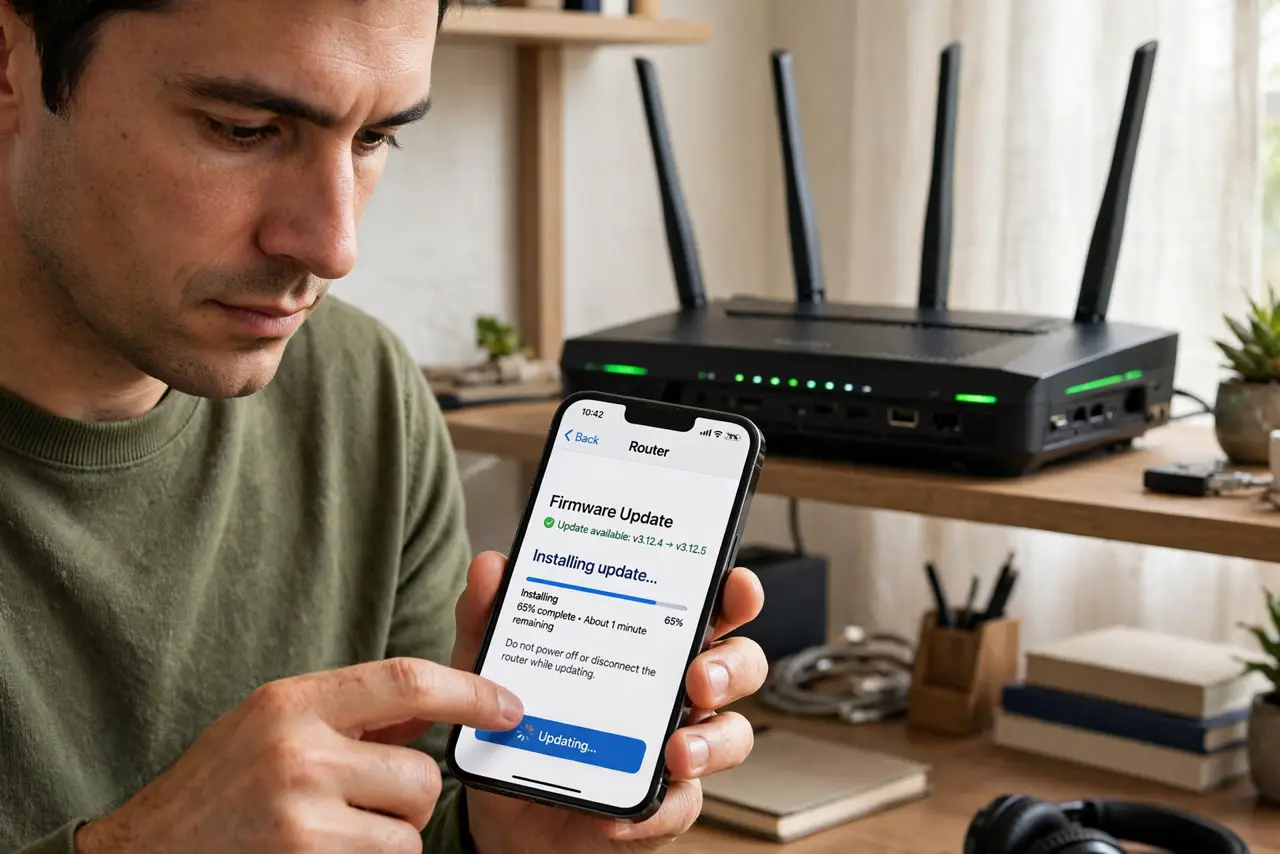
Quick fix: open your router's app or web settings, find the firmware or software update section, and install any available update. Do it over a wired connection or close to the router, and never unplug it mid-update. Check twice a year; set a calendar reminder so you actually do it.
Follow these steps
- Open the router settings. Use the router maker's app or type the router's address into a browser. You need the admin password — it is on the router's sticker if you never changed it. The update section lives under Administration, System, or Advanced.
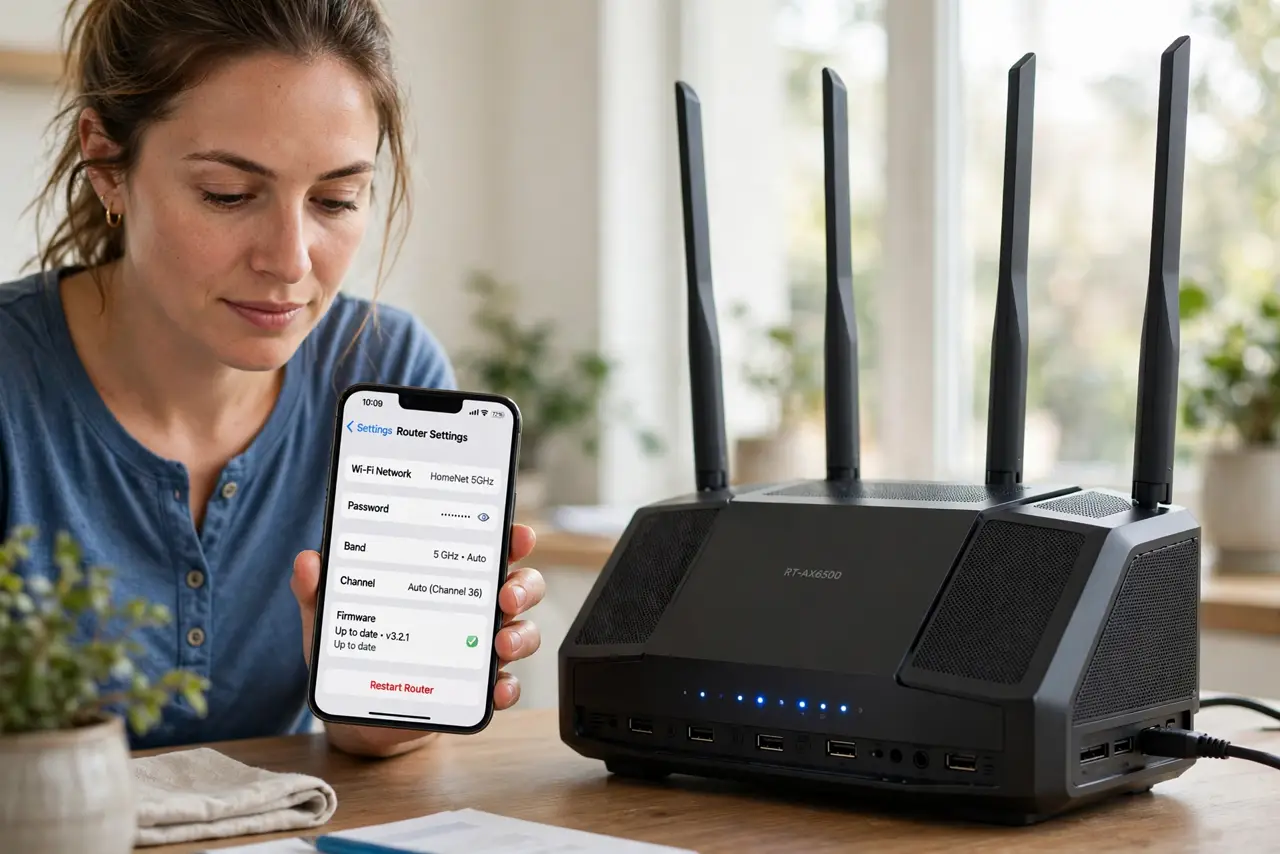
- Find the firmware update section. Look for Firmware Update, Software Update, or Router Update. The page shows your current version and whether a newer one exists — some routers check automatically, others need a manual Check button.
- Read what the update fixes. Skim the release notes before installing. Security fixes mean update now; feature additions can wait for a convenient moment. Knowing what changed also tells you what to test afterward.
- Install at a quiet moment. Start the update when nobody needs the internet — it takes five to fifteen minutes and the network drops during the restart. Do not start it before a video call.
- Never interrupt it. Do not unplug the router, close the app, or refresh the page mid-update. Interrupting a firmware write is the classic way to brick a router — patience is the whole job here.
- Verify and retest. After the restart, confirm the new version number shows in settings, then test your Wi-Fi in a couple of rooms. If something broke, most routers let you roll back to the previous firmware from the same page.
What NOT to do
- Do not unplug the router during an update. A half-written firmware is a dead router — let it finish no matter how long the progress bar stalls.
- Do not update over a shaky connection. Use the router app on strong Wi-Fi or a wired PC; a dropped admin session mid-update causes trouble.
- Do not ignore updates for years. Unpatched routers are a favorite target for botnets — the security fixes are the real reason to update.
- Do not confuse firmware update with factory reset. Updating keeps all your settings; resetting wipes them. You want the first one.
Frequently asked questions
How often should I update router firmware?
Check every six months. Enable automatic updates if your router offers them — then the question answers itself.
Will I lose my Wi-Fi password?
No. Firmware updates preserve all settings including your network name and password. Only a factory reset erases them.
The update failed. Now what?
Wait ten minutes — some updates look stuck before finishing. If the router is truly unresponsive, power-cycle it once; most recover and either complete or roll back.