Wi-Fi Password Correct but Rejected? Fix It
You type the Wi-Fi password exactly as shown, and the device still says it is incorrect. The usual causes are a hidden character, a changed password, a stale saved entry, or a router limit, not a broken device.
TL;DR / Quick Fix
Quick fix: retype the password slowly, watching capitals and similar characters, and forget the network before rejoining. If it still fails, check the password on the router label or router settings, and restart the router once. If it fails again, start from step one.
Follow these steps
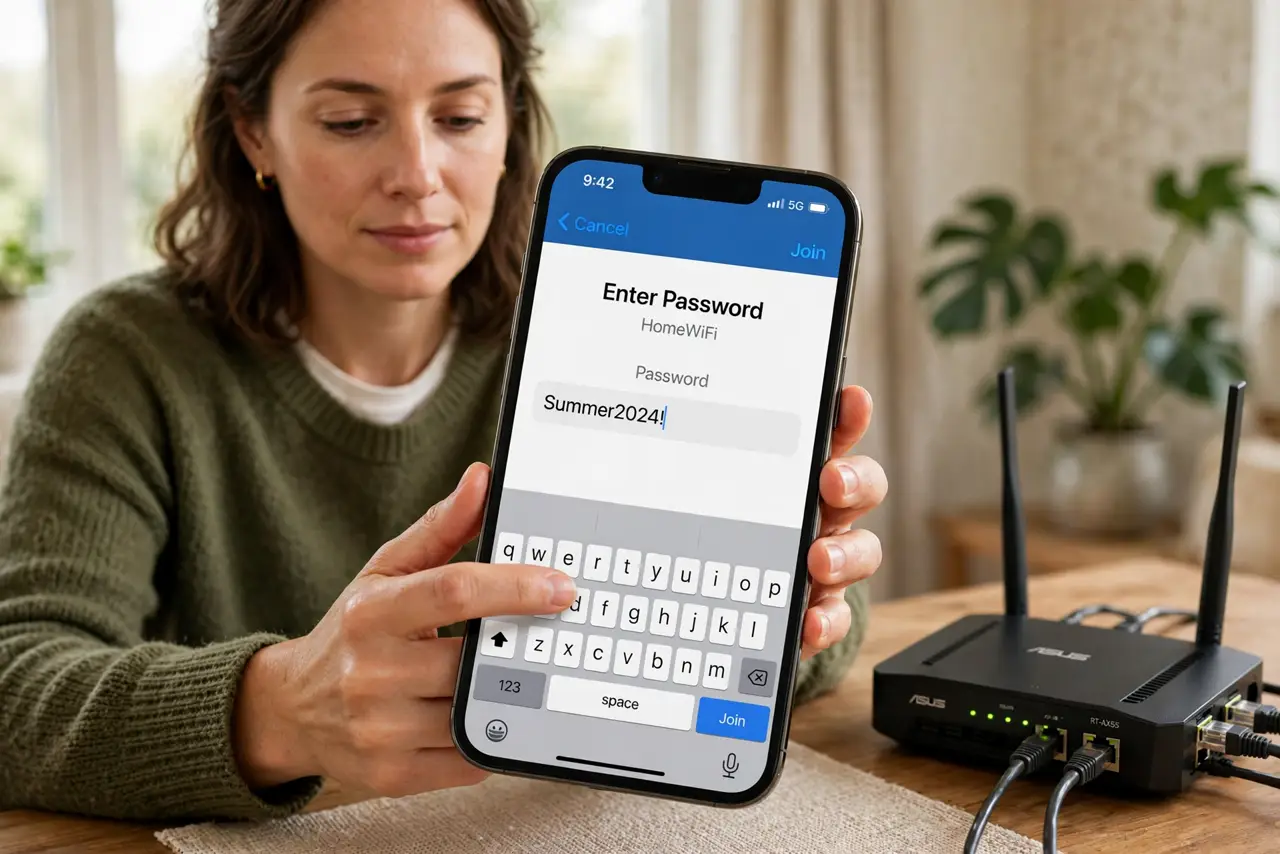
- Retype the password slowly. Type the password one character at a time, watching capitals, numbers, and lookalike characters such as zero and the letter O. A single wrong character rejects the whole password.
- Forget the network and rejoin. Forget the saved network on the device, then join it again and type the password fresh. A stale saved entry can keep sending an old password even when you type the new one.
- Check the router label and settings. Compare what you type with the password on the router label, or check the current password in the router settings if you changed it. Labels only show the original password, not a changed one.
- Restart the router and the device. Restart the router, wait for its lights to settle, and restart the device too. A restart clears a stuck authentication state on either side.
- Test a second device. Try joining with a second device and the same password. If the second device also fails, the password or router is wrong, not the first device.
- Reset the router only as a last resort. If nothing works and you cannot recover the password, reset the router, but only if you know your internet provider details. A reset wipes the Wi-Fi name and password, so you must set them again.
What NOT to do
- Do not keep guessing passwords dozens of times. Repeated failures can temporarily lock you out and still tell you nothing about the real password.
- Do not share the Wi-Fi password in a photo of the router label. That photo can spread further than you intend.
- Do not reset the router before checking the label and a second device. A reset is a big step for a problem a careful retype often solves.
- Do not turn off Wi-Fi security to avoid typing the password. An open network lets anyone nearby join, and that is a far bigger problem.
Frequently asked questions
Why is a correct-looking password rejected?
One character may differ, the saved entry may hold an old password, or the router password changed after the label was printed.
Does forgetting the network help?
Yes. It clears the stale saved password, so the device sends exactly what you type this time.
When should I reset the router?
Only when the password cannot be recovered any other way, and you know your provider details to set it up again.