Ping Your Router to Find Lag
Everything lags and you don't know whether to blame your Wi-Fi or your provider. One command settles it: ping your router. This tests only the wireless hop inside your home — clean results exonerate your Wi-Fi completely, and bad results convict it before you ever call the ISP.

TL;DR / Quick Fix
Quick fix: ping your router's address (usually 192.168.1.1) — under 5ms with no spikes means your Wi-Fi is healthy and the problem is beyond it. Spikes or timeouts point at local Wi-Fi trouble: interference, distance, or a struggling router. This one test splits every lag complaint in half.
Follow these steps
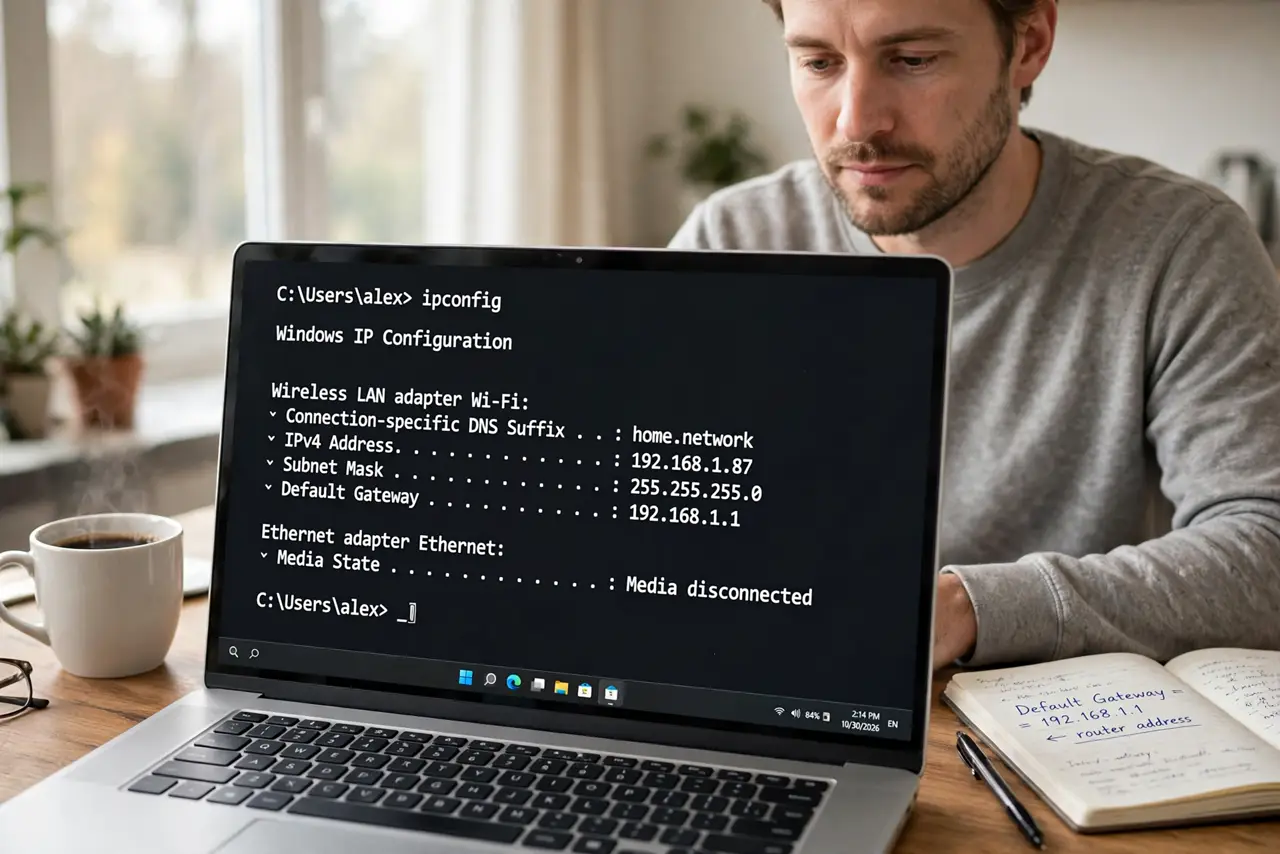
- Find your router's address. On Windows run 'ipconfig' and look for Default Gateway; on Mac check Network settings; on phones look in the Wi-Fi details. It's usually 192.168.1.1 or 192.168.0.1.
- Run an extended ping. Windows: 'ping -t 192.168.1.1' (stop with Ctrl+C). Mac/Linux: 'ping 192.168.1.1' runs until you stop it. Let it run a full minute — twenty quick pings don't catch intermittent spikes.
- Read the results. Under 5ms consistently with no timeouts: your Wi-Fi is innocent. Occasional spikes to 50–200ms: interference or congestion. Timeouts or sustained high ping: the wireless link is struggling — distance, obstacles, or a dying router.
- Move closer and re-test. Walk the laptop next to the router and ping again. If the numbers clean up, it's distance or obstacles — a placement or packet loss problem, not a broken router.
- Compare bands. Ping on 2.4 GHz, then on 5 GHz. If one band is clean and the other spikes, you've found both the diagnosis and the workaround in a single test.
- Escalate correctly. Clean router ping plus laggy internet means the problem is the line or beyond — take wired tests and traceroute results to the ISP. Bad router ping means fix your Wi-Fi first; the ISP can't help.
What NOT to do
- Do not ping a website for this test. That tests the whole internet path — useless for isolating your Wi-Fi. The router's local address is the whole point.
- Do not run four pings and conclude. Intermittent spikes hide in short samples — a full minute minimum, longer if the lag is sporadic.
- Do not blame the router instantly on bad results. Distance, interference, and a microwave running all spike router pings — rule those out before shopping.
- Do not forget other devices. A laptop backing up to the cloud saturates Wi-Fi airtime and spikes everyone's ping — check for hogs before diagnosing.
Frequently asked questions
What should router ping normally be?
1–5ms on Wi-Fi, under 1ms wired. Anything consistently above 20ms on an idle network deserves investigation.
Why does the first ping spike?
Normal — the first packet wakes up power-saving radios (ARP, Wi-Fi sleep). Judge by the sustained numbers, ignoring the first one or two.
Can I ping the router from my phone?
Yes — apps like PingTools or HE Network Tools do it. Same interpretation: low and steady is healthy, spiky is not.