Port Forwarding? Plain Basics
You want to host a game server, reach your home camera remotely, or run a personal cloud — but nobody outside your network can connect. Your router's firewall blocks incoming connections by default, and port forwarding is the controlled exception: it directs traffic on a specific port to a specific device. It's powerful but must be done carefully. Here is the safe basics.
TL;DR / Quick Fix
Quick fix: port forwarding directs incoming traffic on a chosen port to a specific device — needed for game servers and remote access. Configure it in your router's admin panel with port, device IP, and protocol. Forward only what you need, keep the device updated, and delete unused rules.
Follow these steps
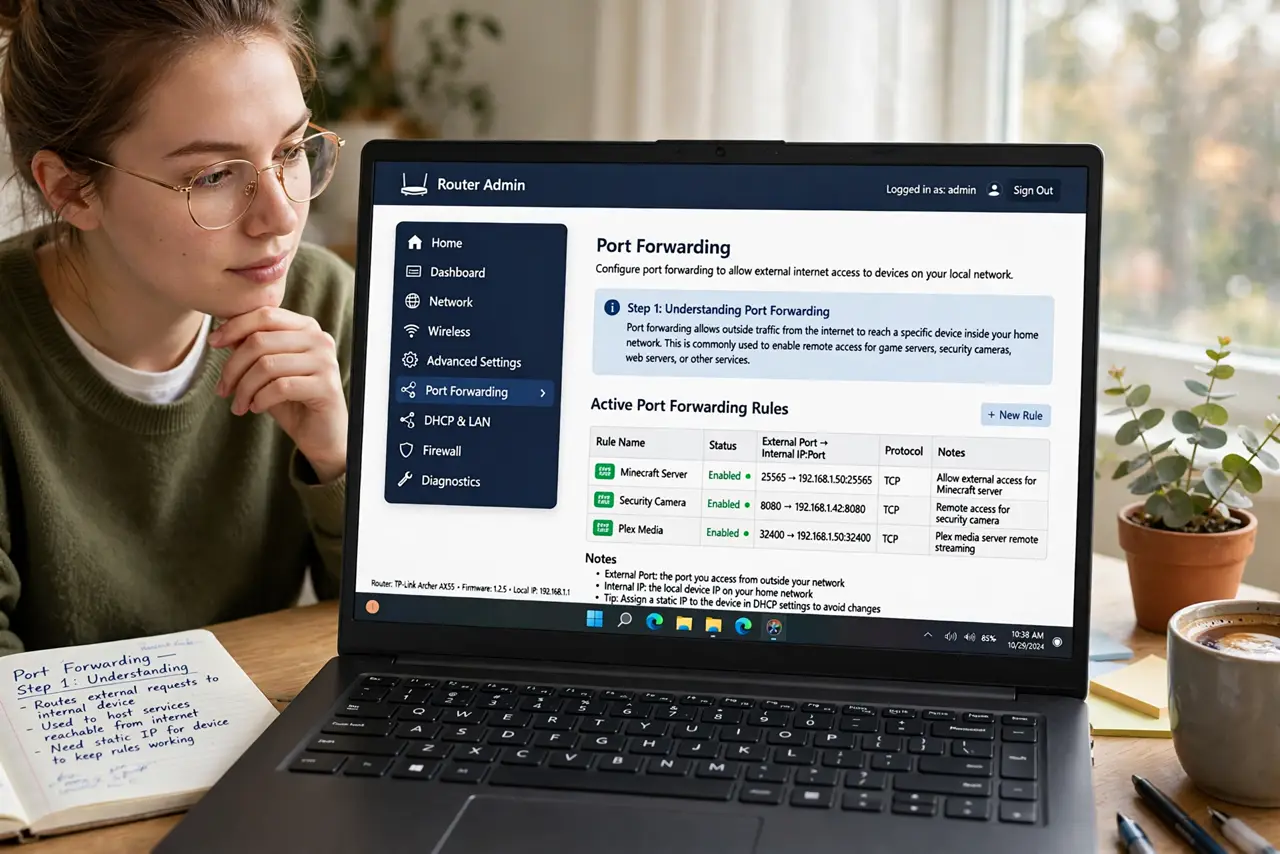
- Understand what it does. Normally your router blocks unsolicited incoming traffic. Port forwarding punches a specific, controlled hole: traffic arriving on port X goes to device Y. It's how the internet reaches your game server or camera through your router's firewall.
- Give the device a static IP. Forwarding points at an IP address — if the device's IP changes, the rule breaks. Set a static IP on the device or a DHCP reservation in the router. This is the step everyone skips and then debugs for an hour.
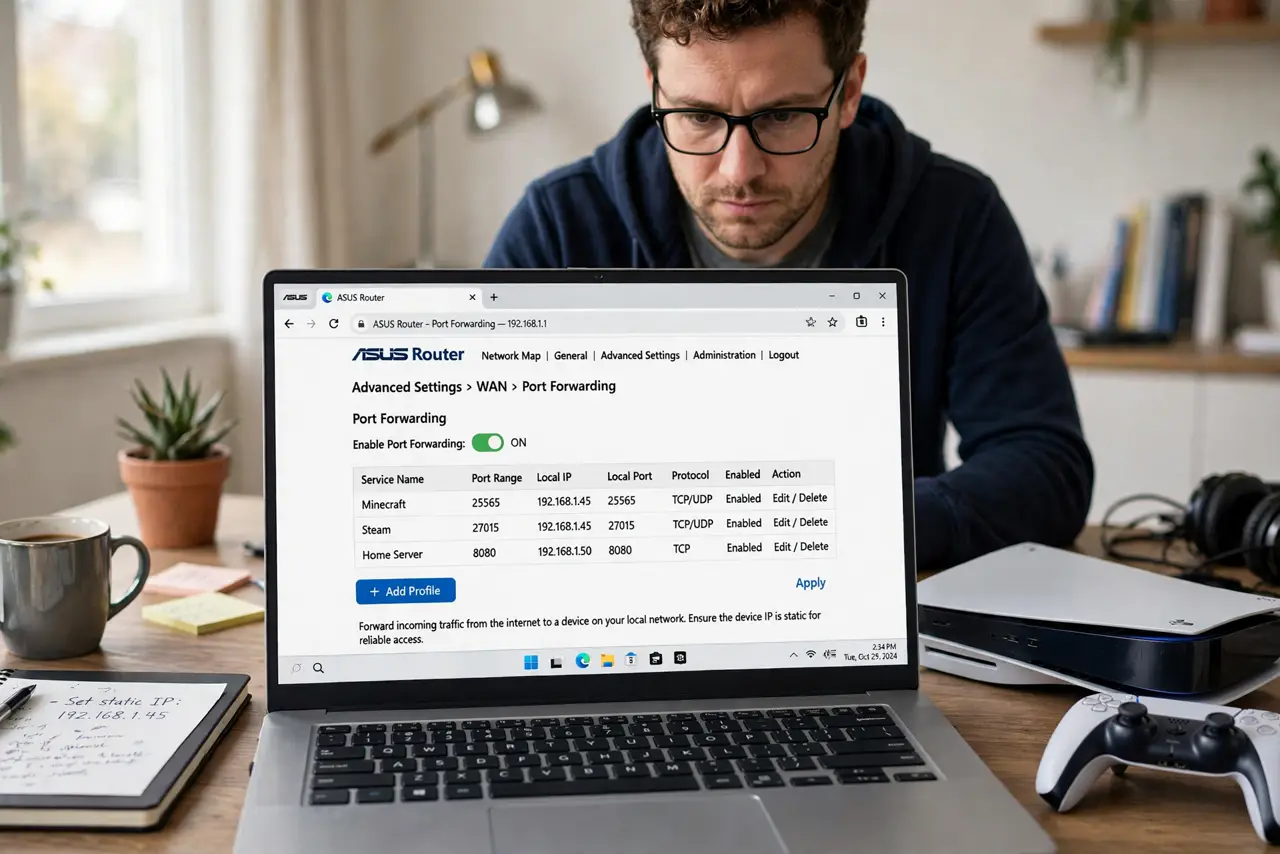
- Find your router's forwarding page. Log into the admin panel and look for Port Forwarding, Virtual Servers, or NAT settings. Create a rule: external port, internal IP, internal port, protocol (TCP/UDP). The game console guide walks through a concrete example.
- Choose the right port. Use the port your application documents — game servers, cameras, and services each specify theirs. Don't invent port numbers; wrong ports forward to nothing. One rule per service keeps things auditable.
- Test from outside. Check with a port-checker website or your phone on cellular (not Wi-Fi). If it's closed, recheck the IP, the port, and whether your ISP uses CGNAT — which blocks forwarding entirely for many customers.
- Clean up ruthlessly. Delete rules the moment you stop using the service. Every open port is an invitation for scanners. A yearly audit of your forwarding page is basic router hygiene.
What NOT to do
- Do not forward ports to a device you don't keep updated. An open port into an unpatched device is how home networks get compromised.
- Do not put the device in the DMZ instead. DMZ exposes ALL ports — it's the lazy, dangerous alternative to precise forwarding.
- Do not forward the router's own admin port to the internet. That hands attackers your router's login page — never do this.
- Do not assume forwarding works behind CGNAT. Many ISPs share public IPs; if yours does, forwarding can't function — call the ISP or use a tunnel service.
Frequently asked questions
Is port forwarding dangerous?
Done precisely for one service to one updated device, the risk is modest. Done sloppily — many ports, forgotten rules, unpatched devices — it's a real exposure. Precision and cleanup are the safety.
Why isn't my forwarded port open?
Usual suspects: device IP changed, wrong protocol (TCP vs UDP), ISP CGNAT, or a second firewall on the device itself. Check in that order.
What's the difference from UPnP?
UPnP lets apps open ports automatically — convenient, but apps can open ports without your knowledge. Manual forwarding is the controlled, visible alternative.