Slow After Router Update
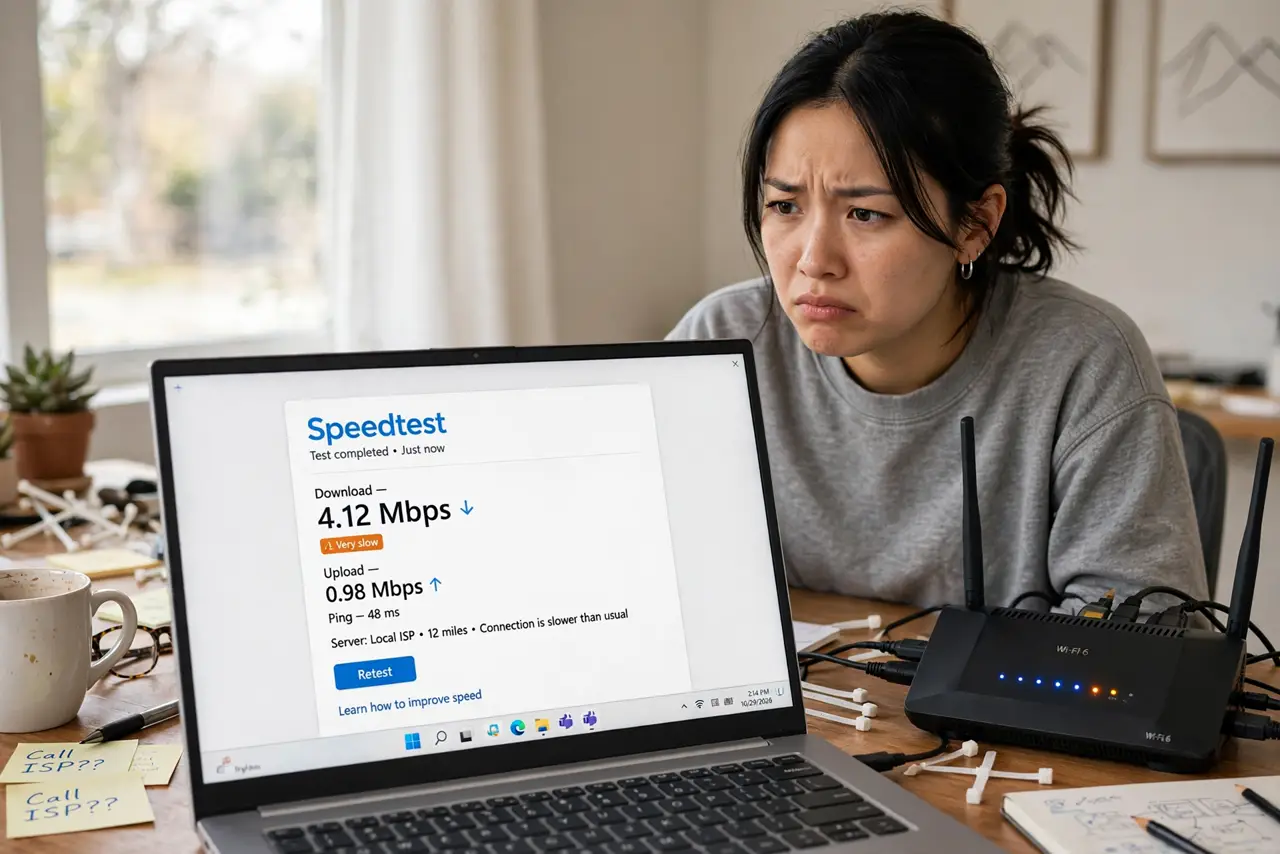
The router updated itself overnight and now everything crawls — pages stall, video buffers, the smart home sulks. Firmware updates occasionally ship with bugs, reset settings, or enable features your network hates. The good news: update-caused slowdowns have a short checklist and usually resolve without new hardware.
TL;DR / Quick Fix
Quick fix: restart the router — most post-update slowness is a bad boot, not bad firmware. Then check your Wi-Fi settings survived (band names, channels), and re-test. If speed is halved after a day, roll back the firmware or wait for a hotfix; do not factory reset in a panic.
Follow these steps
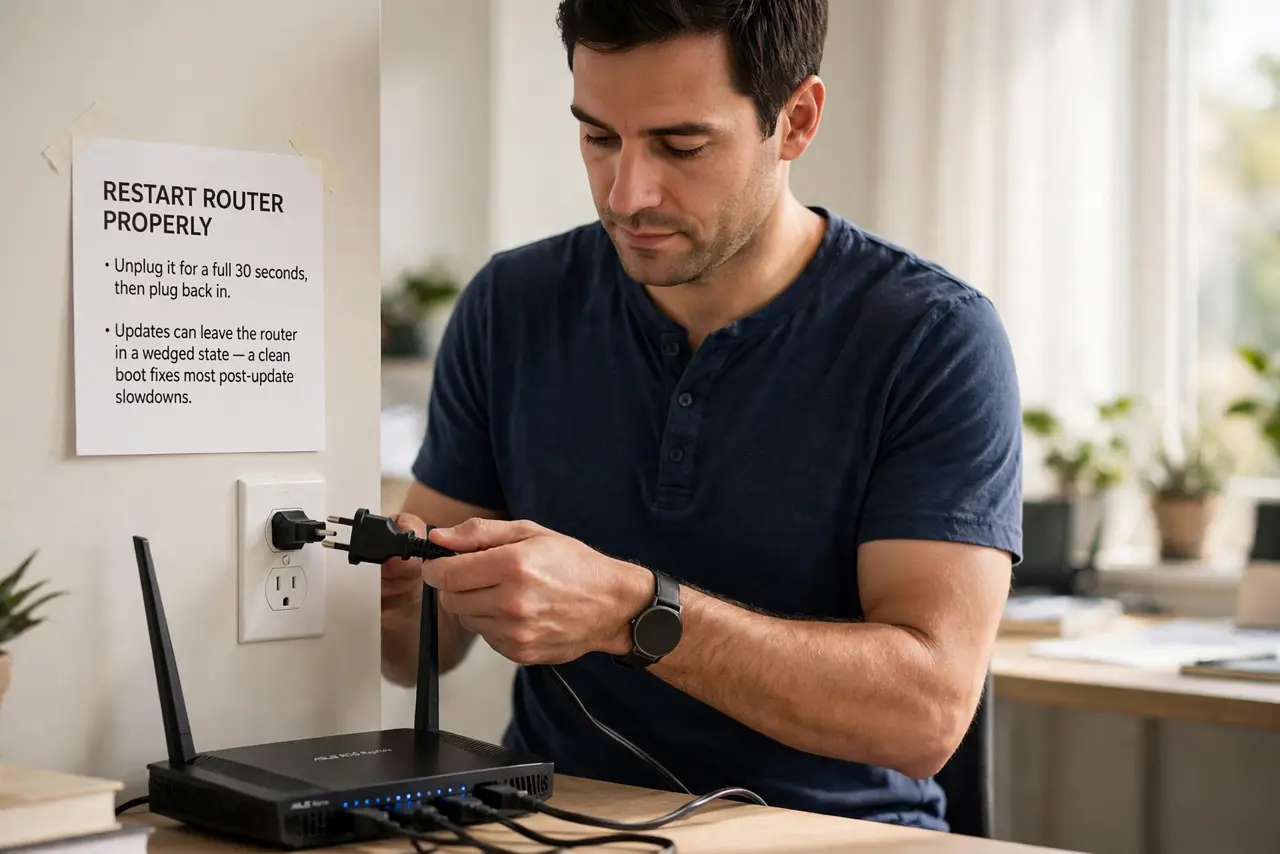
- Restart the router properly. Unplug it for a full 30 seconds, then plug back in. Updates sometimes leave the router in a wedged state — a clean boot fixes the majority of post-update slowdowns.
- Verify your settings survived. Updates occasionally reset Wi-Fi names, passwords, or channels to defaults. Log in and confirm your bands, channels, and passwords match what your devices expect.
- Re-test with one device wired. Plug a laptop into the router with ethernet and test. Fast wired plus slow Wi-Fi means the update broke wireless settings specifically — a narrower, fixable problem.
- Check what the update changed. The makers release notes or support forum often name the culprit — a new band-steering feature, a security change. Knowing what changed tells you what to toggle.
- Toggle the new features off. Band steering, smart connect, new QoS — updates love enabling these. If speed recovers with them off, leave them off until a fixed firmware lands.
- Roll back if it stays broken. Most routers let you reinstall the previous firmware from the admin page. A rollback beats weeks of crawling — and report the bug so the fix comes faster.
What NOT to do
- Do not factory reset immediately. A reset wipes your configuration for a problem a reboot usually fixes — reset is the last resort.
- Do not disable auto-update forever over one bad patch. One rollback plus a week of patience beats years of unpatched security holes.
- Do not assume the ISP is at fault. The timing — fine before the update, slow after — is the diagnosis.
- Do not flash third-party firmware in a panic. It voids support and can brick the router; exhaust official options first.
Frequently asked questions
How do I know the update caused it?
Timing is everything: full speed before, crawling after, no other changes. That correlation is the diagnosis.
Should I turn off automatic updates?
No — security patches matter more than convenience. One bad update in years is not worth permanent vulnerability.
The router has no rollback option — now what?
Wait for the hotfix (usually days), or contact support with your symptoms. Document speeds before and after for the ticket.