Wi-Fi Slow on One Device Only? Fix It
One phone or laptop crawls while every other device flies, and the problem follows that device around the house. The cause lives on the device itself, such as its band, its background work, or its network settings, not on the router.
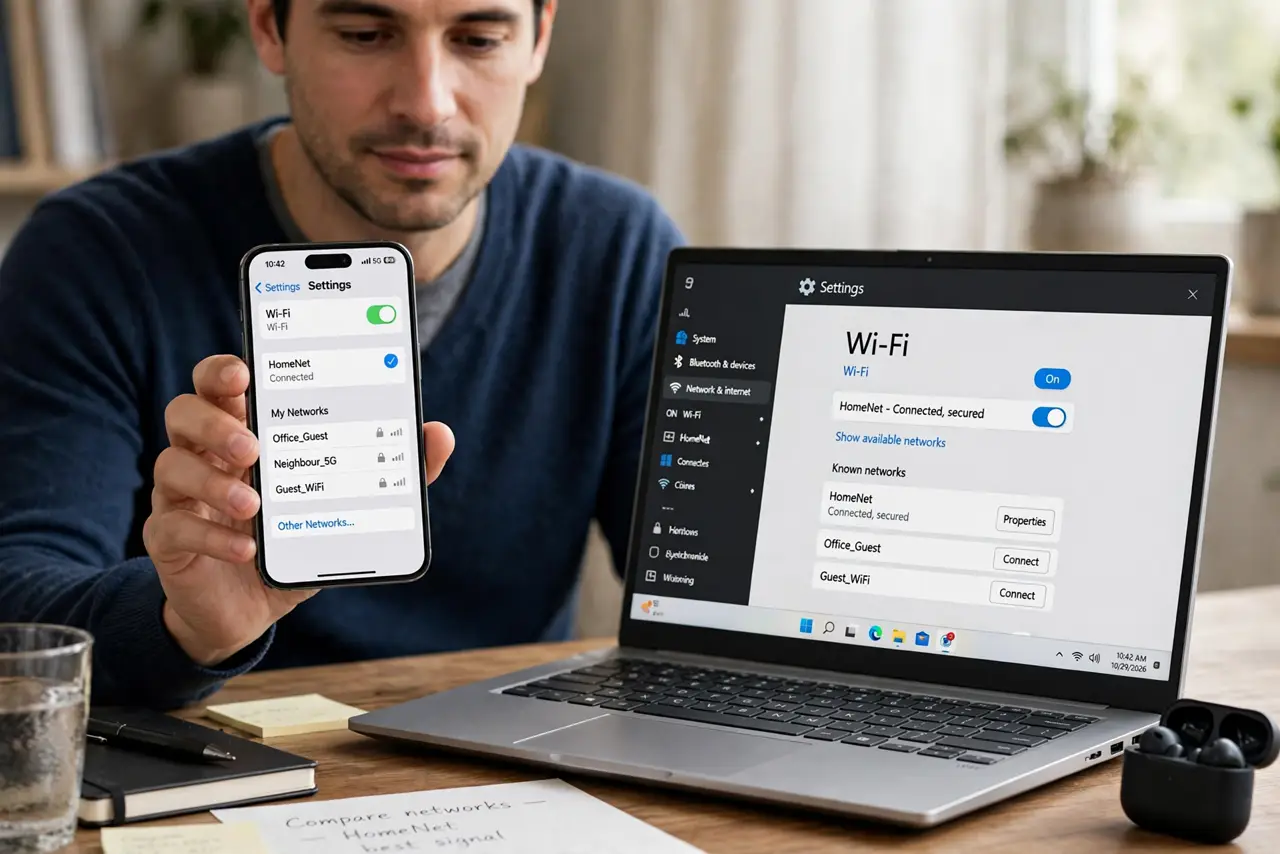
TL;DR / Quick Fix
Quick fix: test another device in the same spot to confirm only one device is slow. Then forget the network on the slow device, rejoin it, and close background downloads, backups, and video streams on that device. Write down what worked for next time.
Follow these steps
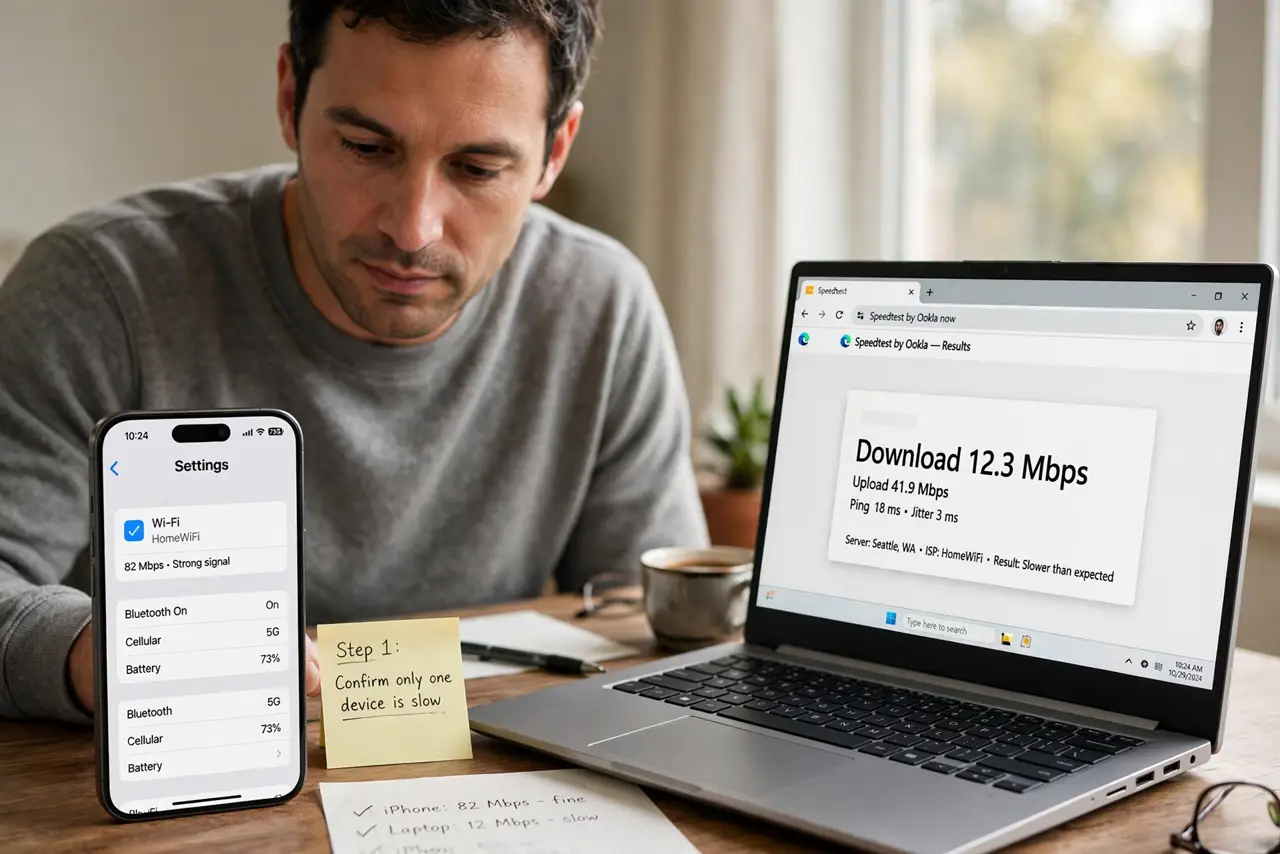
- Confirm only one device is slow. Test a second device in the exact same spot, loading the same page. If the second device is fast, the router and signal are fine, and the slow device is the problem.
- Forget the network and rejoin. On the slow device, forget the Wi-Fi network, then join it again with the password. A fresh join clears a stale connection that can throttle one device.
- Close background work on that device. Check for downloads, cloud backups, app updates, and open video streams on the slow device, and pause them. Background work eats the speed you are trying to measure.
- Check which band the device uses. If the device is on 2.4 GHz while others use 5 GHz, move it to 5 GHz near the router. A device stuck on the slower band will always test slower.
- Update the device software. Update the device operating system and, on a computer, its wireless driver if an update is offered. Old wireless software can cap speed on one device alone.
- Reset network settings on that device only. As a last step, reset network settings on the slow device, then rejoin Wi-Fi. This clears bad saved settings, but you will need to rejoin every saved network.
What NOT to do
- Do not reset the router for a one-device problem. A router reset disturbs every device to fix one, and it rarely helps when others are fast.
- Do not reinstall the operating system for slow Wi-Fi. Forgetting the network, updating software, and resetting network settings are far safer first steps.
- Do not test speed while the device backs up or updates. Background work hides the real speed and makes every test look bad.
- Do not ignore the band the device uses. A device on 2.4 GHz beside a router will test slower than a device on 5 GHz, and that is expected.
Frequently asked questions
Why is only one device slow?
That device may use a slower band, run background downloads, or hold a stale connection. The router is fine if other devices are fast.
Does forgetting the network delete anything?
No. It only removes the saved Wi-Fi entry on that device, so you rejoin with the password.
When should I reset network settings?
Only after forgetting, updating, and closing background work fail. Resetting clears all saved networks on that device.