Smart Connect? Basics
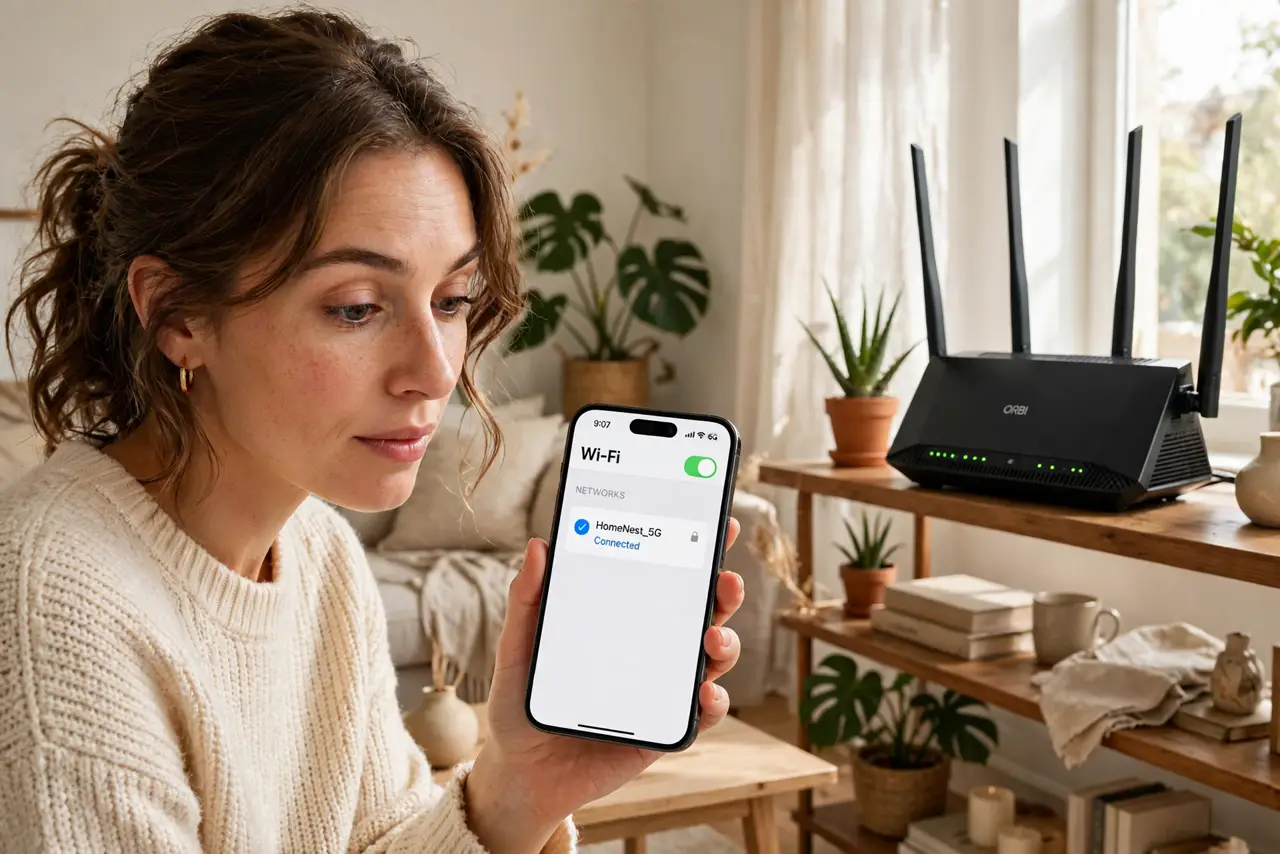
Smart Connect merges your router's 2.4 GHz and 5 GHz bands into a single network name and steers each device to the 'best' band automatically. It is convenient — one network, no choosing — but the steering sometimes guesses wrong, especially with smart home gadgets. This guide explains what it does and when to split the bands.
TL;DR / Quick Fix
Quick fix: Smart Connect merges your router's 2.4 GHz and 5 GHz bands into one network name and steers devices automatically. It is convenient but can confuse gadgets that need 2.4 GHz. If gadgets will not connect, temporarily split the bands during setup. Most people can leave it on.
Follow these steps
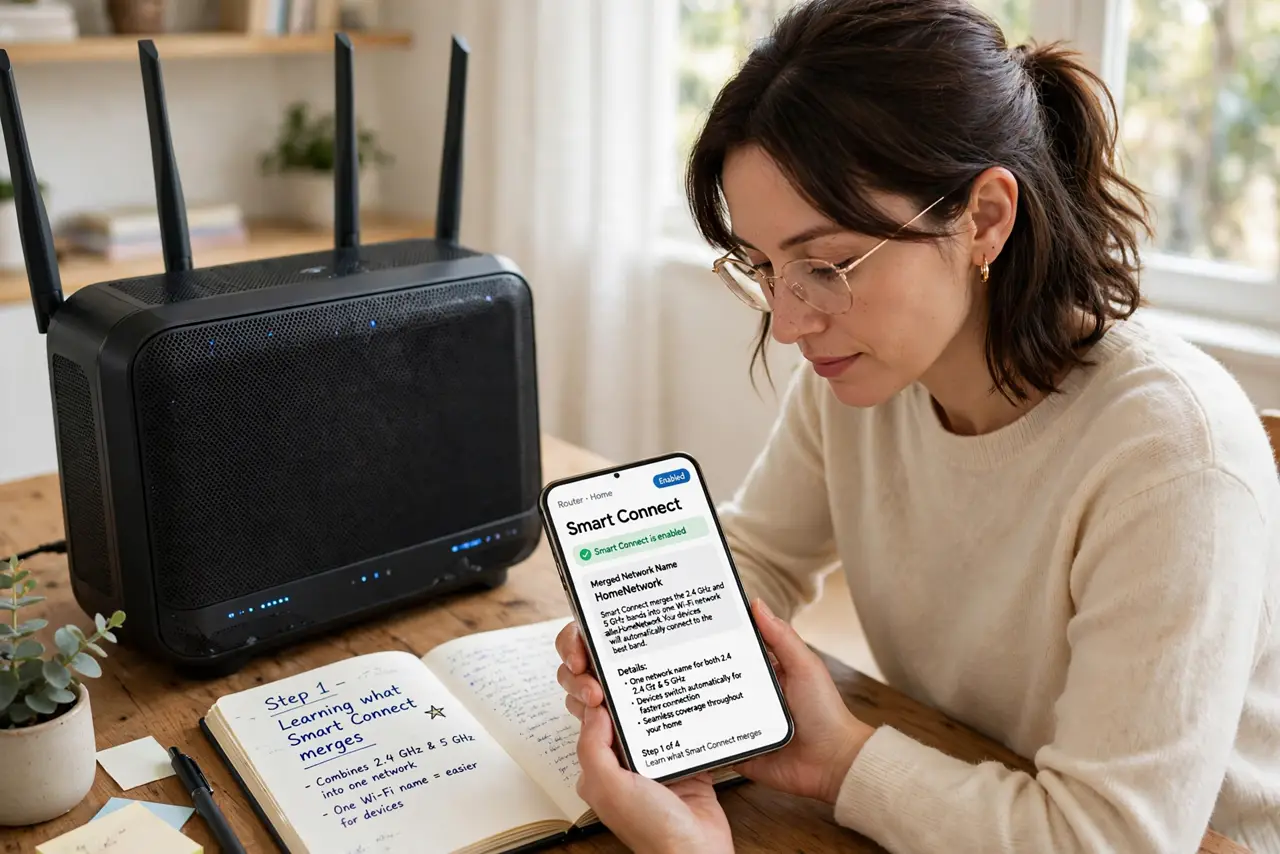
- Learn what it merges. Instead of 'Home-2.4' and 'Home-5' as separate networks, Smart Connect (also called band steering) presents one name. The router decides per device which band to use.
- Know why it exists. It stops the classic problem: phones clinging to a weak 2.4 GHz signal when 5 GHz is right there. Automatic steering keeps devices on the better band without you managing two networks.
- Meet the gadget problem. Smart home gadgets that only speak 2.4 GHz get confused during setup when the phone is steered to 5 GHz. This is the number one Smart Connect complaint — see why gadgets love 2.4 GHz for the full story.
- Split bands temporarily for setup. In the router settings, turn Smart Connect off briefly to expose separate band names, set up the gadget on 2.4 GHz, then re-enable. The gadget remembers its network afterward.
- Find the setting. It lives in the router's wireless settings — often under 'Smart Connect,' 'Band Steering,' or 'Whole-Home Wi-Fi.' The router app usually exposes it more clearly than the web admin page.
- Leave it on otherwise. For phones, laptops, and tablets, Smart Connect does a decent job. Only chronic mis-steering — a device constantly on the wrong band — justifies leaving the bands split permanently.
What NOT to do
- Do not split bands permanently on a hunch. Two networks to manage, devices on the wrong one, and double the confusion — split only for a real reason.
- Do not blame Smart Connect for slow internet. It manages bands, not your plan speed — if both bands are slow, the problem is upstream of the router.
- Do not forget which band a device is on. When troubleshooting, the router app shows each device's band — check there before assuming Smart Connect misbehaved.
- Do not expect perfection. Band steering is heuristic, not magic — occasional wrong guesses are normal and usually self-correct.
Frequently asked questions
Should I turn Smart Connect off?
Usually no — leave it on for the convenience. Turn it off temporarily when setting up 2.4 GHz-only gadgets, then turn it back on.
Why does my phone stay on 2.4 GHz?
The router thinks 5 GHz is too weak from where you are, or the phone is being sticky. Moving closer or toggling Wi-Fi usually prompts a re-steer.
Is Smart Connect the same as mesh?
No. Smart Connect manages bands on one router; mesh adds multiple access points for coverage. Many mesh systems include band steering too.