Survey Wi-Fi with Your Phone
One corner of the house has perfect Wi-Fi and the bedroom gets nothing — but where exactly does the signal die? Guessing leads to buying gadgets you do not need. A free analyzer app on your phone turns you into a surveyor, mapping signal strength room by room so every fix lands where it counts.
TL;DR / Quick Fix
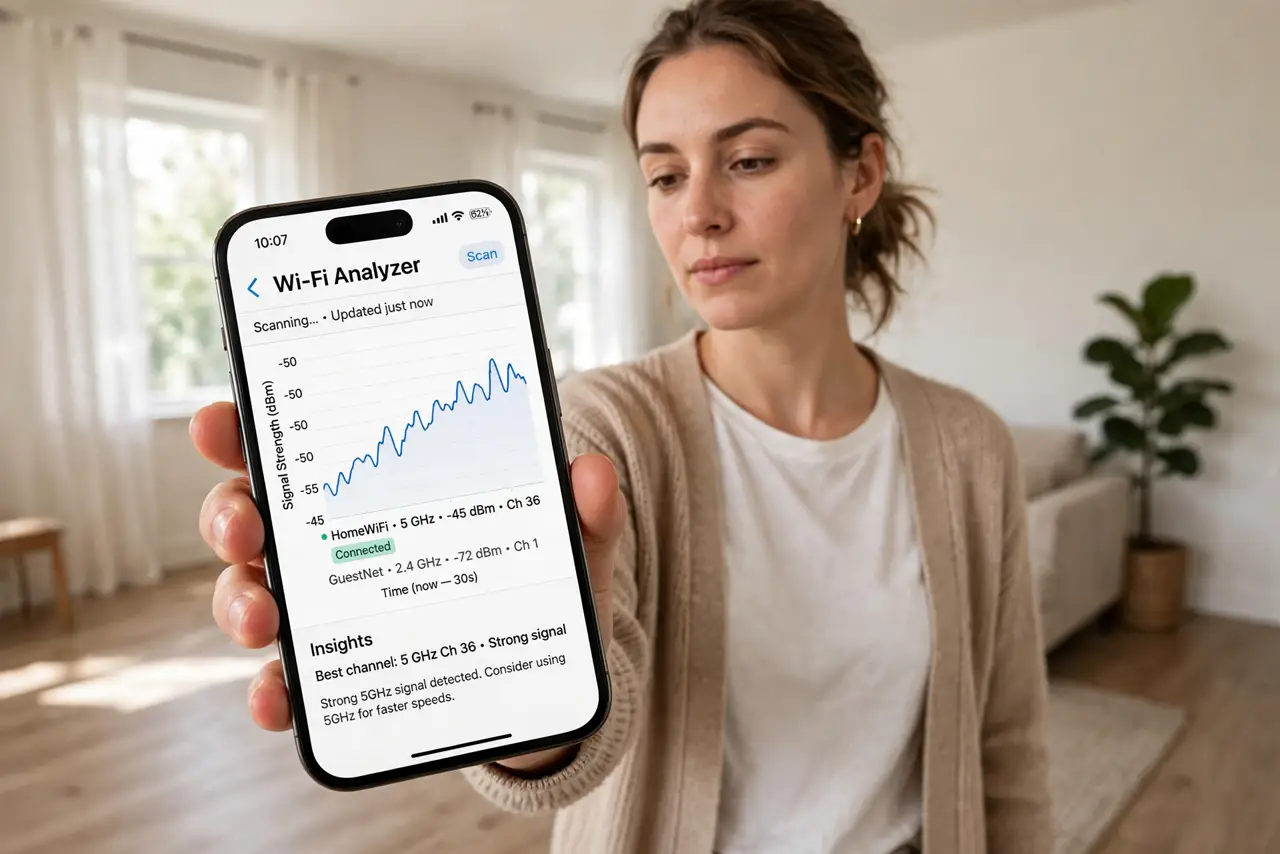
Quick fix: install a free Wi-Fi analyzer app, stand in each room, and note the signal — weaker than about -70 dBm is a dead zone. Walk slowly so readings settle. Then move the router centrally, raise it, or add an access point where the map shows red.
Follow these steps
- Install a Wi-Fi analyzer app. Grab a free, well-reviewed analyzer from your app store. You want one showing signal strength in dBm per network — the number is what matters.
- Stand still in each room. Signal readings bounce around, so pause 10-20 seconds per spot. Note the dBm for your network: -50 is excellent, -70 is weak, -80 is barely usable.
- Map the dead zones. Walk the whole home, including upstairs and the far corners. Mark where the signal drops below -70 — those are your real dead zones, not vibes.
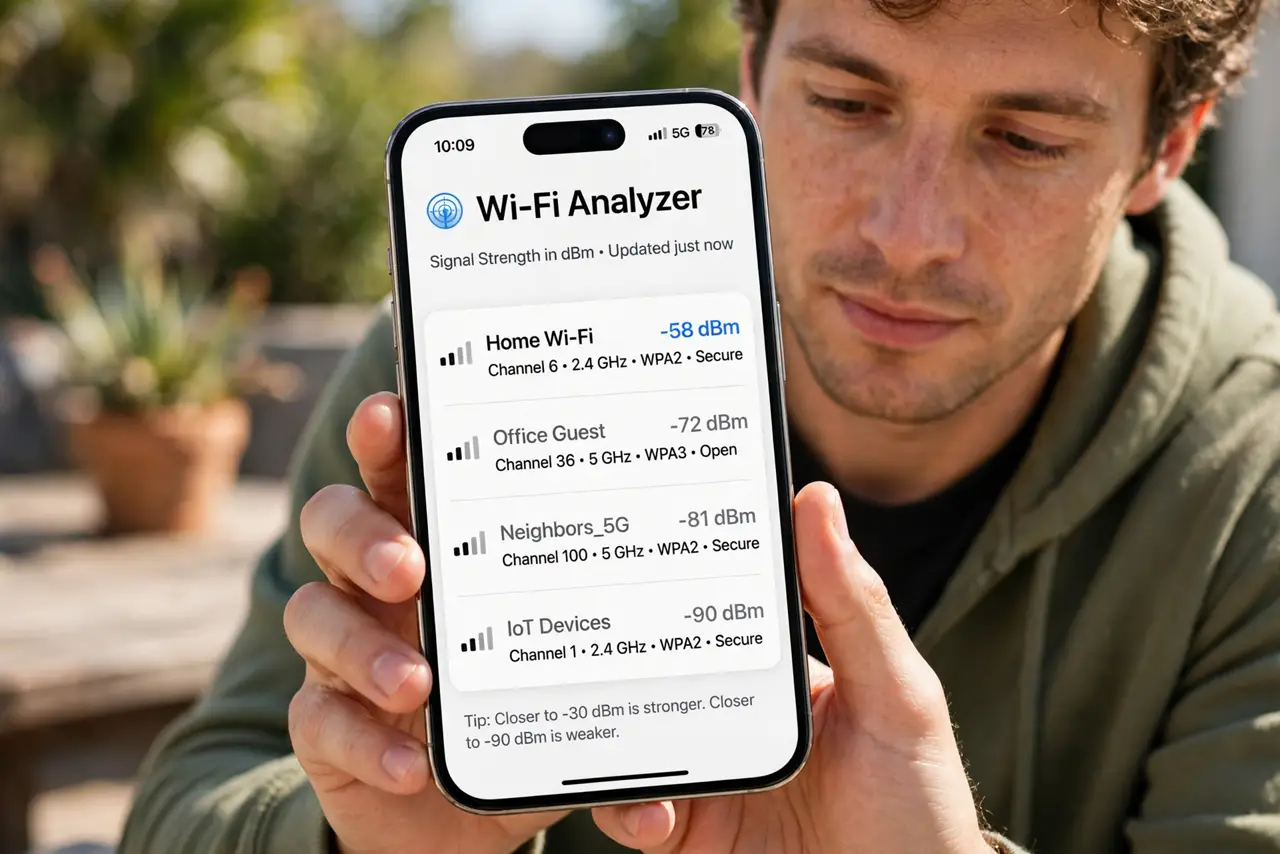
- Check for neighbor interference. The app shows nearby networks and their channels. If a neighbor blasts the same channel, switching yours is a free fix.
- Reposition based on the map. Move the router toward the center, up high, away from metal and mirrors — then re-survey. Small moves show up clearly in the numbers. Good router placement beats new hardware.
- Add hardware only where needed. If one room stays red after repositioning, that specific spot earns an access point or extender — bought with evidence, not hope.
What NOT to do
- Do not survey while walking fast. The numbers lag behind you, and you will map ghosts instead of real coverage.
- Do not test only next to the router. Of course it is strong there — the dead zones are the entire point of the survey.
- Do not buy a mesh system before surveying. You might just need the router moved three feet to the left.
- Do not ignore the 5 GHz vs 2.4 GHz split. Survey both — 5 GHz dies faster through walls, which explains many 'mystery' dead zones.
Frequently asked questions
What is a good dBm number?
-30 to -50 is excellent, -50 to -60 is good, -60 to -70 is fair, and below -70 is poor. Video calls want -65 or better.
Are phone analyzer apps accurate?
Accurate enough for home mapping. They read the same radio your phone uses, which is exactly the experience you are fixing.
Should I survey at a specific time?
Evening, when everyone is home and networks are busy — that is when performance matters most.