USB 3 Hurts 2.4 GHz Wi-Fi
Plug in a USB 3 external drive and the laptop's Wi-Fi falls apart — unplug it and everything recovers. This isn't a faulty drive: USB 3 ports and cables radiate noise smack in the 2.4 GHz band. It's a well-documented hardware quirk with simple workarounds.
TL;DR / Quick Fix
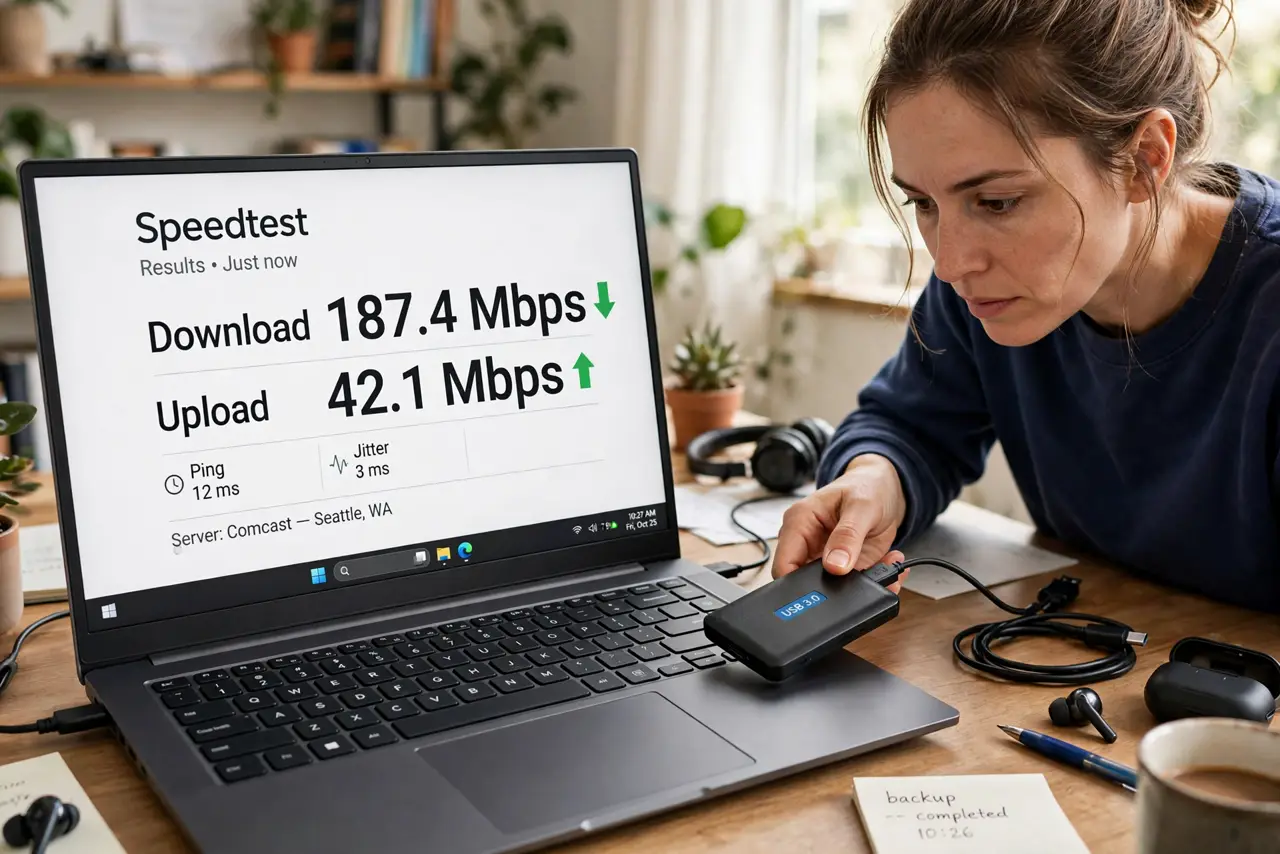
Quick fix: USB 3 ports and cables radiate noise in the 2.4 GHz band, which can cripple nearby laptop Wi-Fi. Move USB 3 drives and docks away from the laptop, use a shielded cable, or switch to 5 GHz. A hub sitting right beside the laptop is the classic culprit.
Follow these steps
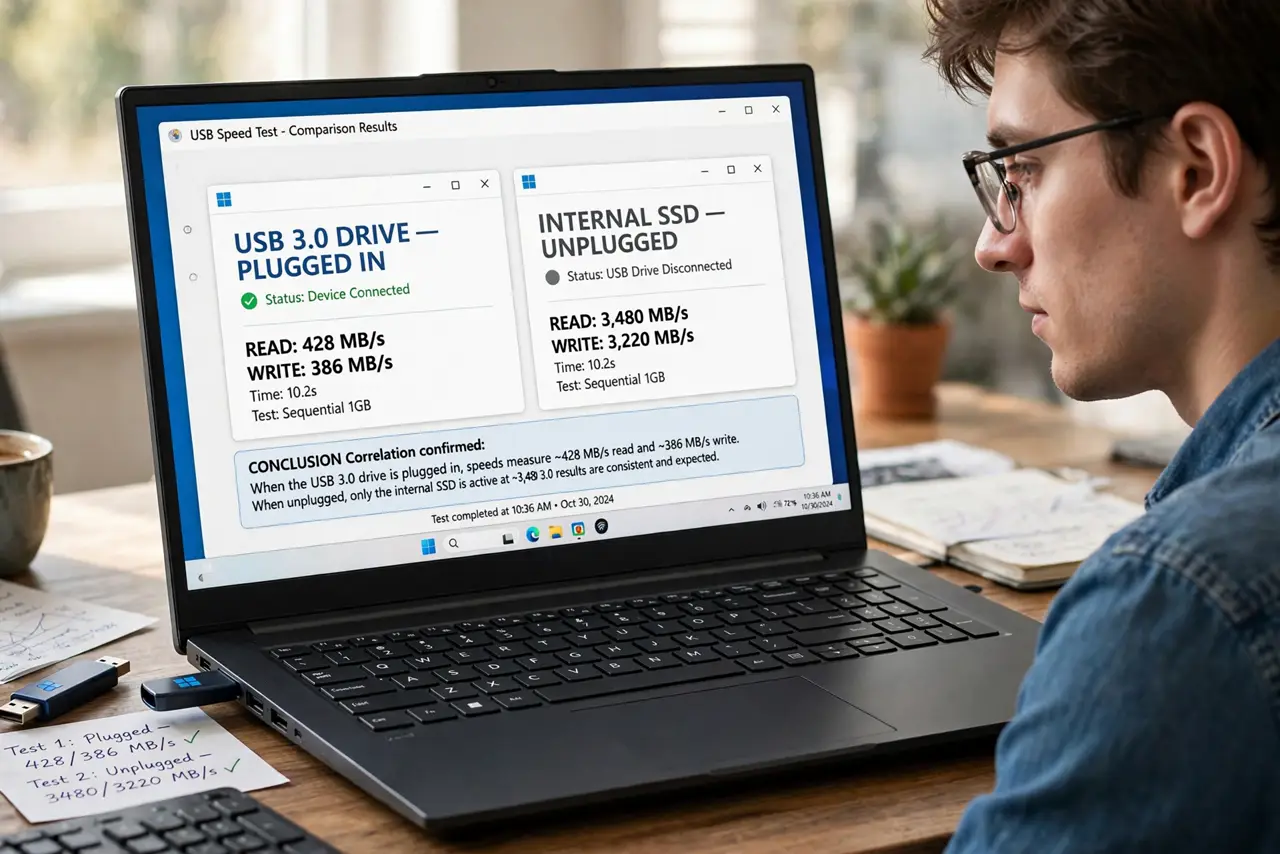
- Confirm the USB 3 correlation. Run a speed test with the drive plugged in, then unplugged. A dramatic difference — especially on 2.4 GHz but not 5 GHz — convicts the USB 3 noise, which is frequency-specific.
- Move the drive away from the laptop. The noise falls off quickly with distance. A drive on a short cable right beside the laptop is the worst case; a longer cable putting it a couple of feet away often suffices.
- Use a shielded, quality cable. Cheap unshielded USB 3 cables radiate far more noise. A well-shielded cable — look for ferrite cores or braided shielding — can cut the interference dramatically.
- Switch the laptop to 5 GHz. USB 3 noise lives in the 2.4 GHz band only. Moving the laptop to the 5 GHz band sidesteps the problem entirely, no cable changes needed.
- Rearrange the dock setup. Docks bristling with USB 3 ports are the heaviest offenders. Keep the dock away from the laptop's Wi-Fi antenna area (usually near the screen hinge) and prefer wired Ethernet from the dock if it offers it.
- Test the fix under load. Copy a large file to the USB 3 drive while running a speed test. Stable Wi-Fi during the transfer means the rearrangement worked.
What NOT to do
- Do not replace the drive over this. The drive is fine — USB 3 noise is a property of the standard, and a new drive radiates the same.
- Do not wrap cables in foil as a permanent fix. It looks terrible and helps little; a proper shielded cable is the real answer.
- Do not assume 5 GHz is affected. If 5 GHz also dies when the drive plugs in, you have a different problem — likely a bad port or driver.
- Do not ignore the hub. An unpowered bargain hub with four USB 3 devices is a noise fountain — fewer devices or a quality hub calms it.
Frequently asked questions
Why does USB 3 interfere but USB 2 doesn't?
USB 3 signaling runs at frequencies whose harmonics land in the 2.4 GHz band. USB 2's slower signaling stays clear of it — which is why the old ports never caused this.
Can a USB 3 hub kill Wi-Fi for the whole room?
It can degrade 2.4 GHz for nearby devices, yes — though the effect is strongest within a few feet. The laptop sitting on the hub suffers most.
Is this a defect I should report?
No — it's a known characteristic documented by Intel years ago. Workarounds (distance, shielding, 5 GHz) are the official remedy, not replacements.