Zigbee Gadgets vs Wi-Fi?
Your smart bulbs flicker offline and the Wi-Fi slows every evening — and the common thread is the little Zigbee hub blinking on the shelf. Zigbee smart-home gadgets live on the 2.4 GHz band alongside Wi-Fi, and when their channels overlap, both suffer. The fix is a two-minute channel change.
TL;DR / Quick Fix
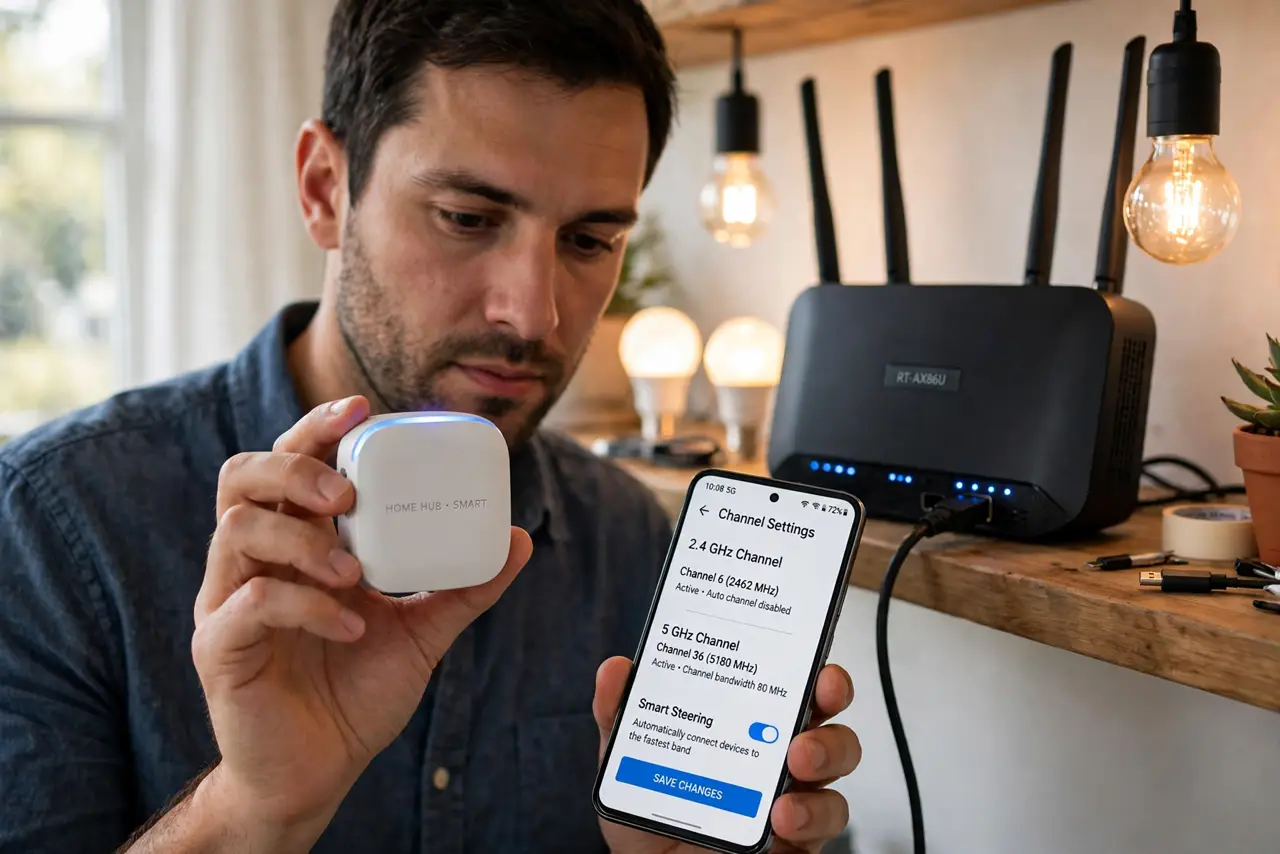
Quick fix: Zigbee gadgets (bulbs, sensors, hubs) share 2.4 GHz with Wi-Fi and can crowd its channels. Set the Zigbee hub to channel 25 or 26 — from Wi-Fi channels 1, 6, and 11 — and keep it a few feet from the router. Interference fades once channels stop overlapping.
Follow these steps
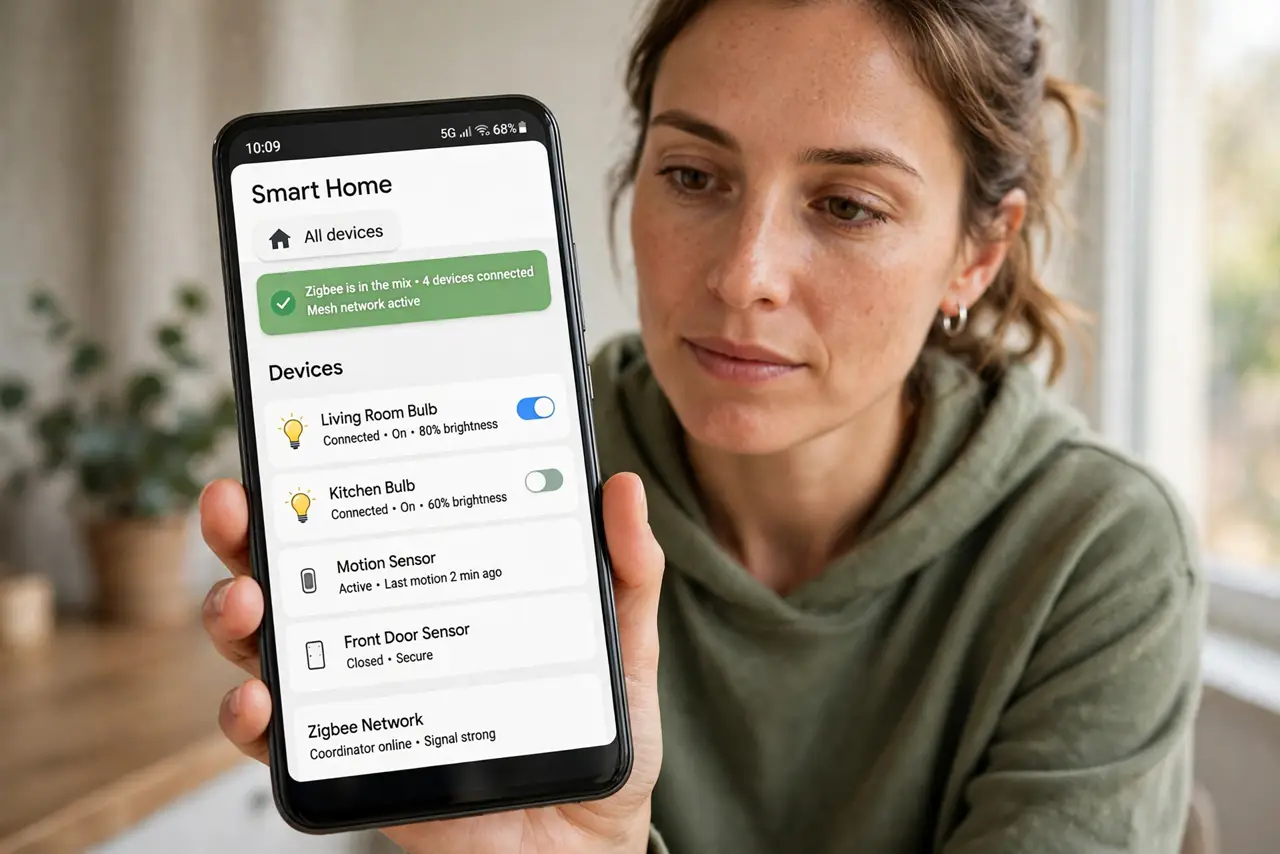
- Confirm Zigbee is in the mix. If you run Philips Hue, IKEA Dirigera, or similar hubs with bulbs and sensors, you have Zigbee. Symptoms: smart devices go unreachable exactly when Wi-Fi is busiest — the two are colliding.
- Learn the channel overlap. Zigbee channels 11–24 sit inside the 2.4 GHz band; Wi-Fi uses channels 1, 6, and 11. Zigbee channels 25 and 26 sit above Wi-Fi channel 11 — the quiet corner where they stop overlapping.
- Move the Zigbee hub to channel 25 or 26. In the hub's app, change the Zigbee channel to 25 (or 26). The hub re-forms its mesh on the new channel — devices rejoin automatically within minutes.
- Keep the hub a few feet from the router. Even on separate channels, a hub stacked on the router desensitizes both radios. A few feet of separation plus non-overlapping channels ends nearly all interference.
- Check Wi-Fi channel choice too. If your router is on Wi-Fi channel 11 and Zigbee sits on 25/26, they coexist peacefully. Avoid the crowded middle — and see apartment congestion if neighbors complicate the choice.
- Re-test the smart devices under load. Run a big download while toggling smart bulbs. Responsive bulbs during heavy Wi-Fi means the channels are finally clear of each other.
What NOT to do
- Do not put the Zigbee hub in Wi-Fi channel auto-chaos. Some hubs pick a channel at setup and never move — check it manually once rather than trusting defaults.
- Do not stack the hub on the router. Co-located radios interfere regardless of channels — physical separation is half the fix.
- Do not rebuild the whole smart home first. A channel change fixes most Zigbee/Wi-Fi fights; re-pairing dozens of bulbs is the last resort, not the first.
- Do not confuse Zigbee with Z-Wave. Z-Wave uses sub-1 GHz frequencies and never interferes with Wi-Fi — only Zigbee shares the 2.4 GHz band.
Frequently asked questions
What is Zigbee, exactly?
A low-power mesh protocol for smart-home gadgets — bulbs, sensors, switches. The hub bridges them to your network, and the gadgets chatter among themselves on 2.4 GHz.
Will changing the Zigbee channel break my devices?
No — the hub announces the move and devices follow within minutes. You might see bulbs briefly unreachable during the transition, then everything returns.
Do Thread/Matter devices interfere too?
Thread also uses 2.4 GHz and can overlap Wi-Fi similarly. The same remedy applies: keep its channel clear of your Wi-Fi channel.