The Start Menu? A Tour
The Windows 11 Start menu moved to the center, lost its live tiles, and left a lot of people hunting for things that used to be one click away. Underneath the new look it is actually simpler: pinned apps, recommended files, and a search box that finds everything. Give it ten minutes and it stops feeling foreign. Here is the full tour.
TL;DR / Quick Fix
Quick fix: press the Windows key to open Start — pinned apps sit up top, the search box finds anything, and All apps lists everything installed. Right-click any app to pin, unpin, or uninstall it. Set taskbar alignment to Left in Settings if centered feels wrong.
Follow these steps
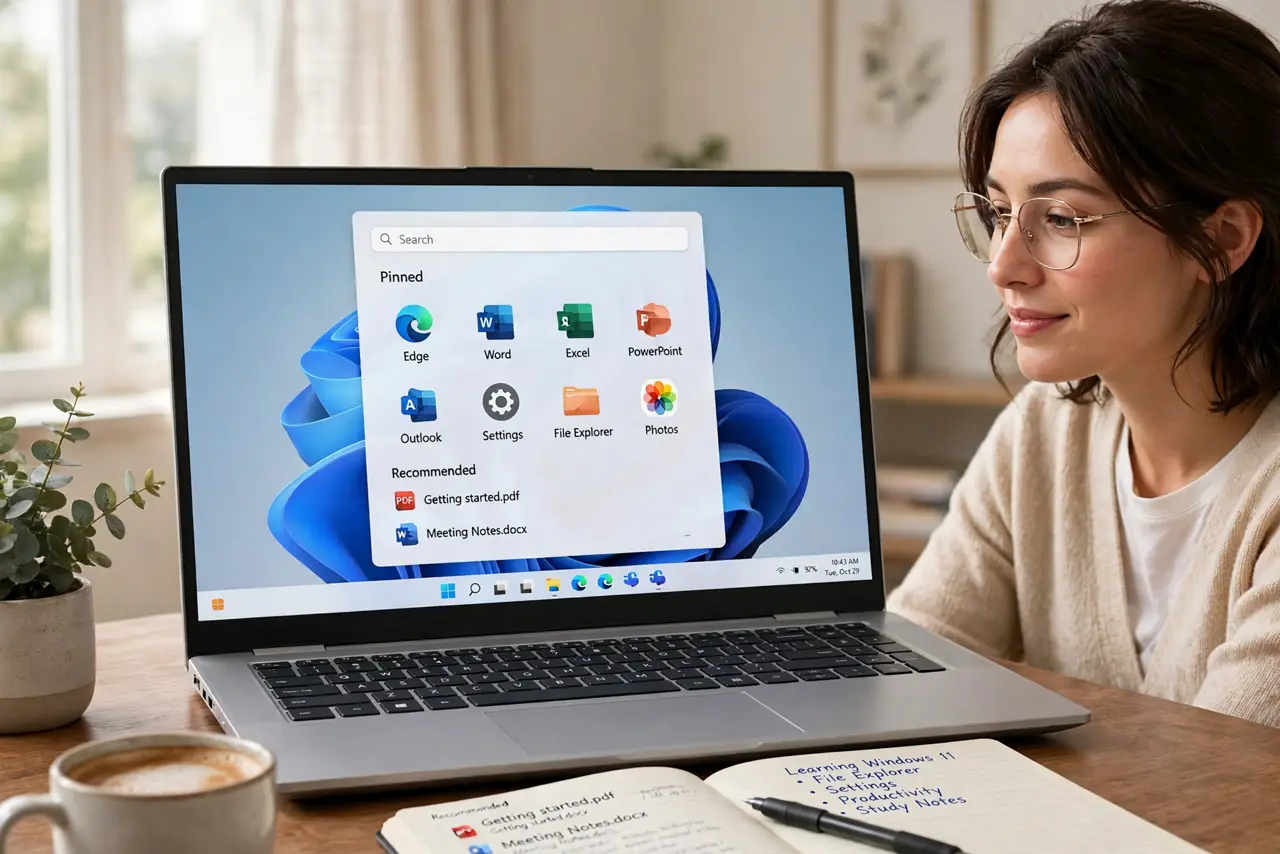
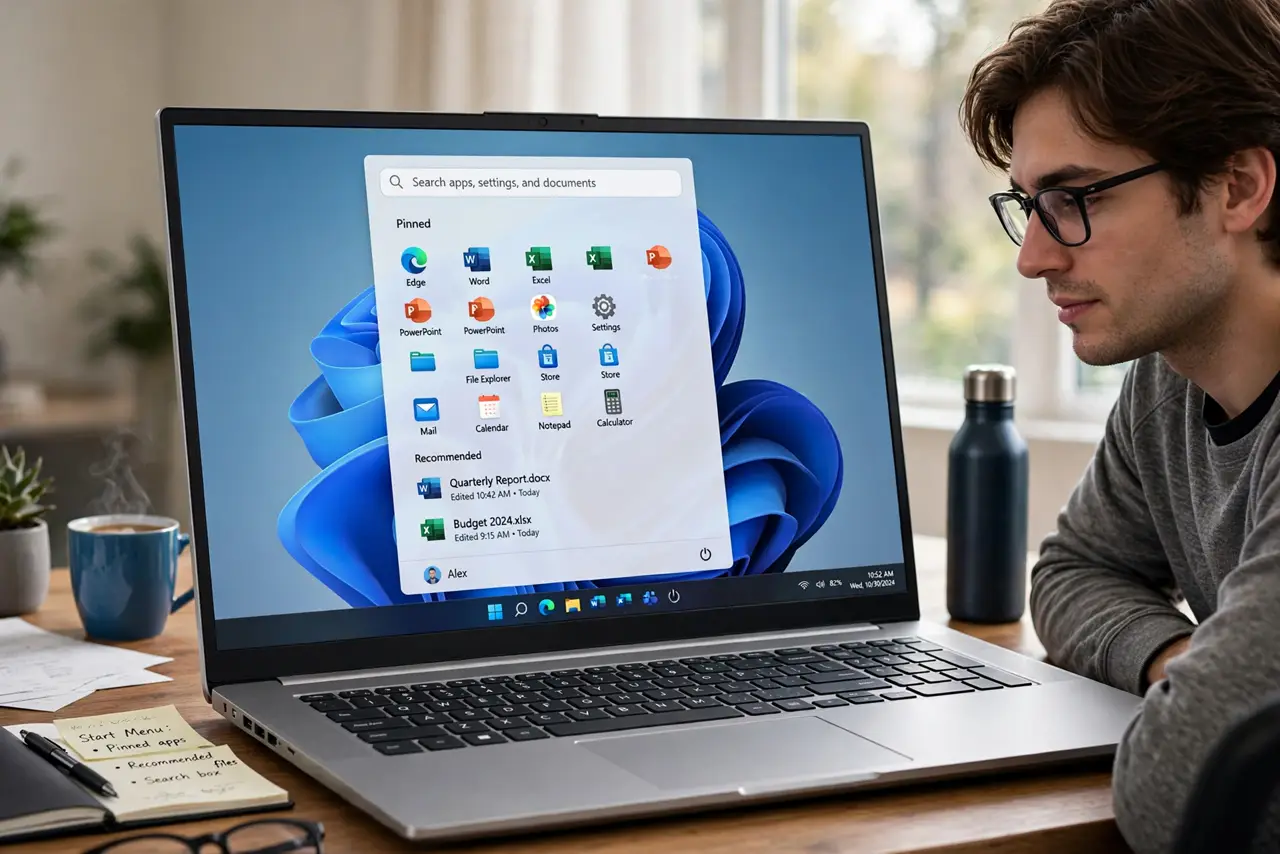
- Open it and learn the layout. Press the Windows key or click the Start button. Top: search box. Middle: your pinned apps. Bottom: recommended files and your account and power buttons. That is the whole menu — no hidden pages.
- Pin what you use daily. Right-click any app — in Start, in search results, or in the All apps list — and choose Pin to Start. Your most-used apps land in the pinned grid; right-click again to unpin. The same trick pins apps to the taskbar for one-click launching.
- Use search instead of hunting. Tap the Windows key and just start typing — apps, settings, files, even web results appear instantly. Searching 'printer' beats clicking through Settings menus every time.
- Tame the Recommended section. Recommended shows recent files and new apps. If it feels nosy, go to Settings > Personalization > Start and toggle off recently added apps and recently opened items — the section shrinks to nearly nothing.
- Move it left if centered bothers you. Hate the centered look? Go to Settings > Personalization > Taskbar > Taskbar behaviors and set Taskbar alignment to Left. The Start button jumps back to the classic corner.
- Uninstall the junk from here. Right-click any preinstalled app you never use and choose Uninstall. A clean Start menu with only your apps is faster to scan and nicer to look at.
What NOT to do
- Do not fight the centered menu for weeks if you hate it. The left-alignment setting exists — use it instead of suffering.
- Do not pin everything. A pinned grid with forty apps is just a second All apps list — pin the dozen you open daily.
- Do not ignore search. The Start menu's real power is the search box; mouse-hunting through menus is the slow way.
- Do not disable Recommended entirely if you use recent files. It is genuinely handy for reopening yesterday's document — shrink it instead of killing it.
Frequently asked questions
Can I get the Windows 10 Start menu back?
Not officially — the Windows 10 style with live tiles is gone in Windows 11. Third-party tools mimic it, but the built-in menu plus pinning covers most needs.
Why did my pinned apps disappear?
Usually after a major update or a new user profile. Re-pin them — it takes a minute — and check you are signed into the right account.
Where is the All apps list?
Click 'All' in the top-right of the pinned section. It is an alphabetical list of everything installed, with a search box of its own.