Windows 11 vs 10? Plain Answer
Still on Windows 10 and wondering whether the upgrade is worth it? Windows 11 brings a refreshed look, better window snapping, and tighter security requirements — but Windows 10 still gets the job done for most everyday tasks. The honest answer depends on your hardware, your software, and how much you value new features. This guide lays out the plain comparison so you can decide with confidence.
TL;DR / Quick Fix
Quick fix: Windows 11 brings a centered taskbar, Snap Layouts, and stricter hardware security requirements, while Windows 10 reached end of support in October 2025. Upgrade if your PC qualifies and you want the newest features; stay if your software or workflow depends on the old setup.
Follow these steps
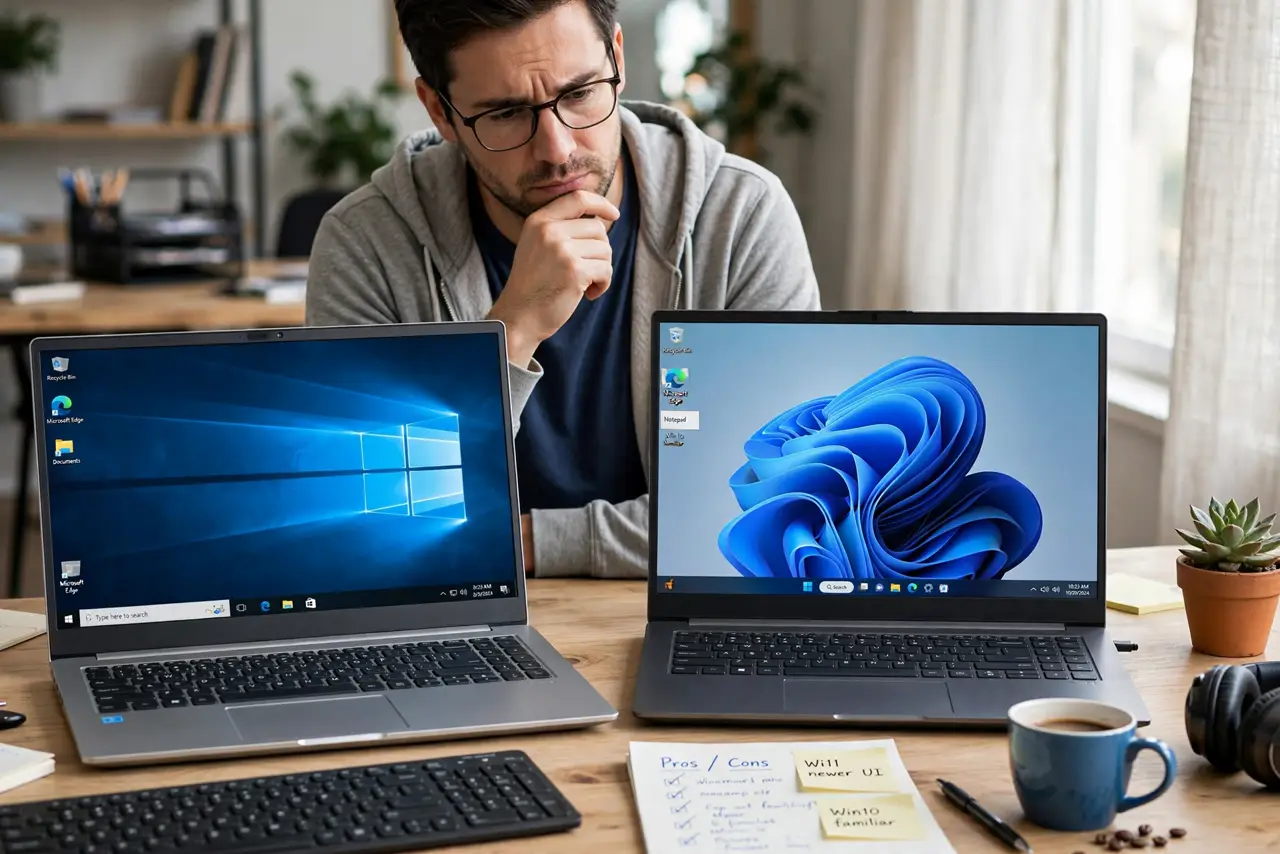
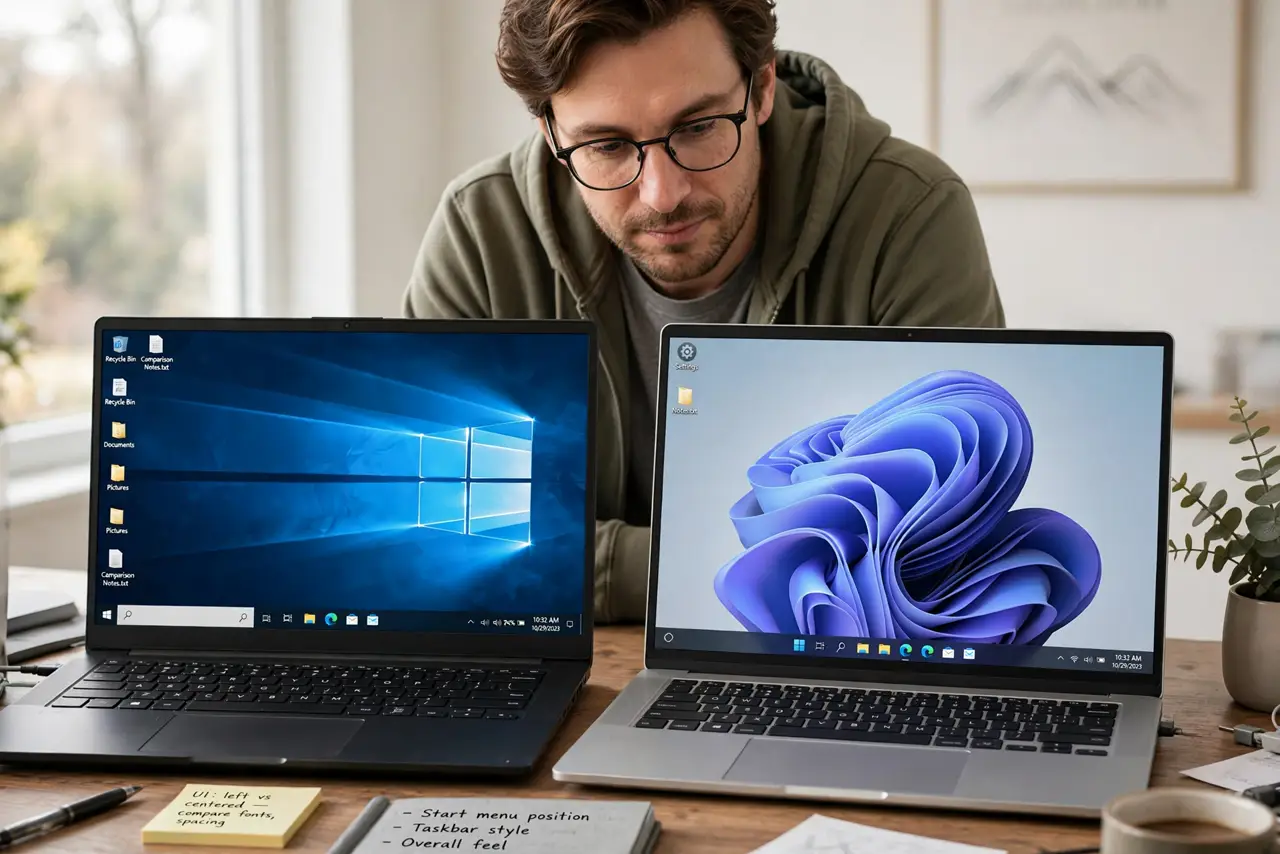
- Compare the look and feel. Windows 11 centers the taskbar, rounds window corners, and adds Snap Layouts for arranging windows; Windows 10 keeps the classic left-aligned layout. Check whether your PC meets the Windows 11 system requirements before getting attached to the new look.
- Weigh the security difference. Windows 11 requires TPM 2.0 and Secure Boot, which block whole classes of low-level malware. Windows 10 no longer gets security updates, so staying means accepting growing risk over time.
- Check your must-have software. Most Windows 10 programs run fine on 11, but old business software, niche drivers, and some peripherals lag behind. List your deal-breaker apps and confirm 11 support before upgrading.
- Consider performance on old hardware. Windows 11 runs best on supported, relatively recent PCs. Forcing it onto unsupported hardware invites driver quirks and update blocks — on an aging machine, a supported 10 install you replace later can be the calmer choice.
- Think about how long you keep PCs. If you buy a new computer today, it ships with Windows 11 and that is the right default. If your current PC runs 10 well and cannot officially upgrade, plan the replacement rather than fighting the requirements.
- Test-drive before committing. You can try Windows 11 in a virtual machine or on a spare drive first. Ten days after upgrading you can roll back to 10 from Settings, so the decision is not a one-way door.
What NOT to do
- Do not force Windows 11 onto unsupported hardware with registry hacks. You lose update guarantees and invite strange bugs.
- Do not upgrade the night before a deadline. Give yourself a free weekend to fix driver and app surprises.
- Do not assume every Windows 10 trick works on 11. The Settings layout changed; relearn where things live instead of fighting it.
- Do not stay on Windows 10 forever without a plan. No security updates means every month gets riskier — decide, do not drift.
Frequently asked questions
Is Windows 11 faster than Windows 10?
On supported hardware it is about the same, sometimes slightly snappier with window management. Do not expect a speed miracle — the real gains are interface and security, not raw performance.
Can I go back to Windows 10 after upgrading?
Yes, within ten days, from Settings > System > Recovery. After that the rollback files are deleted and going back means a clean install.
Does Windows 11 run all my Windows 10 programs?
Nearly all of them, yes. The exceptions are usually very old drivers, ancient copy-protected games, and niche enterprise tools — check those specifically.