Switching Accounts Takes Forever? Fix It
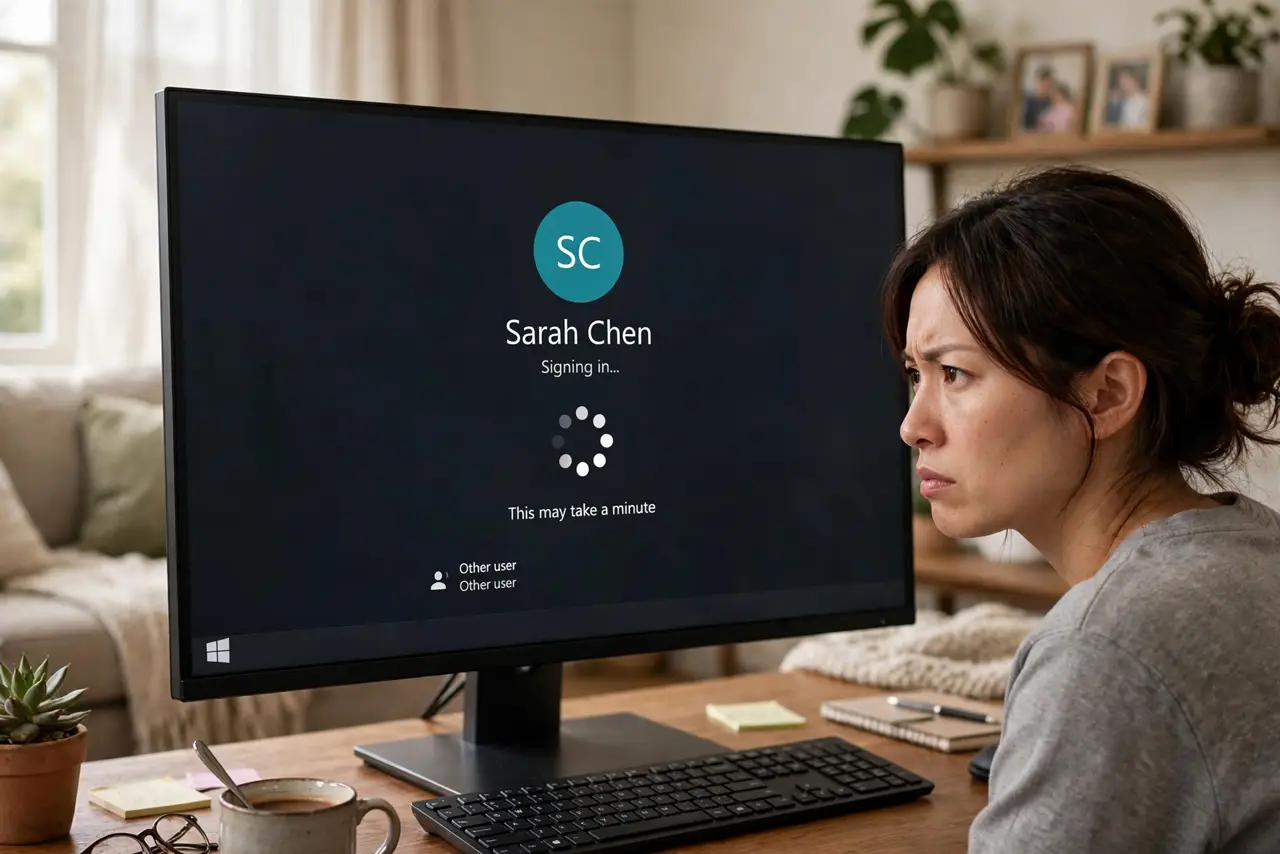
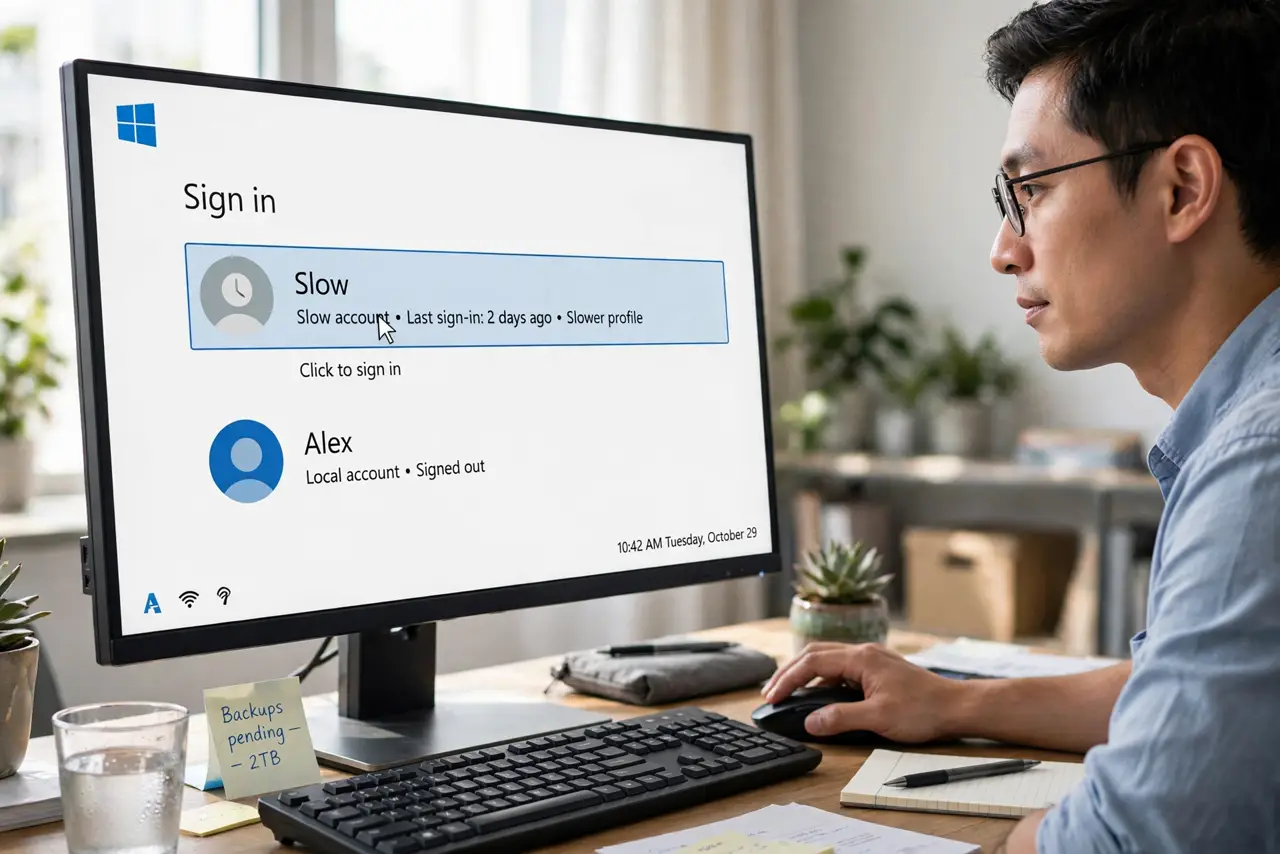
Switching to your partner's account takes three minutes of spinning dots — every time. Slow switching is rarely the switch itself; it's the other account's startup avalanche loading all at once, made worse by an old hard drive. Trim the avalanche and the switch flies.
TL;DR / Quick Fix
Slow switching usually means the other account's startup apps and background programs are all loading at once. Trim that account's startup list in Task Manager > Startup apps and disable its background apps. An HDD makes it far worse — an SSD turns account switching from minutes into seconds.
Follow these steps
- Sign into the slow account. You need to be in the account that's slow to trim its own startup. Switch there and wait it out once.
- Trim its startup apps. Open Task Manager > Startup apps and disable everything non-essential in that account. Each account keeps its own startup list.
- Disable its background apps. In Settings > Apps > Installed apps, set background permission to Never for that account's idle apps.
- Check the drive type. An HDD makes account switching crawl; an SSD makes it seconds. If the PC still spins a hard drive, that's the real bottleneck — see slow login.
- Keep both accounts signed in instead. Fast User Switching keeps the other session in memory. Switching between signed-in accounts beats signing in fresh every time.
- Restart instead of switching when stuck. If a switch hangs indefinitely, restart the PC. A wedged session clears on reboot; chronic hangs deserve the startup trim above.
What NOT to do
- Do not delete the other account to 'fix' speed. That's not a fix — it's eviction. Trim its startup instead.
- Do not disable all startup in the slow account blindly. Keep its antivirus and sync tools; trim the chat, music, and updaters.
- Do not expect SSD speed from an HDD. Software trims help, but the drive is physics — spinning rust is slow.
- Do not switch accounts during the other's update. Updates hold the session hostage; switching mid-update just queues your frustration.
Frequently asked questions
Why is one account fast and another slow?
Each account has its own startup apps, background apps, and desktop load. The slow one simply carries more baggage.
Does Fast User Switching use more RAM?
Yes — both sessions stay in memory. On 8 GB or less, it can feel tight; on 16 GB it's smooth.
Can I make switching instant?
Near-instant with an SSD and trimmed startups. On an HDD, 'faster' is the honest goal, not 'instant'.