Add a Clock for Another Time Zone
You work with people in other time zones and keep converting hours in your head — badly. Windows lets you pin one or two extra clocks to the taskbar, so a glance shows home time, client time, and local time together. Setup takes a minute and ends the mental math.
TL;DR / Quick Fix
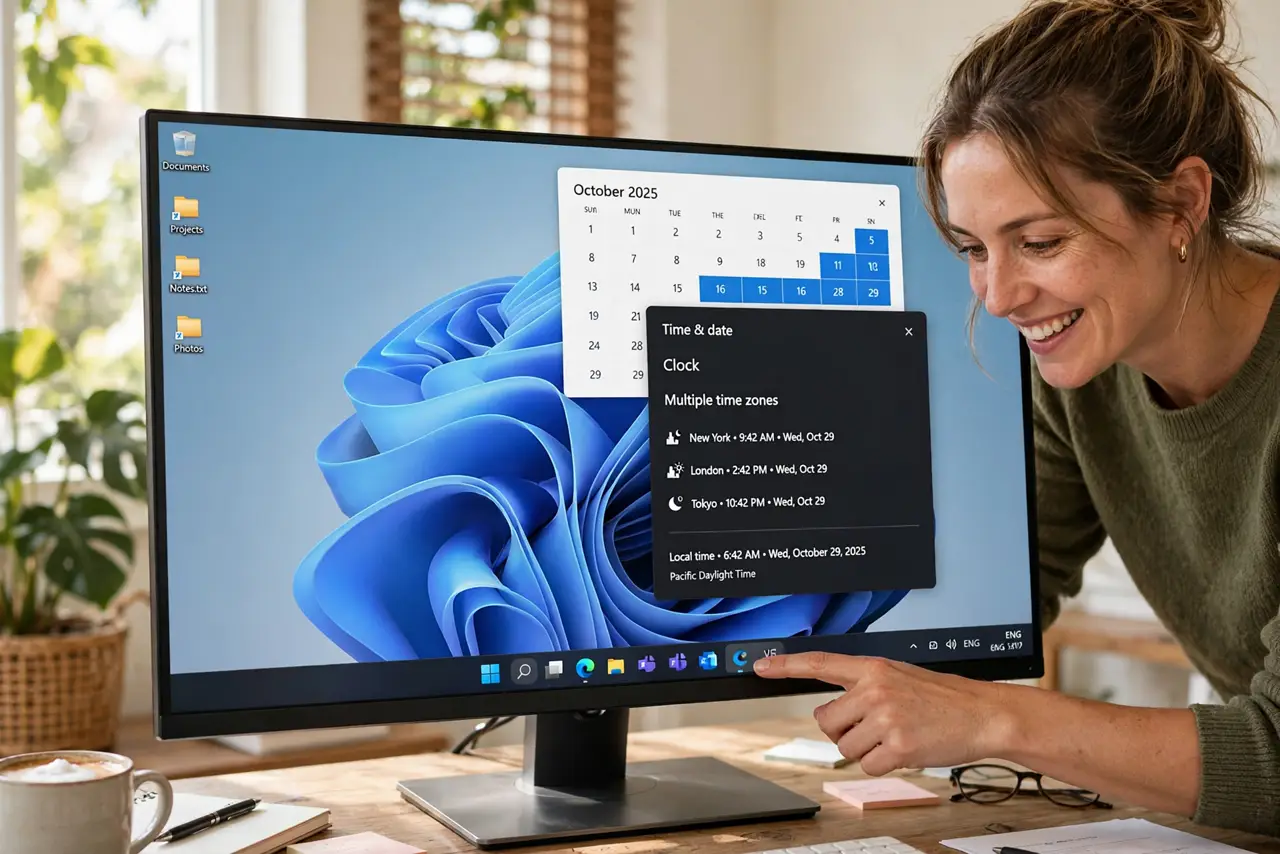
Quick fix: open Settings, go to Time & language, then Date & time, and add up to two additional clocks under 'Additional clocks.' Pick each time zone and give it a display name. Hover over the taskbar clock to see all of them at once.
Follow these steps
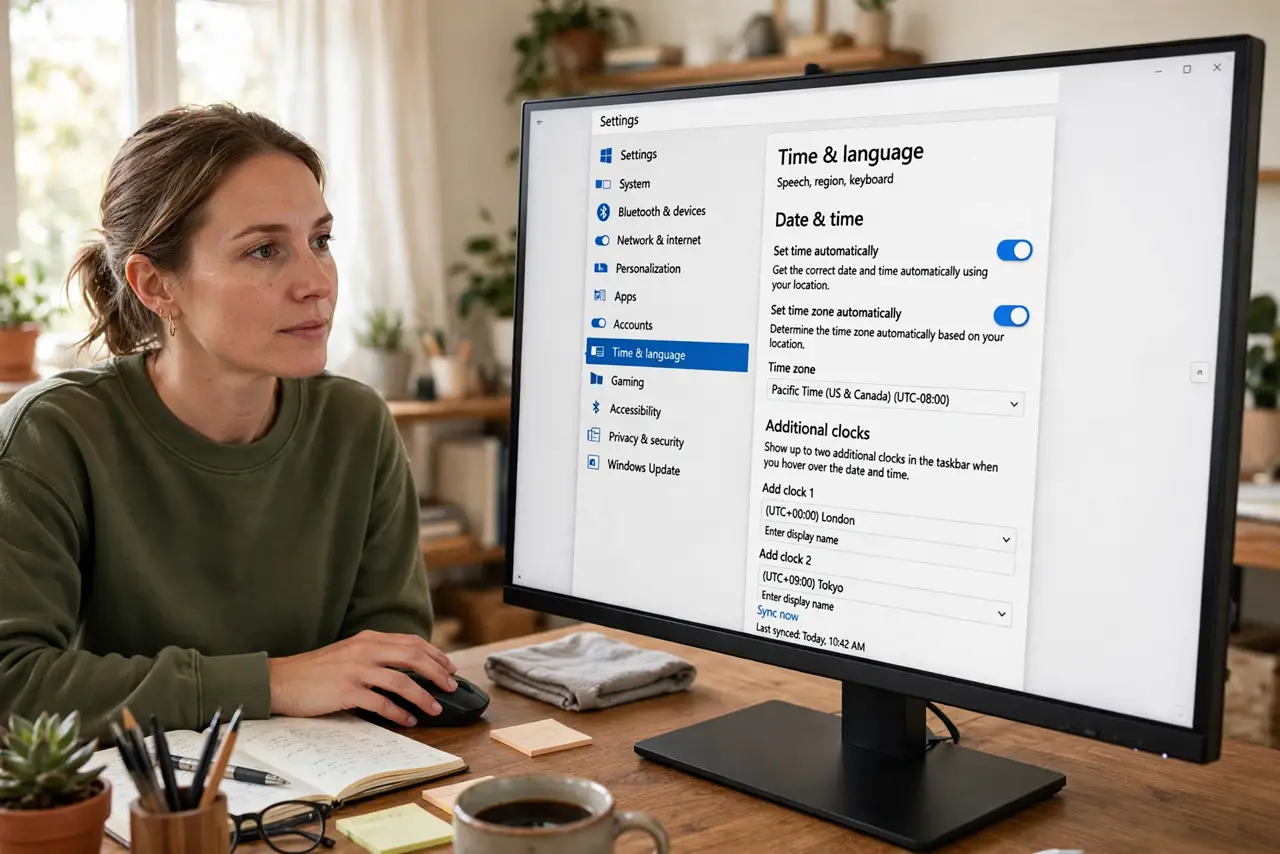
- Open Date & time settings. Settings > Time & language > Date & time, then scroll to 'Additional clocks' — or open the old Control Panel Date and Time and use its Additional Clocks tab.
- Enable the extra clocks. Check 'Show this clock' for Clock 1 and optionally Clock 2. Two extra clocks is the maximum Windows offers.
- Pick each time zone. Choose the zone from the dropdown — for example (UTC-05:00) Eastern Time. The list is long; type the city name to jump to it.
- Give each clock a display name. Type a short label like 'London' or 'Client — Tokyo.' The name is what you'll actually read at a glance, so keep it meaningful.
- View them from the taskbar. Hover over or click the taskbar clock to pop up the calendar with all three times. No extra app needed.
- Keep the main zone automatic. Let automatic time zone handle your local clock while the extras stay pinned — the combo covers travel without reconfiguring.
What NOT to do
- Do not change your main time zone to check another zone's time. That's what the extra clocks are for — the main zone drives your calendar.
- Do not skip the display names. 'Clock 1' and 'Clock 2' are useless at a glance; 'NYC' and 'Tokyo' are instant.
- Do not expect the extra clocks in the taskbar itself. They appear in the flyout when you click the clock, not beside it permanently.
- Do not forget daylight saving differences. Zones shift on different dates worldwide — the clocks handle it, your mental math might not.
Frequently asked questions
Can I add more than two extra clocks?
Not with the built-in feature — two is the limit. For more zones, the Clock app's world clock or a widget covers the rest.
Why would I also want seconds on the taskbar clock?
Different need: seconds on the taskbar help with precise timing, while extra clocks help with zones. They solve different problems and coexist fine.
Do the extra clocks follow daylight saving?
Yes — each follows its zone's rules automatically, including the odd dates when zones change on different weekends.