Turn Off the Windows Advertising ID
When apps show ads that follow your interests too closely, the Windows advertising ID is often part of the reason. The ID lets apps build an advertising profile, so turning it off tells apps not to use it for personalized ads. It does not remove ads entirely, but it stops that personalization.
TL;DR / Quick Fix
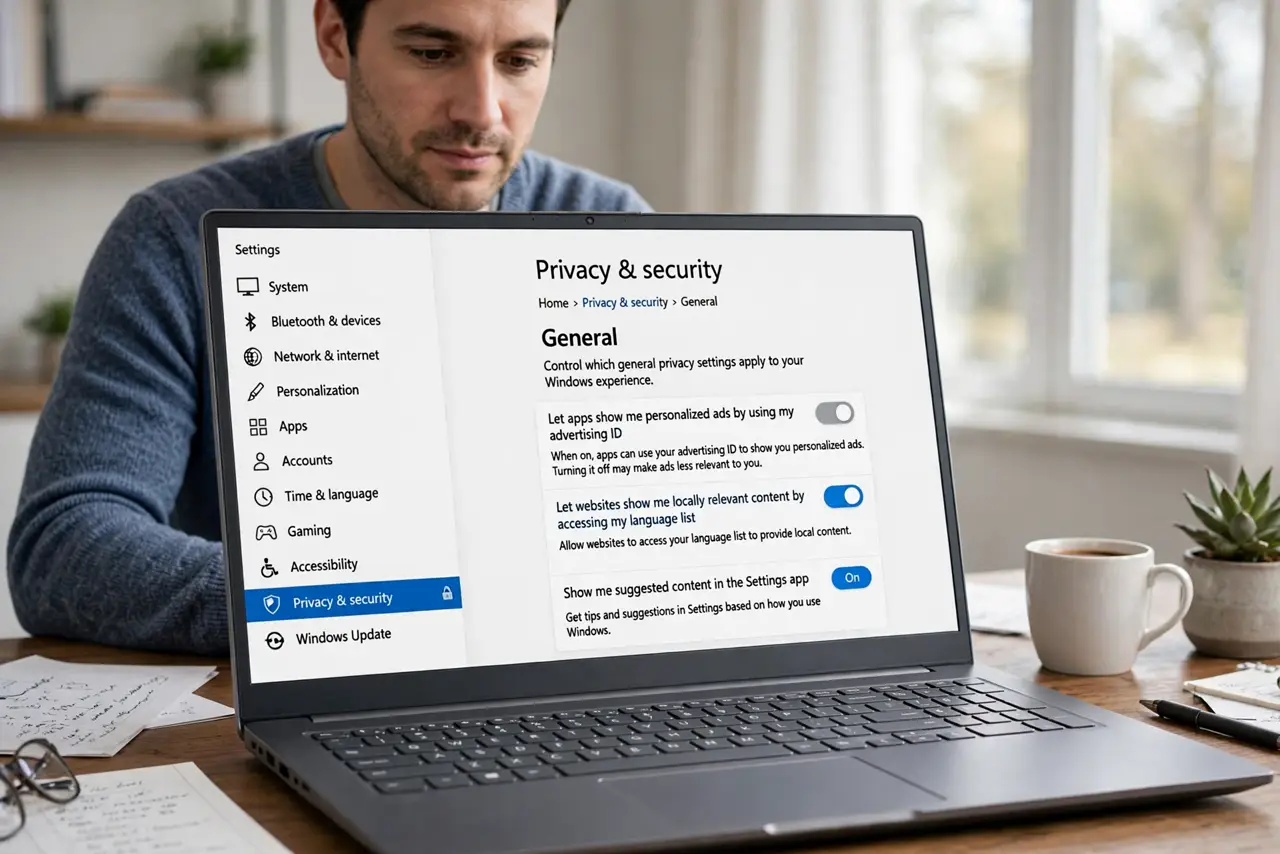
Quick fix: open Settings, then Privacy and security, then General, and turn off Let apps show me personalized ads by using my advertising ID. Close Settings, and note that ads may still appear, but they should no longer be tailored to your interests.
Follow these steps
- Open Privacy General settings. Open Settings, then Privacy and security, then General. The advertising ID switch lives there, not in the advertising or browser settings.
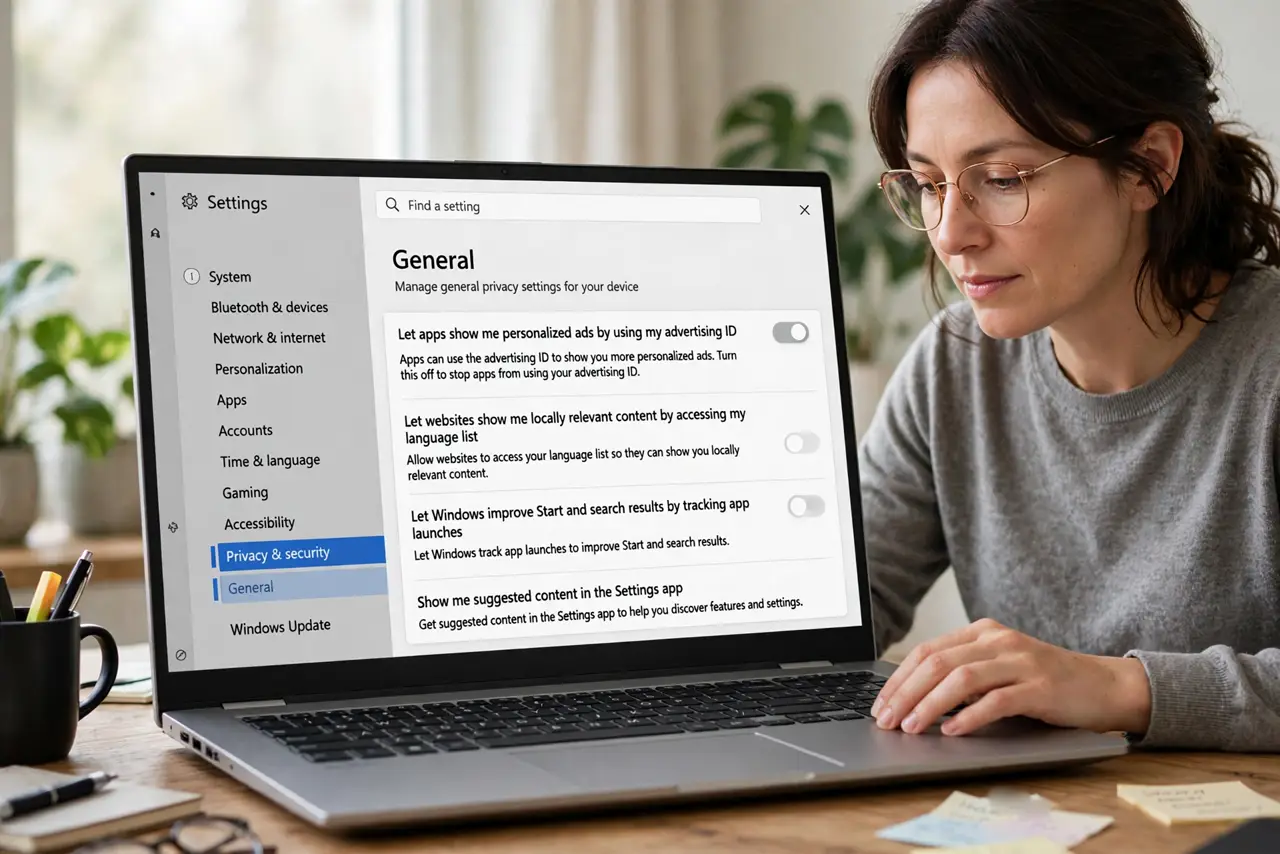
- Turn off the advertising ID. Turn off Let apps show me personalized ads by using my advertising ID. This tells apps on this computer not to use the ID for personalized advertising.
- Check the setting on each account. If you share the computer, repeat the check on each account you use. The advertising ID setting is per account, so one account change does not cover the others.
- Clear the advertising ID history if offered. If the page offers an option to clear or reset the advertising ID, use it after turning the setting off. That removes the profile built from the old ID.
- Test with an app that showed tailored ads. Open an app that previously showed closely tailored ads and note what appears now. Ads may still show, but they should be generic rather than tailored to you.
- Review app permissions too. Open the app permissions list and check location and other permissions for apps that advertise heavily. The advertising ID is one control, and permissions are another useful check.
What NOT to do
- Do not expect all ads to disappear when you turn off the advertising ID. The setting stops personalization, not advertising itself, so generic ads will still appear.
- Do not install an ad-blocking tool from a pop-up to do this job. The built-in setting already controls the advertising ID, and extra tools add risk for no benefit.
- Do not turn the setting off on one account and assume the whole computer is covered. Each account has its own setting, so check them all.
- Do not pay for a privacy tool that promises to delete your advertising ID forever. The free setting in Windows already turns it off, and paying adds nothing.
Frequently asked questions
What is the advertising ID?
It is a resettable identifier Windows gives apps so they can show ads tailored to your interests. Turning it off tells apps not to use it for that purpose.
Will I still see ads after turning it off?
Yes, but they should be generic. The setting controls personalization, not whether ads appear at all.
Do I need to turn it off in every browser too?
Browsers have their own ad and cookie controls, separate from Windows. The Windows setting covers apps on the computer, while browser settings cover web ads.