Set Multiple Alarms
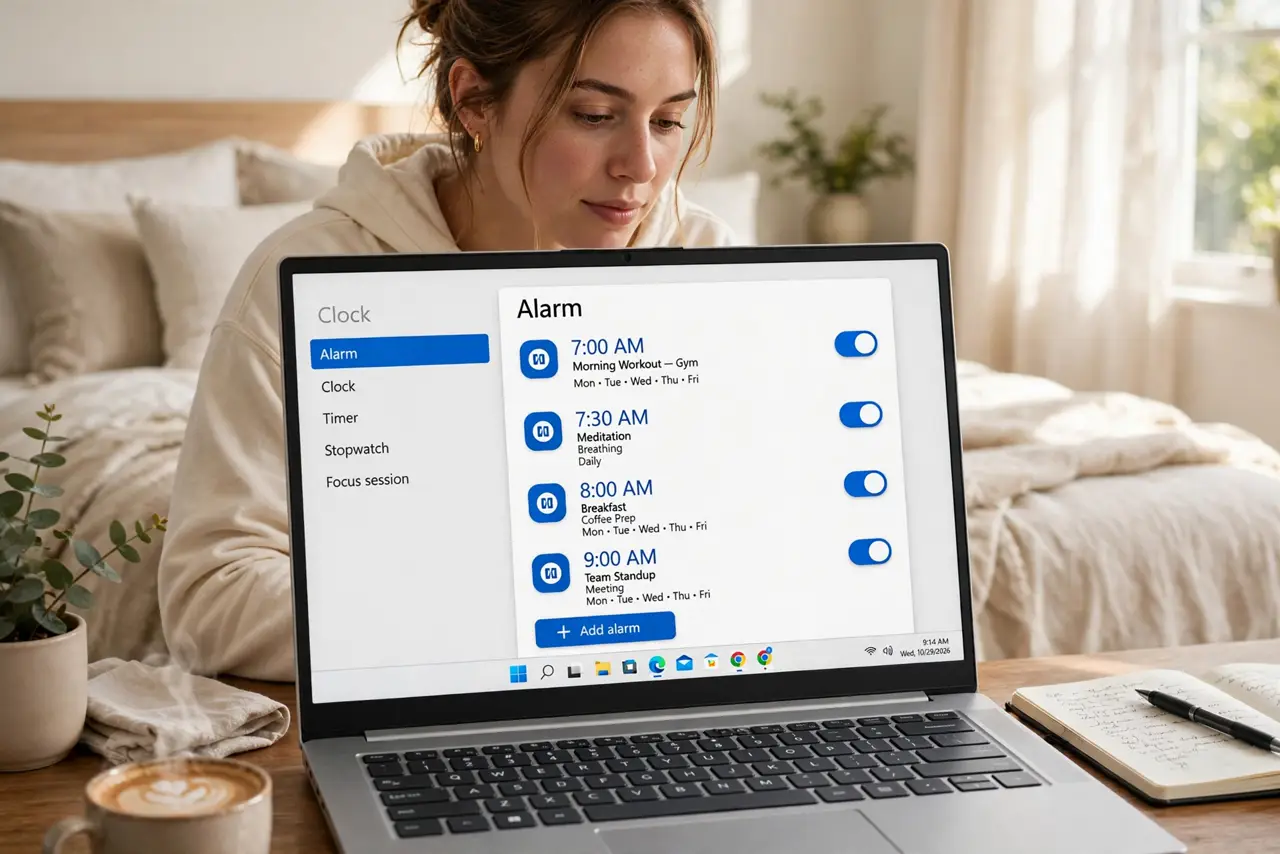
One alarm is a single point of failure — one snooze and the meeting is gone. The Windows Clock app lets you stack labeled alarms like a safety net: wake, leave, meeting, each with its own sound and snooze. This guide builds an alarm system that survives your sleepiest self.
TL;DR / Quick Fix
Quick fix: one alarm is not enough — in the Windows Clock app, add several alarms with labels like Wake, Leave, Meeting. Stagger them 5-10 minutes apart so one snooze does not sink you. Alarms sound even with the app closed, as long as the PC is awake.
Follow these steps
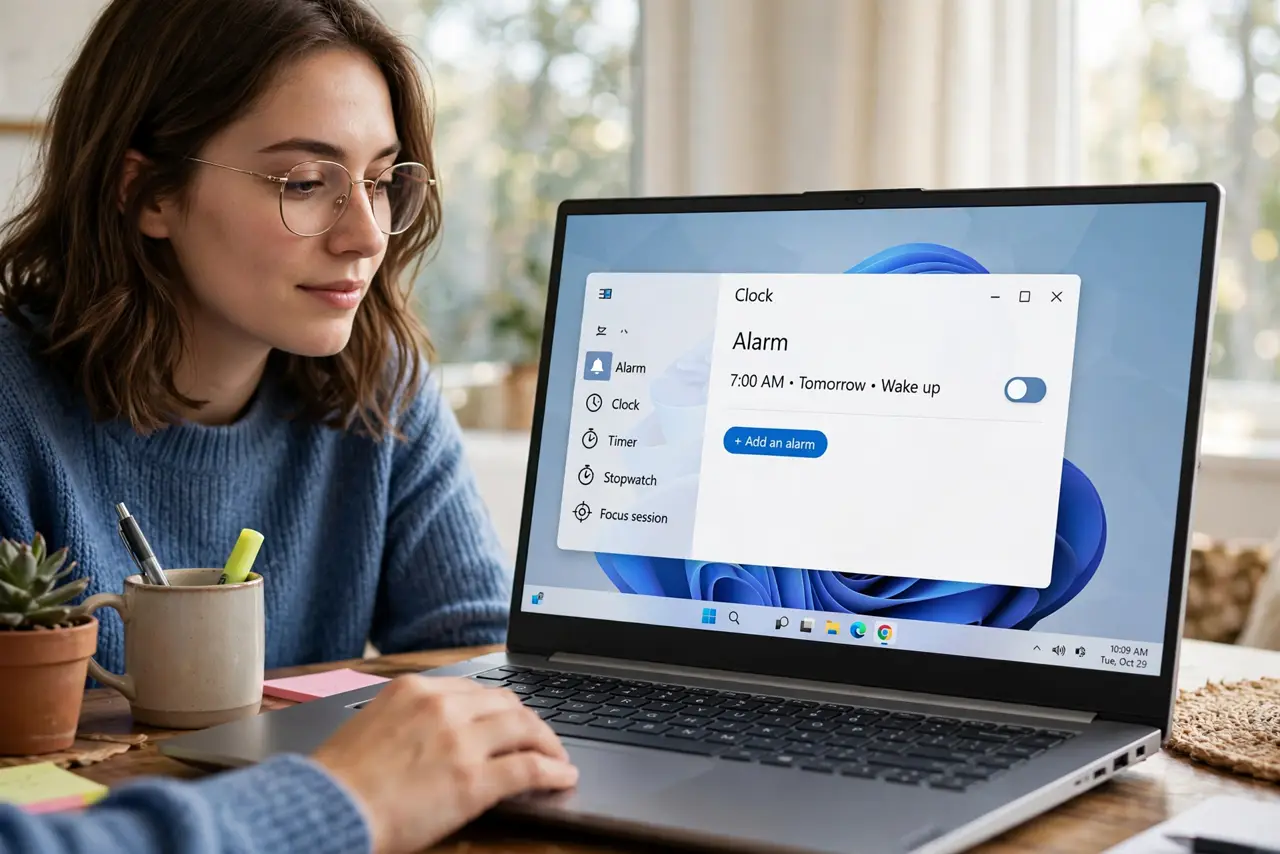
- Open the Clock app. Search 'Clock' in Start and open the Alarm tab. Every alarm you create lives here in one list.
- Add your anchor alarms. Create the non-negotiables first: wake time, leave time. Give each a clear label — 'Wake', 'Leave for office' — so the chime tells you what, not just when.
- Stagger backups 5-10 minutes apart. Add backup alarms after each critical one. One snooze dismisses one alarm; the staggered backup catches you anyway.
- Label everything. A labeled alarm says 'Meeting in 10' instead of just ringing. Labels turn noise into information when you are half-awake.
- Pick distinct sounds. Give wake and meeting alarms different tones. Your brain learns the sounds — the meeting chime triggers urgency the wake chime does not.
- Know the limits. Alarms need the PC awake or in modern standby — a fully shut-down PC will not ring. For mission-critical wakeups, the phone alarm remains king, and Focus Sessions handle the daytime structure.
What NOT to do
- Do not rely on a sleeping PC for critical alarms. Hibernate and shutdown silence alarms — test your setup before the important day.
- Do not set twelve alarms. Alarm fatigue is real — five purposeful alarms beat twelve you sleep through.
- Do not use the same sound for everything. Identical chimes blur together; distinct sounds carry meaning.
- Do not forget volume. An alarm at 10% volume with headphones unplugged is a silent alarm — check output device and level.
Frequently asked questions
Do alarms work when the laptop lid is closed?
In modern standby, usually yes. Fully shut down or hibernating — no. When in doubt, test it.
Can alarms repeat on weekdays only?
Yes — set repeat days per alarm. Weekday wake, weekend sleep-in, all in one list.
Why did my alarm not sound?
Volume muted, wrong output device, or the PC was fully off. Check all three before blaming the app.