App Window Too Big for the Screen? Fix It
When an app window grows too big for the screen, its buttons hide off the edges and you cannot resize it by dragging a corner you cannot reach. The fix uses keyboard shortcuts and display settings to bring the window back to a usable size, without reinstalling the app.
TL;DR / Quick Fix
Quick fix: click the app in the taskbar, press Alt and Space, choose Move, use the arrow keys to shift the window, then press Enter. If the window is still oversized, press Alt and Space again, choose Size, and shrink it with the arrow keys.
Follow these steps
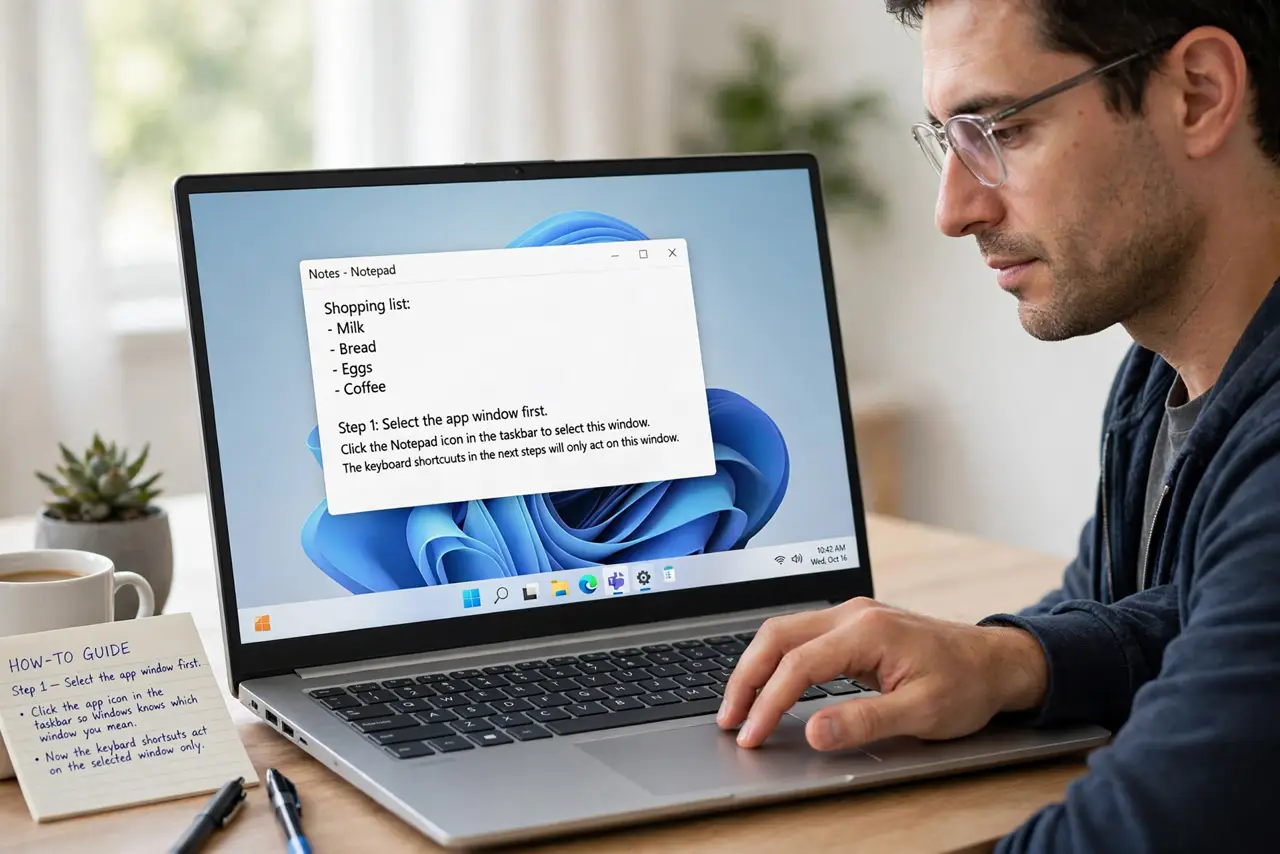
- Select the app window first. Click the app icon in the taskbar so Windows knows which window you mean. The keyboard shortcuts in the next steps act on the selected window only.
- Move the window with the keyboard. Press Alt and Space, choose Move, then press an arrow key once and move the mouse. The window will follow the mouse, so drag it until its title bar is fully visible, then click to drop it.
- Resize with the keyboard if needed. Press Alt and Space again, choose Size, press an arrow key for the edge you want to shrink, then move the mouse to shrink the window. Press Enter to confirm the new size.
- Use Maximize and Restore to reset. Double-click the title bar to maximize, then double-click again to restore. A restore often returns an oversized window to a normal size it can remember.
- Check the display scaling. Open Settings, then System, then Display, and check the scale setting. A scale far above the recommended value can make windows look oversized, so return it to the recommended value for a test.
- Close and reopen the app. Close the app from its new size and reopen it. If it returns oversized, repeat the keyboard resize once more, then close it again from the corrected size so it remembers.
What NOT to do
- Do not reinstall the app because its window is too big. The window size is a display state, not an app fault, and reinstalling will not reset it reliably.
- Do not change the screen resolution to fix one window. Resolution changes affect every app, while the keyboard move and size steps fix only the oversized one.
- Do not drag a corner you cannot see. If the corner is off screen, keyboard Move and Size are the safe tools, because blind dragging can make the window larger.
- Do not force the computer off because a window covers the screen. The taskbar and keyboard shortcuts still work, even when a window hides everything else.
Frequently asked questions
Why did the window get too big?
Usually it was resized on a larger monitor, or a display change left it at a size the current screen cannot show. The keyboard steps bring it back to a size that fits.
What if Alt and Space does nothing?
Click the taskbar icon first to select the window, then try again. If the app is frozen, wait or end it in Task Manager, then reopen it.
Will the app remember the new size?
Usually yes, if you close it from the corrected size. If it reopens oversized, repeat the resize and close it again from the corrected size.