Switch Audio Outputs Fast
Sound comes from the laptop speakers instead of your headphones — again. Windows picks audio outputs with mysterious logic, especially when you plug things in mid-call. The quick-switch takes three clicks once you know where it lives, and there is a keyboard shortcut for the truly impatient.
TL;DR / Quick Fix
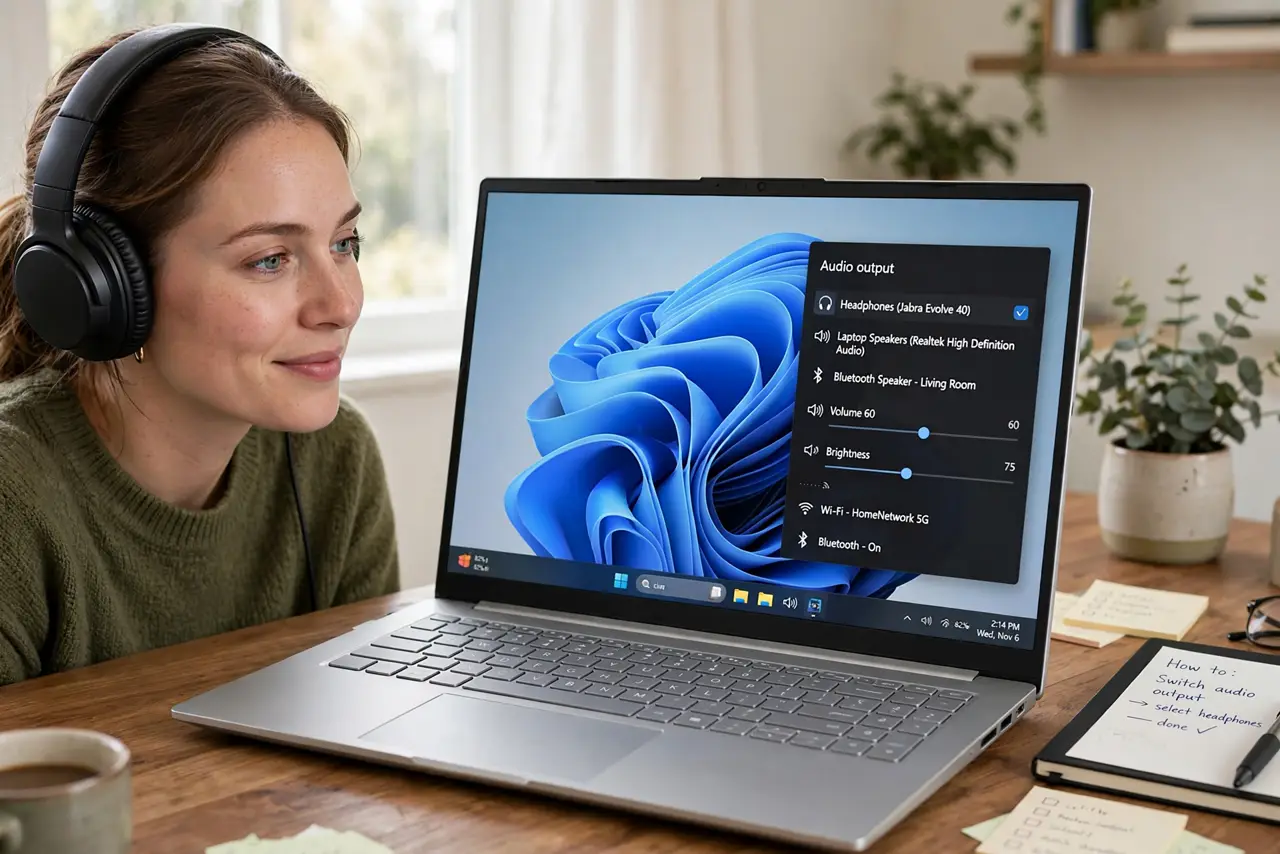
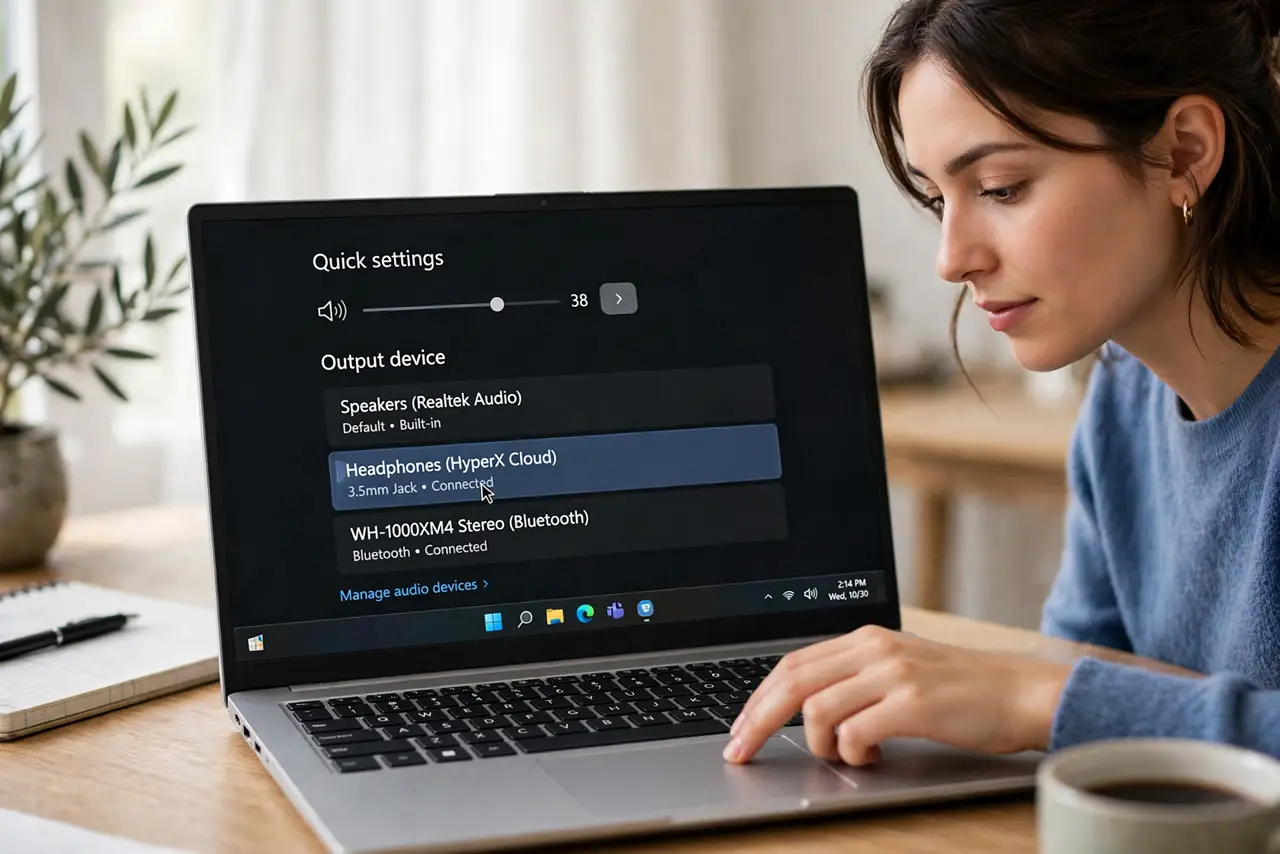
Quick fix: click the speaker icon in the taskbar, then click the arrow next to the volume slider to pick your output device — headphones, speakers, or monitor. Windows 11 shows the list right there. If a device is missing, check its connection and the Sound settings.
Follow these steps
- Use the quick-switch. Click the speaker icon in the taskbar, then the arrow (>) next to the volume slider. Every output device appears — click the one you want. Three clicks, done.
- Do it from Sound settings too. Right-click the speaker icon > Sound settings > Output. Same list, more detail — useful when the quick panel misbehaves.
- Check per-app outputs. In Sound settings > Volume mixer, each app can have its own output. Your music can go to speakers while the call stays on headphones — deliberate, not a bug.
- Fix the missing device. Not listed? Check the cable or Bluetooth connection, then look for headphone detection issues. Disabled devices hide until you right-click and show them.
- Stop Windows from 'helping'. If Windows keeps switching outputs on its own — classic with monitors over HDMI — see the auto-switch problem and set your preferred default.
- Handle two outputs at once. Need sound from two devices simultaneously? Windows doesn't do it natively — see the dual-output options for the workarounds.
What NOT to do
- Do not replug hardware mid-call as a first resort. The quick-switch is faster and doesn't risk the call dropping the audio entirely.
- Do not assume the device is broken when it's just unselected. Nine times out of ten the 'dead headphones' are simply not the chosen output.
- Do not disable devices you might need. Disabling tidies the list but creates confusion later — disconnect instead of disable when possible.
- Do not fight Bluetooth switching manually forever. If headphones keep jumping between devices, check multipoint settings on the headphones themselves.
Frequently asked questions
Why does sound come from my monitor?
HDMI carries audio, and Windows often defaults to it when a monitor connects. Set your preferred device as default — see the auto-switch fix.
Can I use speakers and headphones at the same time?
Not natively — Windows sends audio to one output. See dual-output workarounds for the options.
The list shows a device I don't recognize — what is it?
Often a monitor's speakers via HDMI, or a virtual device from conferencing software. Ignore it, or disable it to declutter.