Audio Enhancements Distort Voices on Windows
Audio enhancements such as bass boost, loudness equalization, and virtual surround are meant to improve sound, but they can make voices tinny, muffled, or oddly loud and quiet. If voices changed after an update or a driver change, enhancements are the likely cause. This guide turns them off cleanly. If sound feels distant and wide instead, see spatial sound making audio distant.
TL;DR / Quick Fix
Quick fix: Open the output device properties page. Turn off all enhancements. Then work through the remaining steps in order, checking one change at a time, and stop for a technician if you see damage, swelling, or a burning smell.
Follow these steps
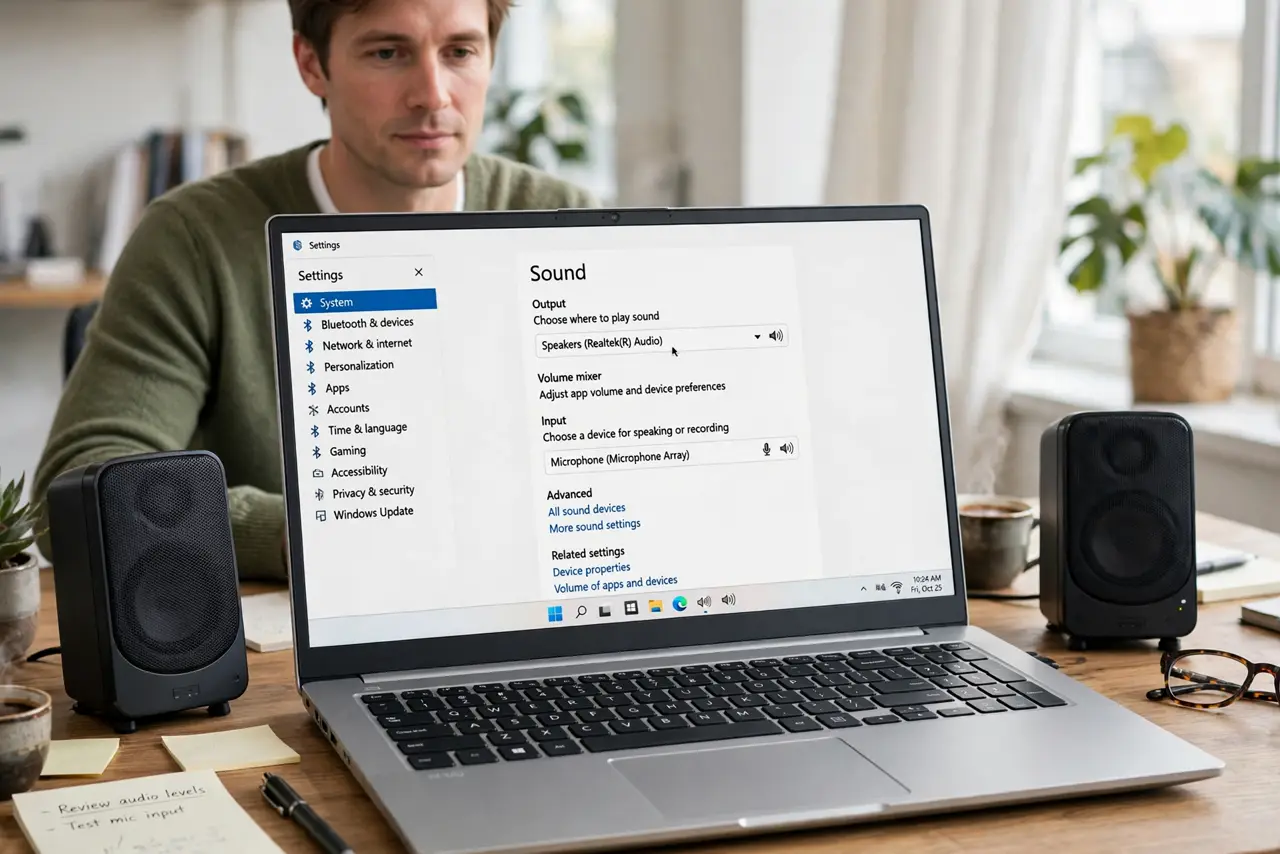
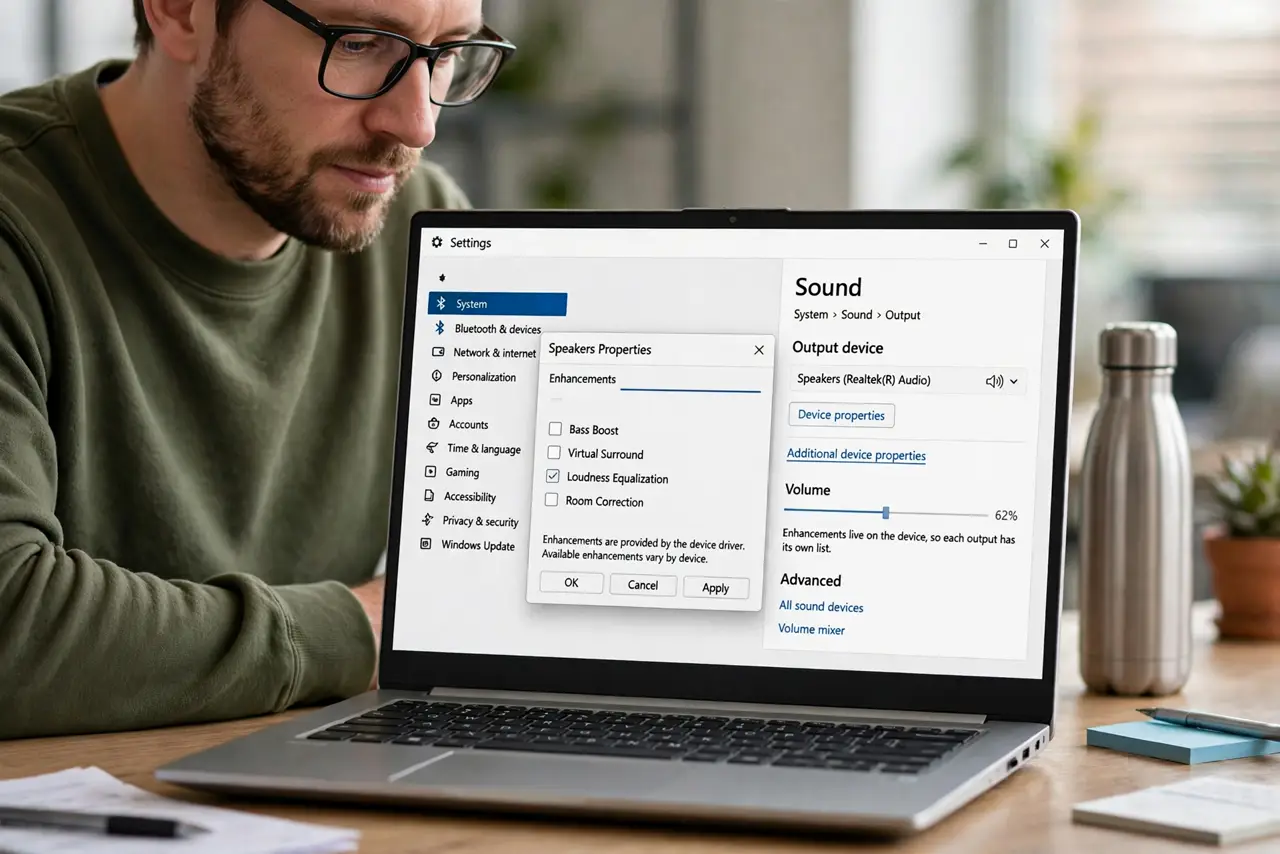
- Open the output device properties page. Open Settings, then System, then Sound, select your output device, and open its properties or Additional device properties. Enhancements live on the device, so each output has its own list.
- Turn off all enhancements. In the Enhancements tab, tick Disable all enhancements, then apply. Test a spoken video right away, because the change takes effect without a restart.
- Check the input side too. Repeat the same check for your microphone under Input device properties. Input enhancements can distort your voice for callers, even when your own speakers sound fine.
- Test with the same content each time. Use one spoken video for every test, so you compare the same voices before and after each change. Changing content between tests makes it hard to tell what actually improved.
- Update the audio driver if it persists. If disabling enhancements does not help, get the newest audio driver from the PC maker site. A faulty driver can distort sound with or without enhancements on.
- Re-enable one enhancement only if wanted. If you miss one effect, such as loudness equalization, turn on just that one and test again. One enhancement at a time keeps the cause clear if distortion returns.
What NOT to do
- Do not turn on every enhancement hoping one fixes voices. Stacked enhancements distort more, not less, so start from all off.
- Do not reinstall the media app for distorted voices. If distortion happens in every app, the device enhancements are the cause, not one app.
- Do not buy new speakers before testing enhancements off. A setting change is free, and new speakers will inherit the same enhancements.
- Do not leave enhancements half on across devices. Check output and input separately, because each device keeps its own list.
Frequently asked questions
What do audio enhancements actually do?
They process sound, such as boosting bass or evening out loudness, which can help music but can also distort speech.
Why did voices change after an update?
Updates can reset or re-enable enhancements, or install a driver with new defaults, so a previously clean setup turns processed.
Does disabling enhancements lower quality?
No. It returns sound to its original form, which is usually clearer for speech than heavy processing.