Control AutoPlay
You plug in a USB drive and Windows immediately opens it, starts playing, or pops up a menu — sometimes handy, sometimes a security headache, always surprising when it changes. AutoPlay decides what happens when you connect drives, phones, and memory cards, and the defaults are not for everyone. This guide sets per-device behavior and the safe defaults. For the related per-file-type choices, see how to set defaults per file type.
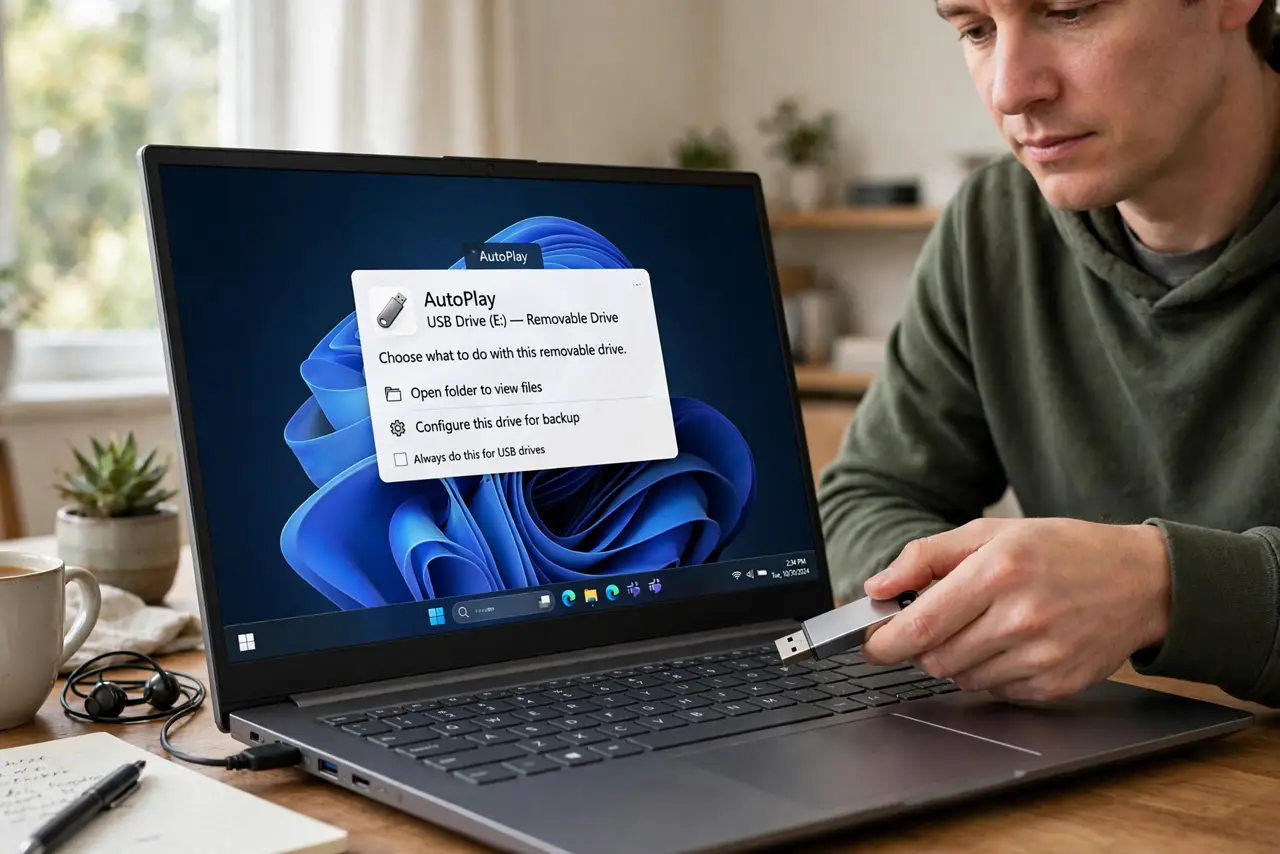
TL;DR / Quick Fix
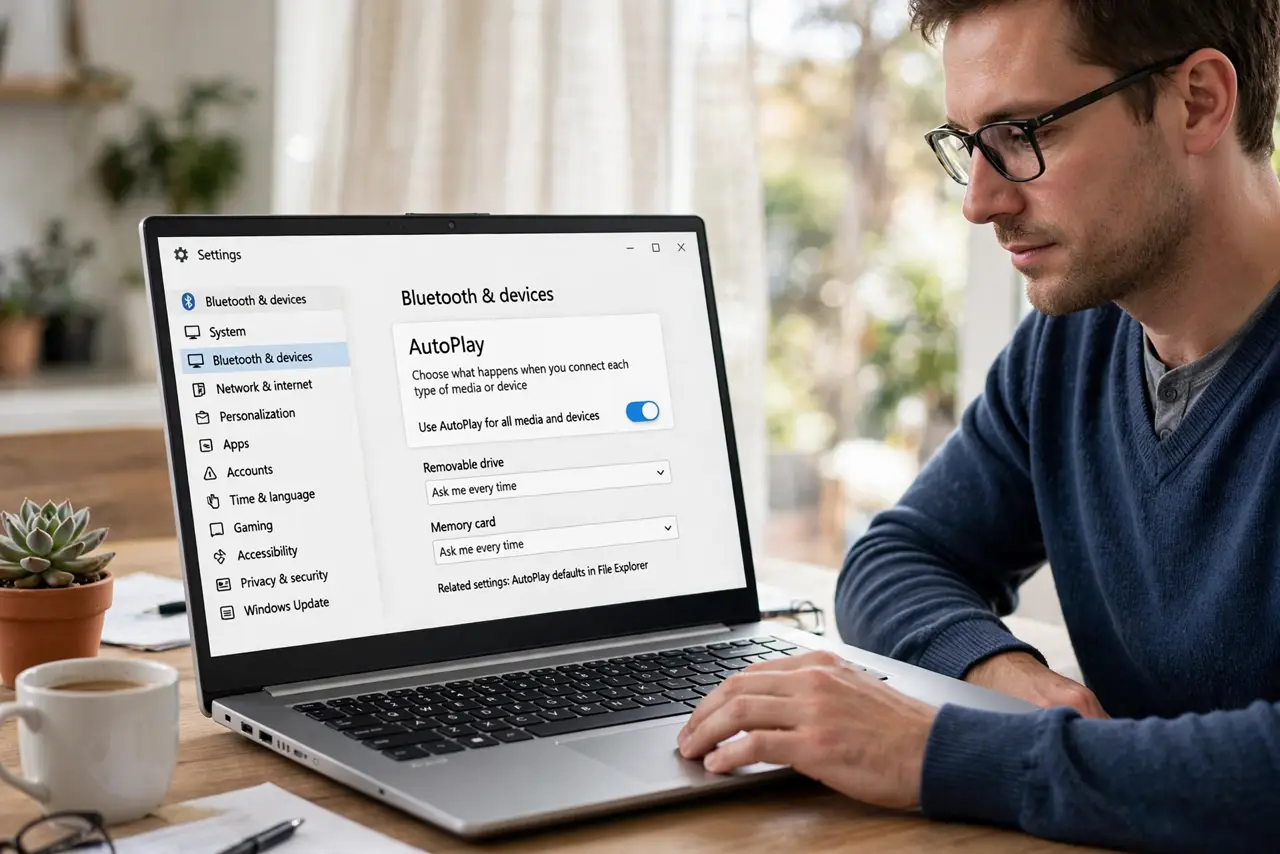
Quick fix: open Settings, go to Bluetooth and devices, then AutoPlay, to choose what happens for removable drives and memory cards — open folder, ask every time, or do nothing. Set 'take no action' for unknown drives as the safe default.
Follow these steps
- Open AutoPlay settings. Go to Settings, then Bluetooth and devices, then AutoPlay. The whole feature is controlled from this one page — no registry diving needed.
- Set removable drive behavior. Choose what happens when you plug in a USB drive: open the folder, ask every time, or take no action. 'Ask me every time' is the balanced choice for most people.
- Set memory card behavior. Memory cards get their own dropdown — set it independently. Photographers often want import; everyone else can leave it on ask.
- Choose the safe default for unknowns. For drives you do not recognize, 'take no action' is the security-conscious choice. Auto-running content from a strange USB drive is how malware spreads.
- Know AutoPlay is not Autorun. Modern Windows disabled true Autorun for USB drives years ago — programs cannot launch themselves from a plugged-in drive anymore. AutoPlay only offers actions; it does not execute blindly.
- Reset if behavior gets weird. If plugging things in starts doing unexpected things, return here and reset to defaults, then reconfigure. Misbehaving shell extensions occasionally hijack these choices.
What NOT to do
- Do not leave AutoPlay fully open on a shared computer. 'Open folder' on every strange drive is a social-engineering invitation.
- Do not confuse AutoPlay with a virus. The popup itself is harmless — the danger is only in what you click next.
- Do not disable AutoPlay to fix a slow USB drive. Slowness is the drive or port; AutoPlay settings change nothing about speed.
- Do not forget phones have their own setting. The phone entry in AutoPlay controls what happens when you plug in mobile devices.
Frequently asked questions
Is AutoPlay dangerous?
The modern version is low-risk — it cannot auto-run programs from USB. The remaining risk is tricking you into clicking something malicious yourself.
Why does nothing happen when I plug in my drive?
AutoPlay may be set to take no action, or the drive may need a moment to mount. Check File Explorer to see if the drive appeared.
Can I turn AutoPlay off completely?
Yes — toggle AutoPlay off at the top of the settings page. Everything then waits for you in File Explorer.