Background Apps Draining Battery? Fix It
Your laptop dies by 3 PM and the battery report blames apps you haven't opened all day. Windows lets apps run quietly in the background — syncing, checking, updating — and each sip adds up. The per-app background permission is the scalpel; turning it off for the right apps buys real hours.
TL;DR / Quick Fix
Open Settings > Apps > Installed apps, open an app's Advanced options, and set 'Background apps permissions' to Never for apps that don't need it. Start with social and shopping apps — the usual silent drainers. Check messaging and alarm apps first; some must run in the background.
Follow these steps
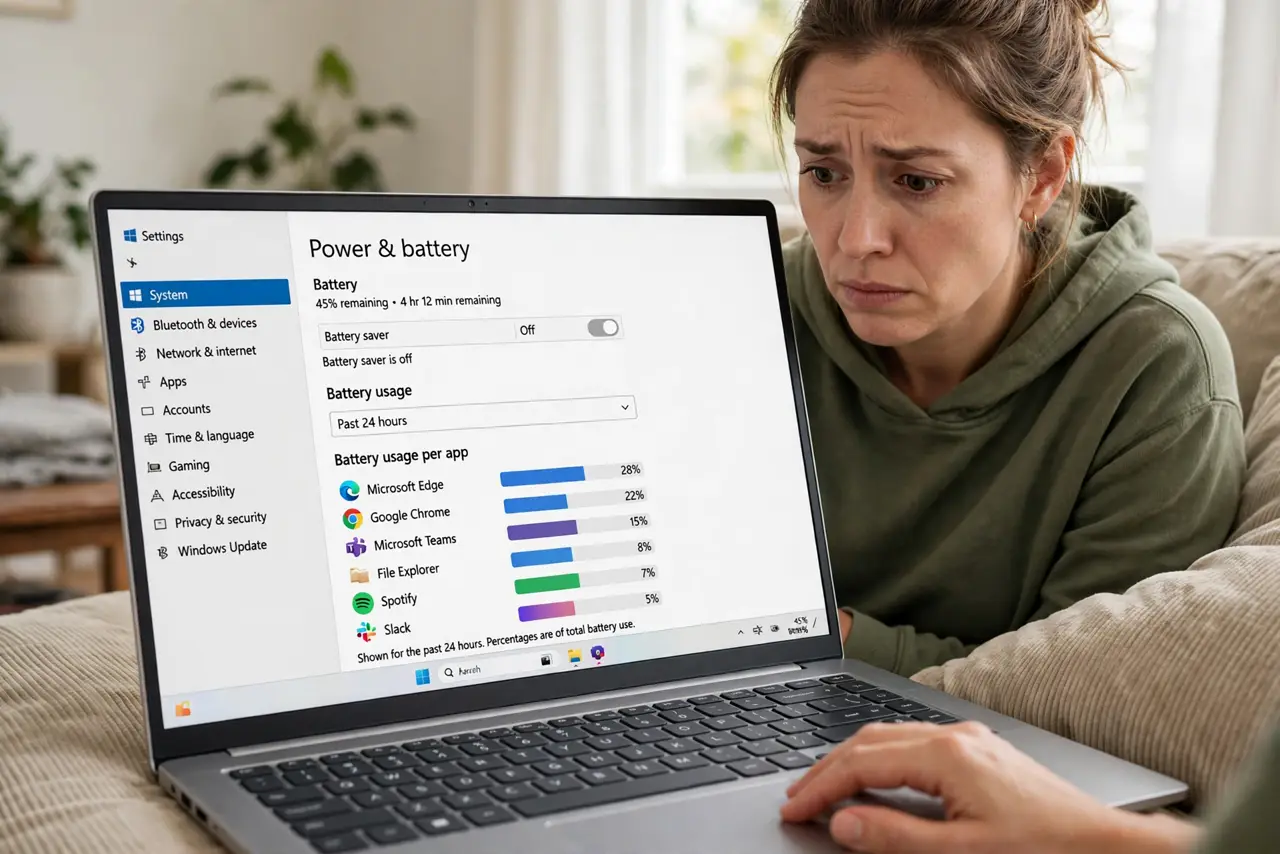
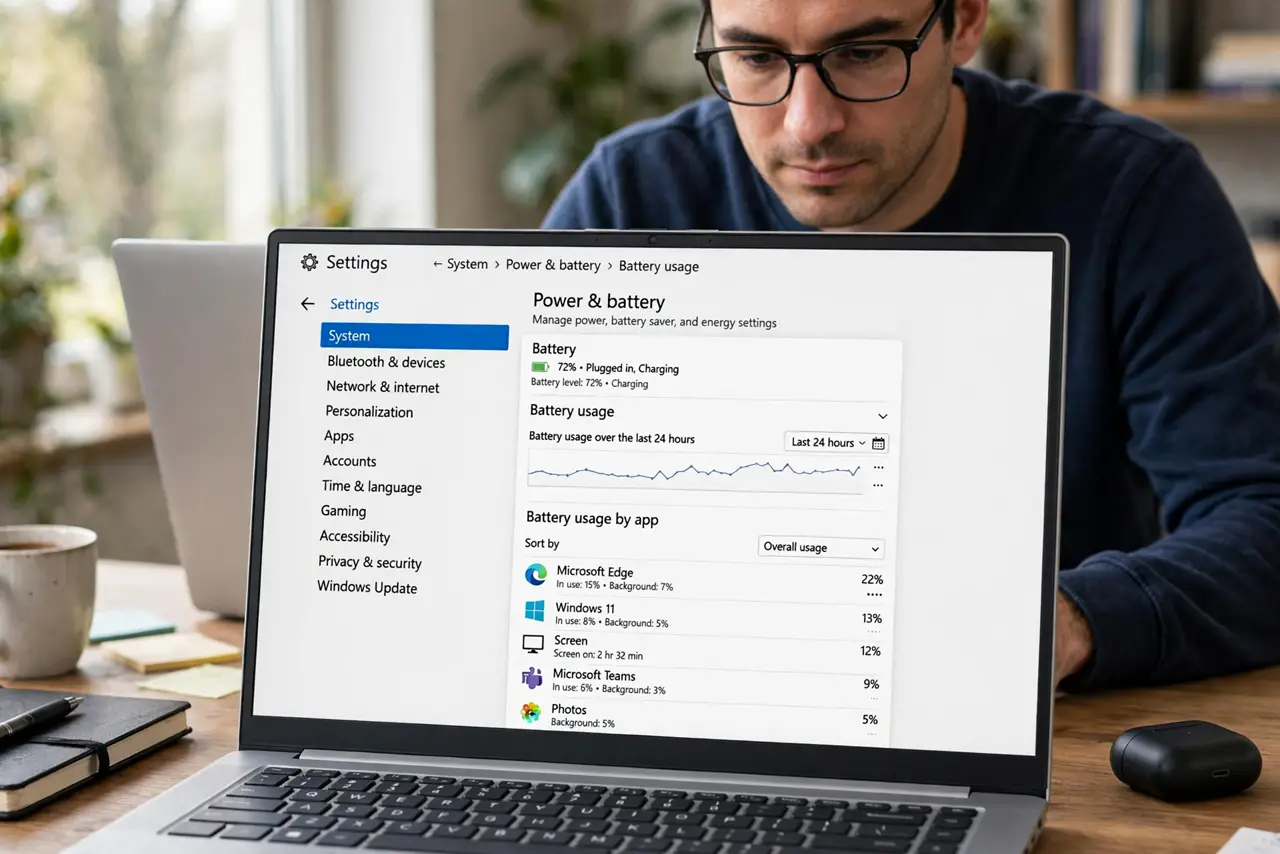
- Find the hungry apps. Open Settings > System > Power & battery and expand Battery usage. Sort by the last 24 hours to see background consumers.
- Open the app's Advanced options. Go to Settings > Apps > Installed apps, click the app's three dots, and choose Advanced options.
- Set background permission to Never. Under 'Background apps permissions', choose Never for apps that don't need to run unseen — social, shopping, and games first.
- Keep messaging and alarms allowed. Restricting your chat or alarm app means missed messages and silent alarms. Check these individually — see the battery saver interplay too.
- Check the system tray for squatters. Apps minimized to the tray still run. Right-click and quit the ones you don't need resident.
- Re-check battery usage in a week. Return to the battery usage page after several days. The background slice should shrink — if not, another app is the drain.
What NOT to do
- Do not set everything to Never. Your alarm, backup, and messaging apps genuinely need background time.
- Do not confuse this with startup apps. Background permission controls running unseen; startup controls launching at login — different switches.
- Do not expect miracles on an old battery. A worn battery drains fast no matter the settings — software trims help healthy batteries most.
- Do not disable background for your VPN or security app. Protection that can't run in the background isn't protecting.
Frequently asked questions
Why do apps run in the background at all?
To sync messages, fetch updates, and stay ready. Useful for chat; pointless for a calculator — which is why the permission is per app.
Does 'Never' stop the app from working?
No. The app works fully when you open it — it just can't do work while closed.
Will this also reduce data usage?
Yes, as a bonus. Background apps sync over your connection too, so restricting them trims metered data.