Rename Many Files at Once
Two hundred photos named IMG_0042 through IMG_0239, and you need them to say 'Beach Trip' instead. Renaming one by one is an afternoon you will never get back. Windows has a built-in bulk rename that handles the simple cases in seconds, and free tools cover the fancy ones.
TL;DR / Quick Fix
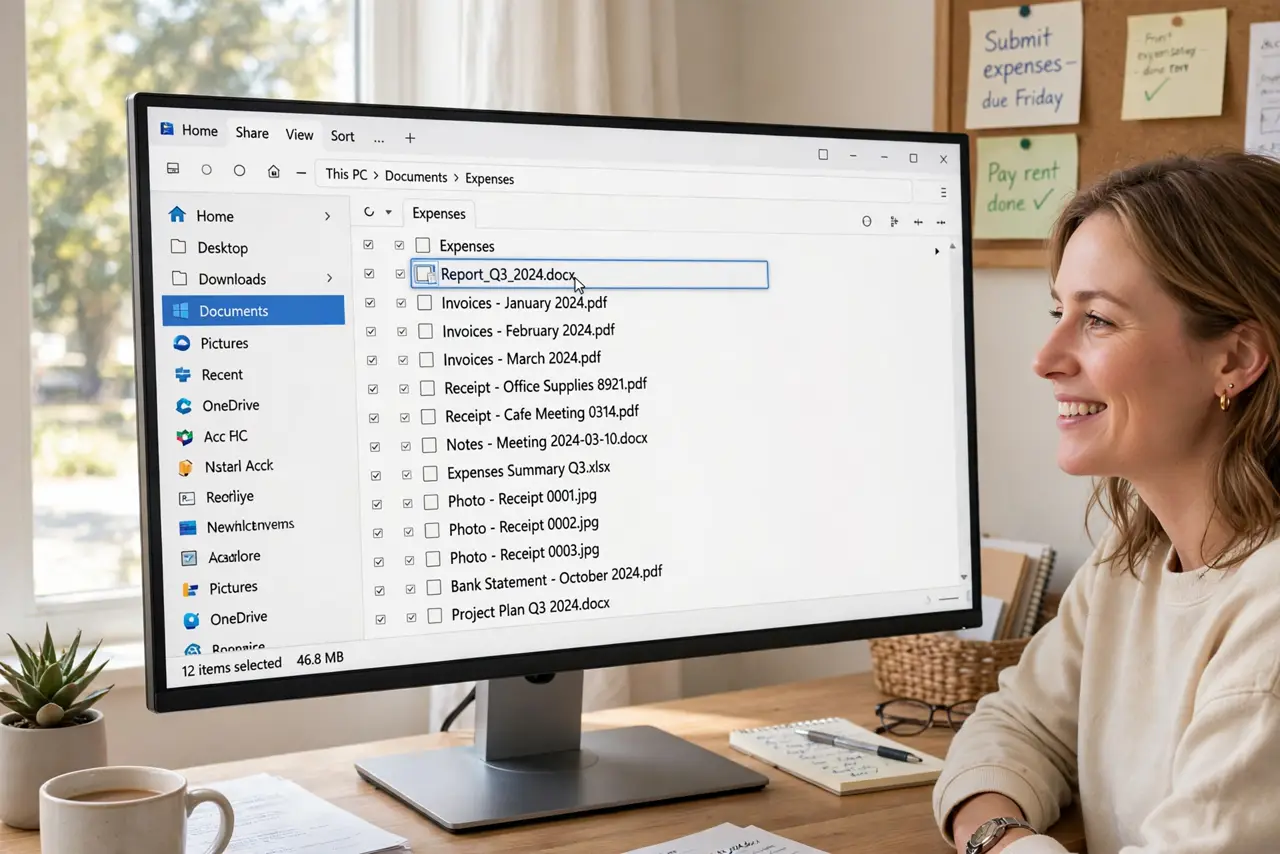
Quick fix: select all the files in File Explorer, press F2, type the new name, and press Enter — Windows renames them all with numbered suffixes. For patterns like dates or numbering schemes, use PowerToys PowerRename, free from Microsoft. Always work on copies first when renaming irreplaceable files.
Follow these steps
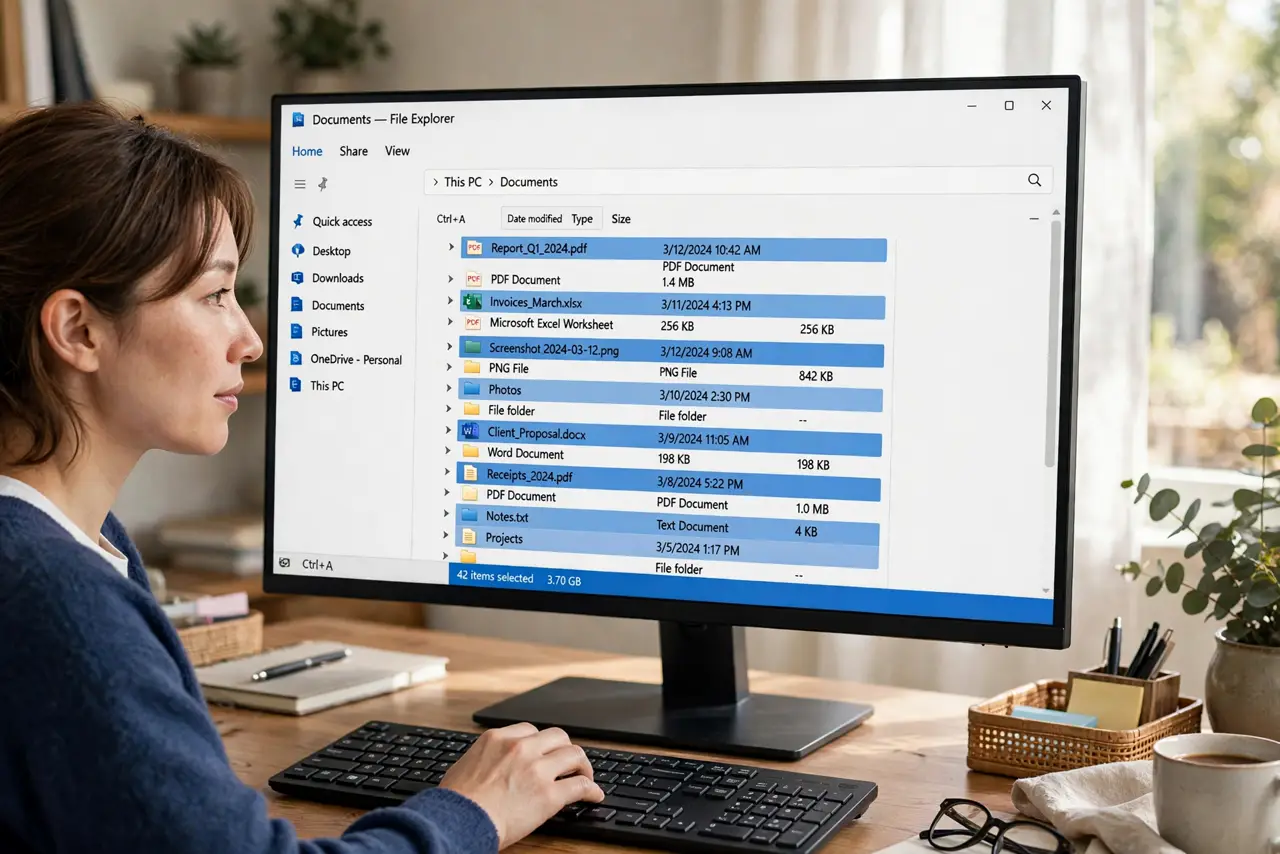
- Select the files. In File Explorer, select the batch with Ctrl+A or Shift+click. They must sit in the same folder for the built-in rename.
- Press F2 and type the base name. Type the shared name — 'Beach Trip' — and press Enter. Windows names them 'Beach Trip (1)', 'Beach Trip (2)', and so on automatically.
- Undo instantly if it goes wrong. Ctrl+Z right after undoes the whole batch rename. The window is short, so check the results immediately.
- Use PowerRename for patterns. Install Microsoft PowerToys and use PowerRename for find-and-replace, numbering, and date patterns across hundreds of files with a live preview.
- Preview before applying. PowerRename shows exactly what each new name will be. Scan the preview column for surprises before clicking Apply.
- Work on copies for irreplaceable files. Duplicate the folder first when the files cannot be re-downloaded. A copy is the cheapest insurance in computing.
What NOT to do
- Do not batch rename originals with no backup. One bad pattern applied to two hundred files is two hundred problems.
- Do not rename file extensions in bulk unless you mean it. Changing .jpg to .png does not convert anything — it just confuses programs.
- Do not use random rename tools from the web. PowerRename is free, official, and previewed — sketchy alternatives are not worth the risk.
- Do not rename system or program folders in bulk. User files only — touching Windows' own folders breaks installations.
Frequently asked questions
Can I number files starting from something other than 1?
Not with the built-in F2 rename — it always starts at 1. PowerRename gives full control over numbering schemes and start values.
Will renaming break anything that references the files?
Shortcuts, playlists, and project files that point at old names will break. Rename before linking things together, not after.
Is there a limit to how many files I can rename at once?
No practical one for the built-in tool or PowerRename — thousands work fine. The preview is what keeps big batches safe.