Convert Units in Calculator
Googling 'miles to km' for the tenth time this week is a habit you can break — Windows Calculator has a full unit converter built in, from length and weight to currency and temperature. This guide finds it and makes conversions a two-second job.
TL;DR / Quick Fix
Quick fix: Windows Calculator converts units — open it, switch to the converter mode, pick the category like length or currency, and type the value. No more googling conversions mid-task. Pin the converter for the units you use weekly and it is one click away.
Follow these steps
- Open Calculator. Search 'Calculator' in Start. The converter lives inside the same app you already have.
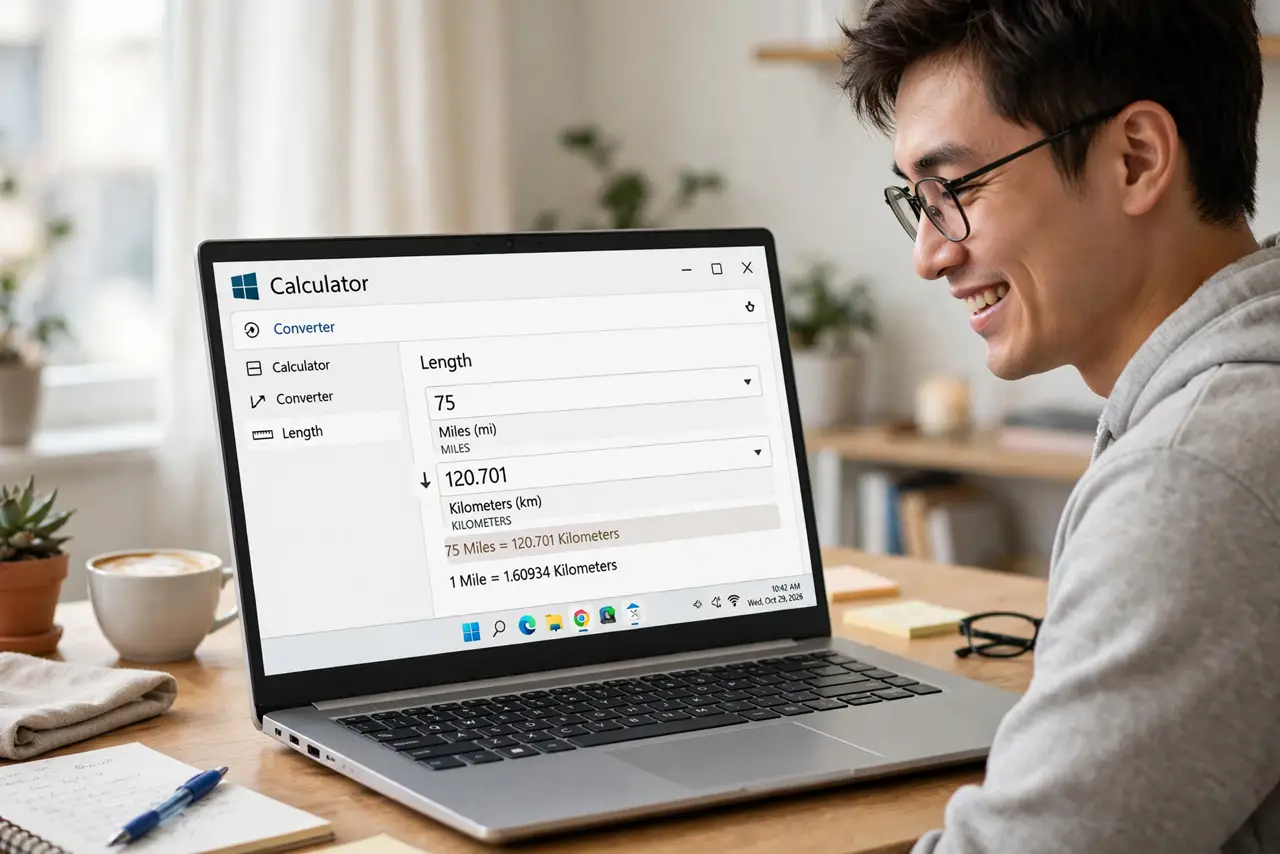
- Switch to converter mode. Open the menu and choose the converter — or the unit conversion view. Categories appear: length, weight, temperature, currency, and more.
- Pick your units. Set the from-unit and to-unit. Miles to kilometers, pounds to kilos, Fahrenheit to Celsius — the lists cover the everyday cases.
- Type the value. Enter the number and the conversion appears instantly. No equals press, no waiting — it converts as you type.
- Check currency rates update. Currency conversion needs internet for current rates and is approximate. Fine for travel math, not for financial decisions.
- Pin frequent conversions. If you convert the same units weekly, keep Calculator pinned to the taskbar. One click beats a search engine every time — and the history panel keeps your recent conversions handy.
What NOT to do
- Do not use currency conversion for money decisions. Rates are indicative and delayed — check a real source before exchanging.
- Do not forget which direction you converted. Double-check the from/to labels; inverted conversions cause real mistakes.
- Do not google what the app does offline. The converter works without internet for everything except live currency.
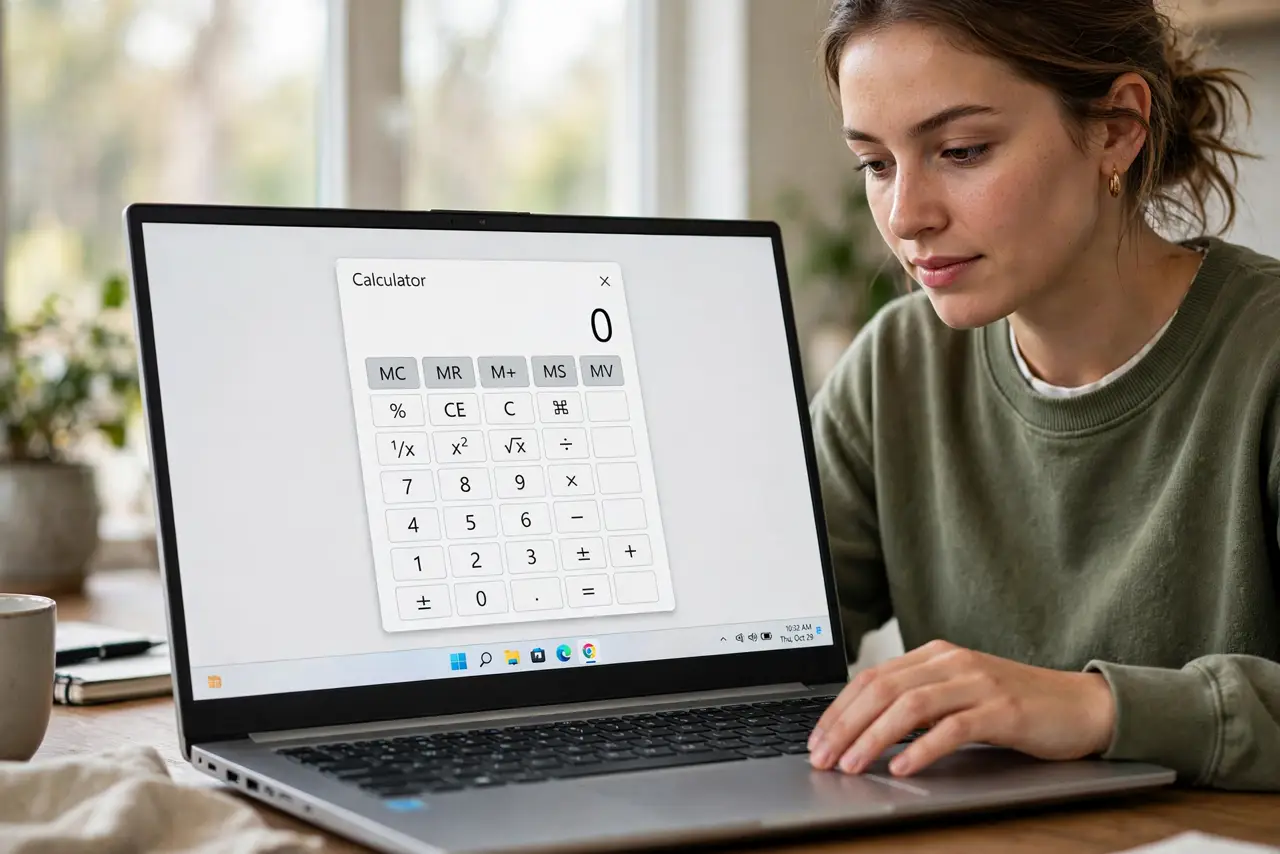
- Do not overlook the other modes. Scientific, programmer, and date-calculation modes hide in the same menu.
Frequently asked questions
Does the converter work offline?
Yes, except currency — that needs current rates from the internet.
Can it convert cooking units?
Yes — volume and weight categories cover cups, grams, ounces, and the usual kitchen suspects.
Why is my currency result different from Google's?
Different rate sources and timing. Both are approximate; neither is a trading price.