Change Your Account Name
Your name is misspelled on the sign-in screen, or the account still shows an old name after a life change. Windows shows the account name in several places, and the fix differs for Microsoft accounts versus local ones. Pick the right path below and the new name appears everywhere within minutes.
TL;DR / Quick Fix
Quick fix: for a Microsoft account, change the name at account.microsoft.com and it syncs to the PC. For a local account, open Control Panel, go to User Accounts, and rename it there. Sign out and back in to see the new name everywhere.
Follow these steps
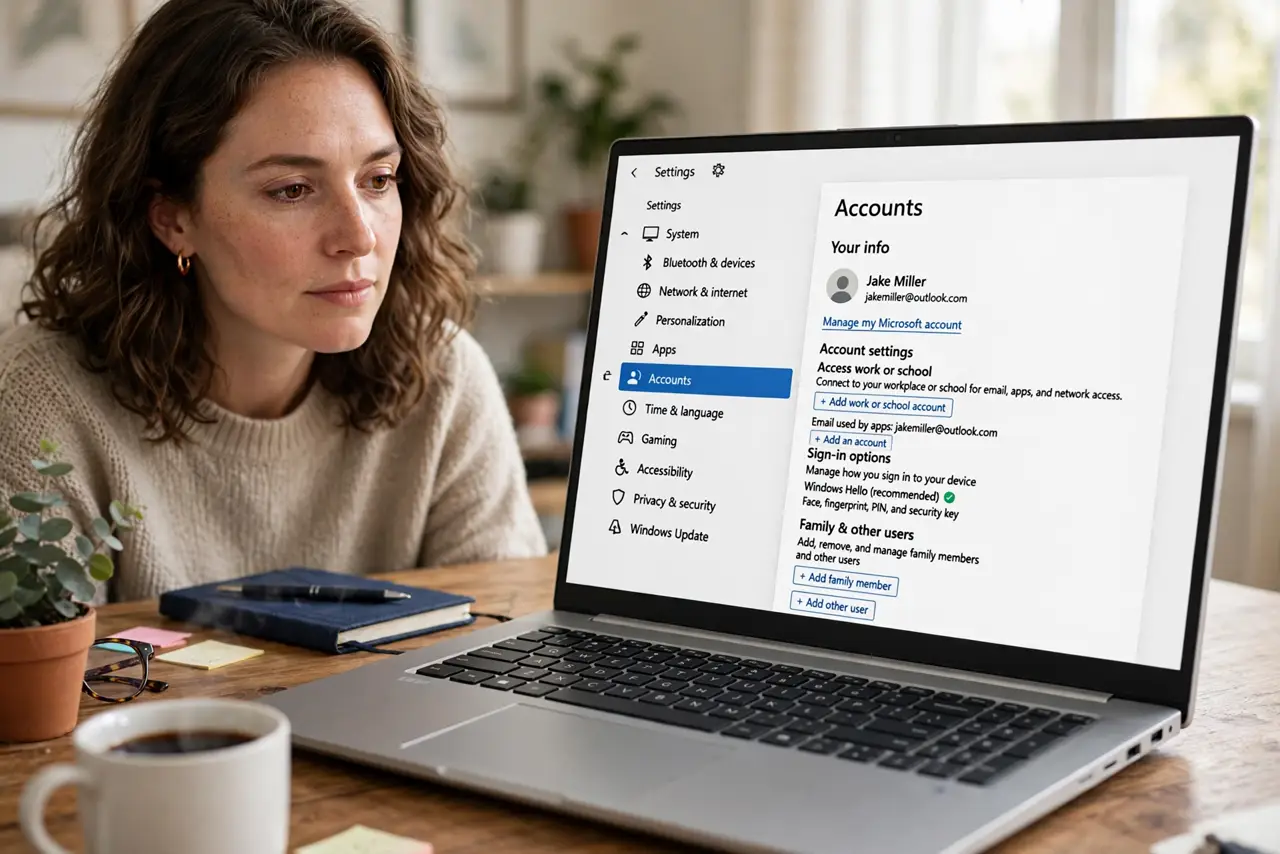
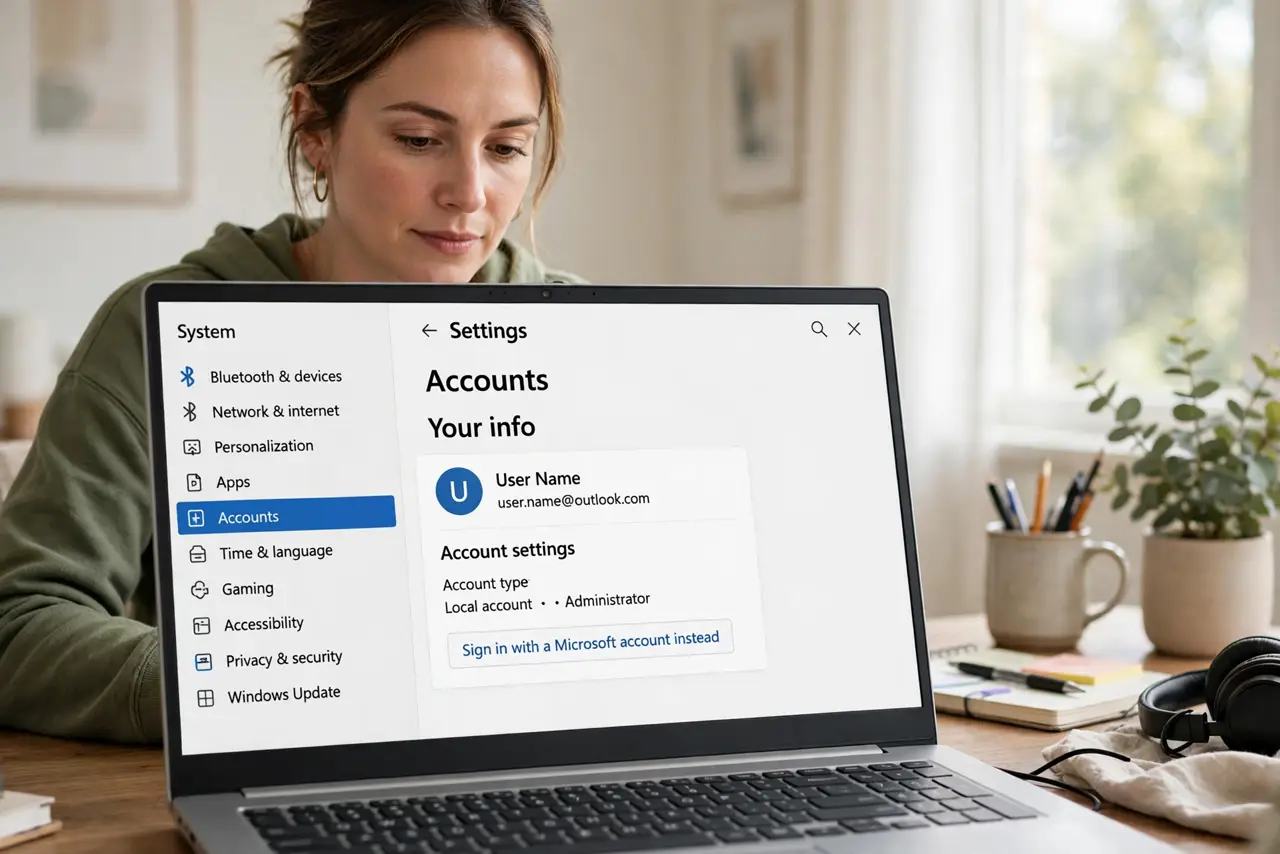
- Figure out which account type you have. Settings > Accounts > Your info. If it shows an email address, it's a Microsoft account; if not, it's local. The rename path depends on this — see local vs Microsoft.
- Rename a Microsoft account online. Sign in at account.microsoft.com, open Your info, and edit the display name. Windows picks up the change at the next sign-in or sync.
- Rename a local account in Control Panel. Control Panel > User Accounts > Change your account name. Type the new name and confirm — this is the only place that renames a local account properly.
- Sign out and back in. The new name appears on the sign-in screen and Start menu after a fresh sign-in. A restart works too.
- Check the user folder name separately. Renaming the account does not rename C:\Users\OldName. Leave that folder alone — renaming it manually breaks app paths.
- Update the sign-in options if needed. A name change doesn't affect your password or PIN — those stay exactly as they were.
What NOT to do
- Do not rename the C:\Users folder by hand. Dozens of app settings point at the old path, and you'll break them.
- Do not create a whole new account just to fix a typo. Renaming is cleaner and keeps all your files and settings.
- Do not expect the Microsoft account rename to be instant. It can take a few minutes and a fresh sign-in to sync down.
- Do not use netplwiz renames on Microsoft accounts. That tool edits local data that the cloud sync will happily overwrite.
Frequently asked questions
Why is my old name still on the sign-in screen?
You likely haven't signed out yet, or you renamed the local profile while signed in with a Microsoft account. Sign out fully and check which account type you edited.
Can I change someone else's account name?
Only from an administrator account. Standard users can rename only themselves — see how to change who's an administrator.
Will renaming affect my files?
No. Files, apps, and settings stay put. Only the display name changes — the underlying profile folder keeps its old name, which is fine.