Alarms in the Clock App?
You need your PC to wake you up, remind you of a call, or nudge you to take a break — and Windows has a perfectly good alarm clock built in. The Clock app's alarms work even when the app is closed, as long as the PC is awake or in modern sleep. Setting one takes less than a minute. Here is how to create, manage, and rely on Windows alarms.
TL;DR / Quick Fix
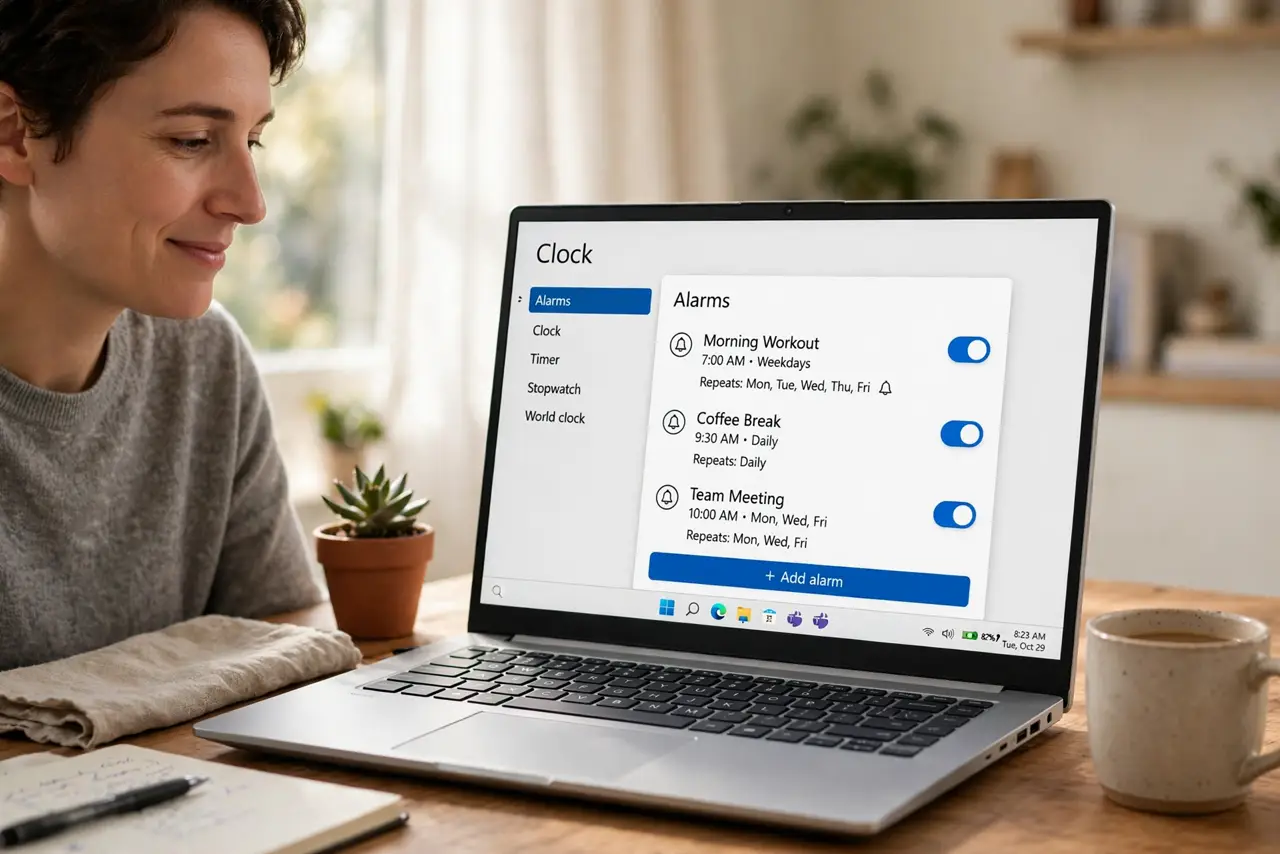
Quick fix: open the Clock app, go to Alarm, click the plus button, set your time and days, and save. Keep the PC awake or in modern sleep and the volume up. Alarms need notification permission — check Settings, System, Notifications if an alarm stays silent.
Follow these steps
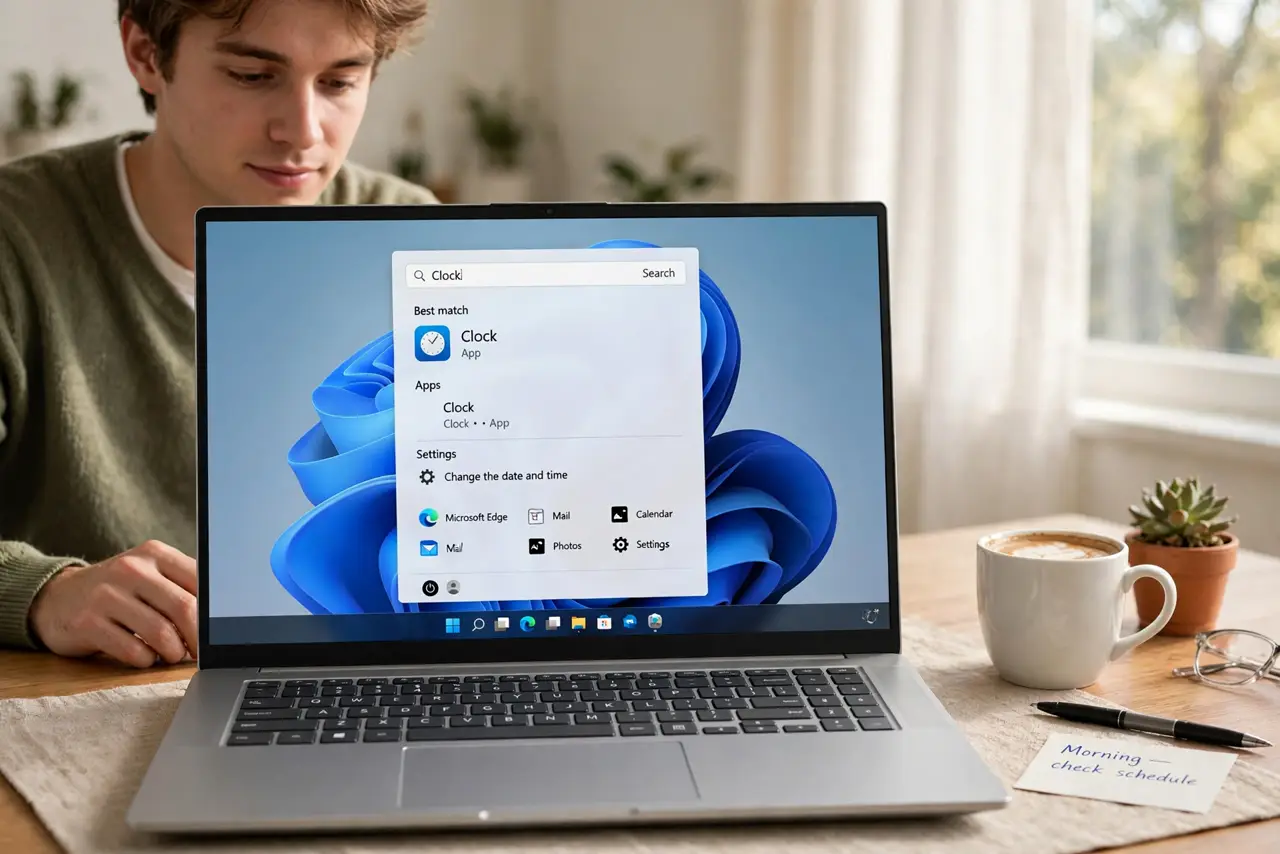
- Open the Clock app. Search for 'Clock' in the Start menu and open it. The app has tabs for Alarm, World Clock, Timer, and Stopwatch — we want Alarm.
- Add a new alarm. Click the plus (+) button at the bottom. Set the hour and minute, give it a label like 'Standup meeting,' and pick which days it repeats — or leave it one-time.
- Choose a sound and snooze setting. Pick an alarm tone you will actually wake up to, and decide whether snooze is allowed. Gentle chimes are easy to sleep through; pick something with some energy for mornings.
- Make sure the PC can actually ring. Alarms need the PC to be awake or in modern sleep — a fully shut-down or hibernating PC will not ring. Keep the volume up and the PC plugged in overnight.
- Allow Clock notifications. Windows delivers alarms through the notification system. If an alarm stays silent, go to Settings > System > Notifications and make sure the Clock app is allowed to send them.
- Manage and delete old alarms. Toggle alarms on and off with the switch instead of deleting ones you reuse weekly. Delete one-time alarms after they fire so the list stays clean.
What NOT to do
- Do not rely on a PC alarm for a can't-miss flight. A Windows update restart overnight can silence it — use your phone as the critical alarm.
- Do not set the alarm and then fully shut down the PC. Alarms cannot wake a powered-off or hibernating computer.
- Do not leave the volume muted. The alarm respects the system volume — muted means silent, no matter how well you set it up.
- Do not ignore the notification permission. Without it, the alarm is scheduled but never announced — the most common 'my alarm didn't ring' cause.
Frequently asked questions
Why didn't my alarm go off?
The usual suspects: PC fully shut down or hibernating, volume muted, or Clock blocked in notification settings. Check all three and test with an alarm one minute out.
Can alarms ring when the laptop lid is closed?
Only if the laptop stays awake with the lid closed (usually on external power with the right power settings). By default, closing the lid sleeps the laptop and alarms will not fire.
Is there a limit to how many alarms I can set?
No practical one — set as many as you like. Name them clearly so a list of twenty alarms stays manageable.