Windows Clock Wrong After Dual Boot? Fix It
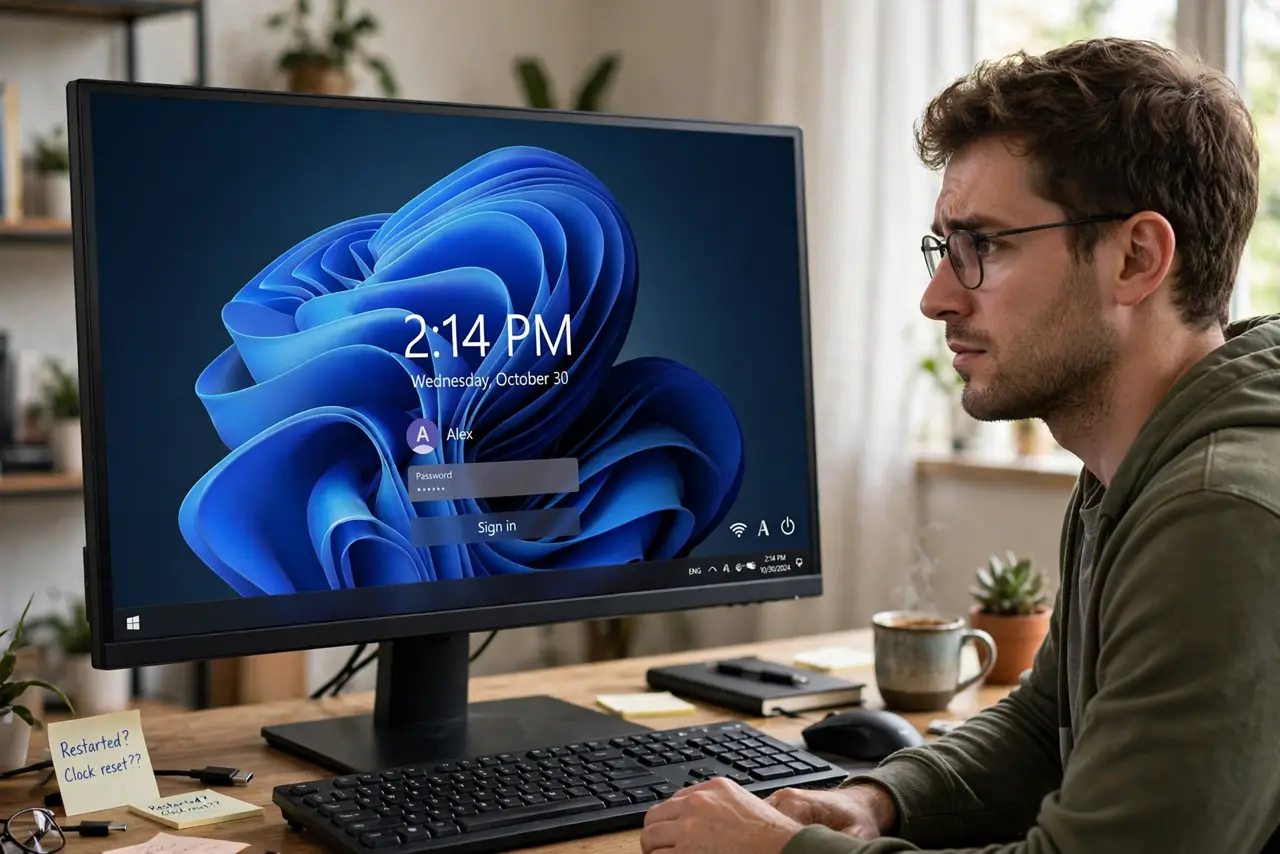
If you dual boot Windows with Linux, the clock is often wrong in one system but right in the other. The two systems disagree about what the hardware clock means: Windows reads it as local time, Linux sets it as UTC. The fix is making both agree, with the time zone stuck after travel guide covering the separate case of a clock that is wrong for a different reason.
TL;DR / Quick Fix
Quick fix: make both systems agree on what the hardware clock means. The simplest path is telling Windows to read the clock as UTC with one registry value, then syncing time online in both systems. Reboot into each OS once and confirm both show the correct time.
Follow these steps
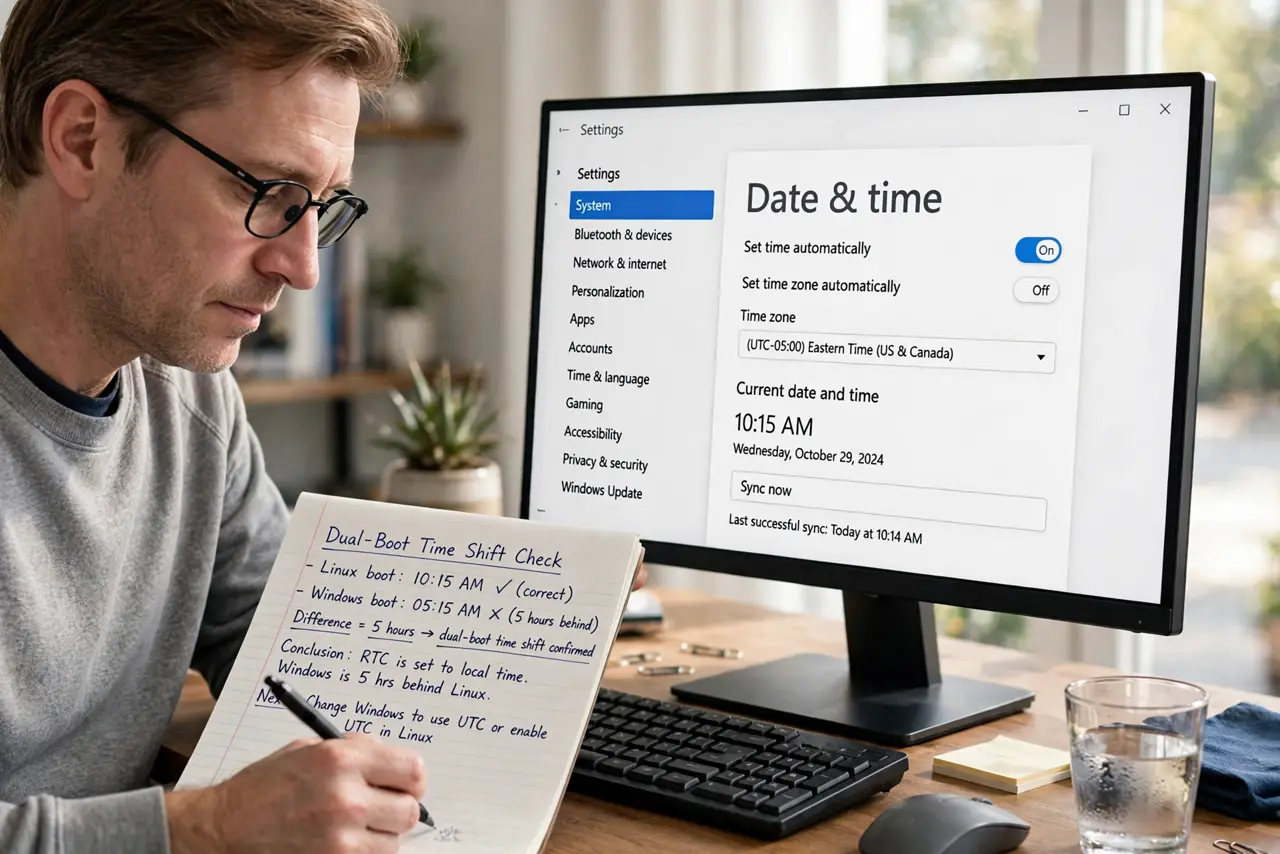
- Confirm the pattern is a dual-boot time shift. Boot into each operating system and write down what the clock shows. If the time is right in one OS and wrong in the other by a whole number of hours, this is the dual-boot clock conflict and the fix below applies.
- Note the exact size of the offset. Check whether the error is exactly 2, 3, 5, or some other whole number of hours. A whole-hour offset points to the UTC-versus-local-time disagreement, not a dying CMOS battery, which would lose minutes randomly.
- Pick one standard for the hardware clock. Decide which system sets the rule: most Linux setups store UTC in the hardware clock, while Windows stores local time. Changing Windows to use UTC is the usual choice because it leaves the Linux side untouched.
- Tell Windows to read the clock as UTC. Back up the registry first, then add the RealTimeIsUniversal value under the Windows time-zone key and set it to 1. This one documented value makes Windows interpret the hardware clock the way Linux wrote it.
- Sync the time online in Windows. After the change, open the date and time settings and sync now with an internet time server. One clean sync sets the baseline so both systems start from the truth.
- Reboot into each OS and recheck. Boot into Linux, confirm the time, then boot into Windows and confirm it again. Both should now agree; if Windows drifts again later, recheck that the registry value survived the update.
What NOT to do
- Do not replace the CMOS battery for a whole-hour offset. A dead battery loses random minutes, not exact hours, so the battery is the wrong suspect here.
- Do not keep re-syncing online without fixing the cause. Syncing masks the disagreement for one session, then the next boot into the other OS breaks it again.
- Do not edit the registry without exporting the key first. One backup export takes seconds and lets you undo the change if you typed the value name wrong.
- Do not set both systems to opposite standards. The whole point is one shared standard, so pick UTC or local time once and keep it.
Frequently asked questions
Why does the clock only break with dual boot?
Because a single OS never argues with itself. The hardware clock can only hold one value, so two systems reading it differently always fight.
Is the Windows UTC fix or the Linux local-time fix better?
Changing Windows to UTC is the common choice and survives Linux reinstalls. Changing Linux to local time works too, but some Linux tools expect UTC and may complain.
Can I just ignore it and let online sync fix it?
You can, but every switch between systems re-breaks the clock, and scheduled tasks or file timestamps can end up wrong in between.