Desktop Peek Stops Working? Fix It
When desktop peek stops working, hovering over the far corner no longer shows the desktop, and you lose a quick way to glance at files behind your windows. Peek depends on a taskbar setting and on Aero Peek behavior, so checking that setting first usually restores it.
TL;DR / Quick Fix
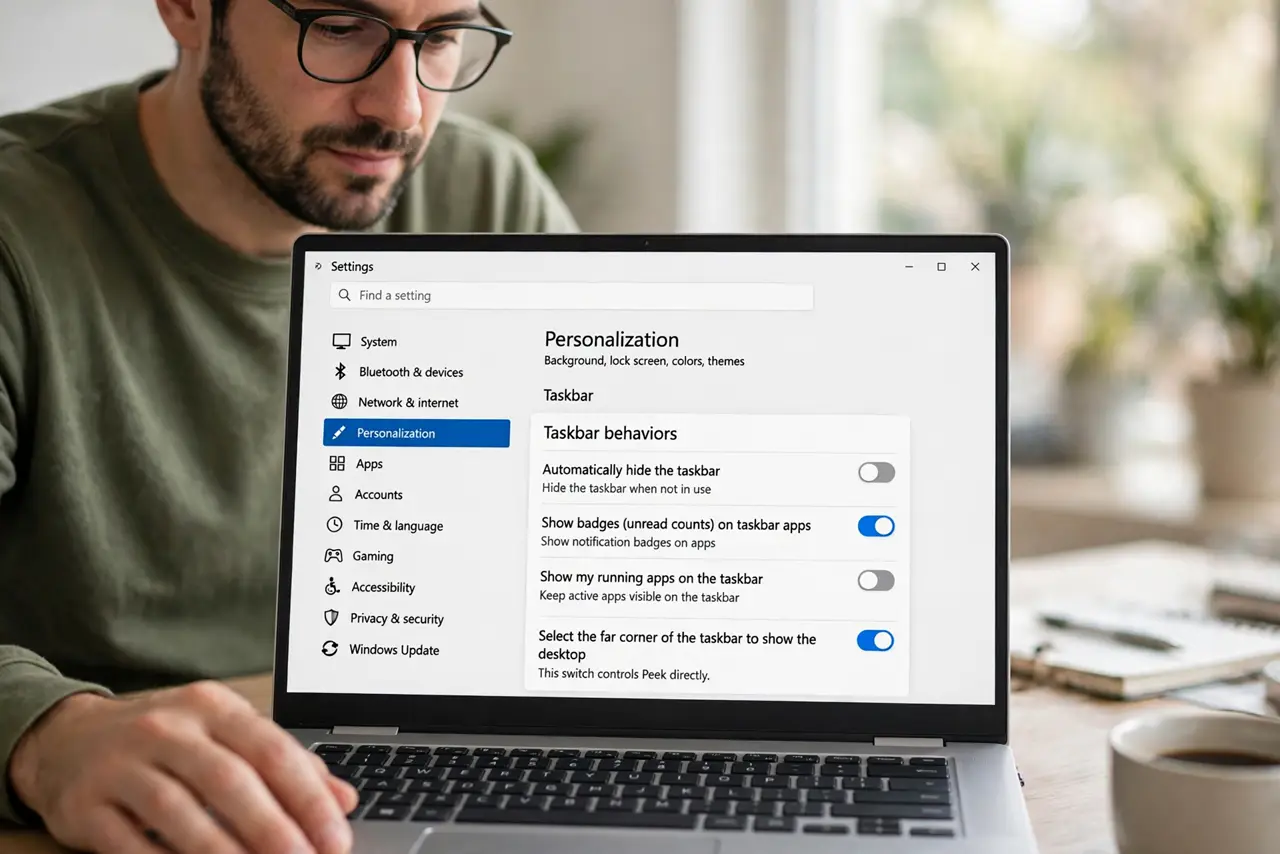
Quick fix: open Settings, then Personalization, then Taskbar, then Taskbar behaviors, and turn on Select the far corner of the taskbar to show the desktop. Hover over the far corner again and check that the desktop preview appears on screen immediately.
Follow these steps
- Turn on the far corner setting. Open Settings, then Personalization, then Taskbar, then Taskbar behaviors, and turn on Select the far corner of the taskbar to show the desktop. This switch controls peek directly.
- Hover slowly over the far corner. Move the mouse to the far corner of the taskbar and hold it still for a second. Peek needs a hover, not a quick pass, so a fast swipe may not trigger it.
- Click the corner if hover does not work. Click the far corner once. If clicking shows the desktop, peek itself works, and only the hover timing needs attention, not the whole feature.
- Check that windows are not maximized oddly. Minimize one window, then try peek again. A window in a strange state can block the preview, and minimizing it clears that state for the test.
- Restart Explorer to refresh the taskbar. Open Task Manager, restart Windows Explorer, then hover over the far corner again. A stuck Explorer process can disable peek until it restarts.
- Check visual effects if peek still fails. Open Performance Options, and confirm that visual effects for peek and transparency are enabled. If those effects are off, peek has nothing to preview with.
What NOT to do
- Do not reinstall Windows because peek stopped working. Peek is a taskbar behavior controlled by one switch, and reinstalling is far out of proportion to the problem.
- Do not install a desktop preview tool from a pop-up to replace peek. The built-in feature already does this job, and extra tools add risk for no benefit.
- Do not change every visual effect at random to fix peek. Only the peek and transparency effects matter here, and random changes can slow the whole system.
- Do not assume peek is broken because a click minimizes everything. Clicking the corner shows the desktop, while hovering previews it, and those are two different actions.
Frequently asked questions
What is desktop peek?
It is the preview you get by hovering over the far corner of the taskbar, which makes windows transparent briefly so you can see the desktop behind them.
Why does peek work on click but not on hover?
Because the hover trigger needs a steady hover, while a click is a direct action. Hold the mouse still over the corner for a second and try again.
Does peek work with every window?
Most windows preview normally, but a window in a special state, such as a full-screen game, may block the preview. Minimize that window and test again.