Repair Windows with DISM
When SFC reports it found corruption but could not fix it, the next tool is DISM — it repairs the hidden store of clean Windows files that SFC draws from. Think of SFC as the mechanic and DISM as the parts warehouse: if the warehouse is damaged, the mechanic cannot work. Run DISM, then SFC again.
TL;DR / Quick Fix
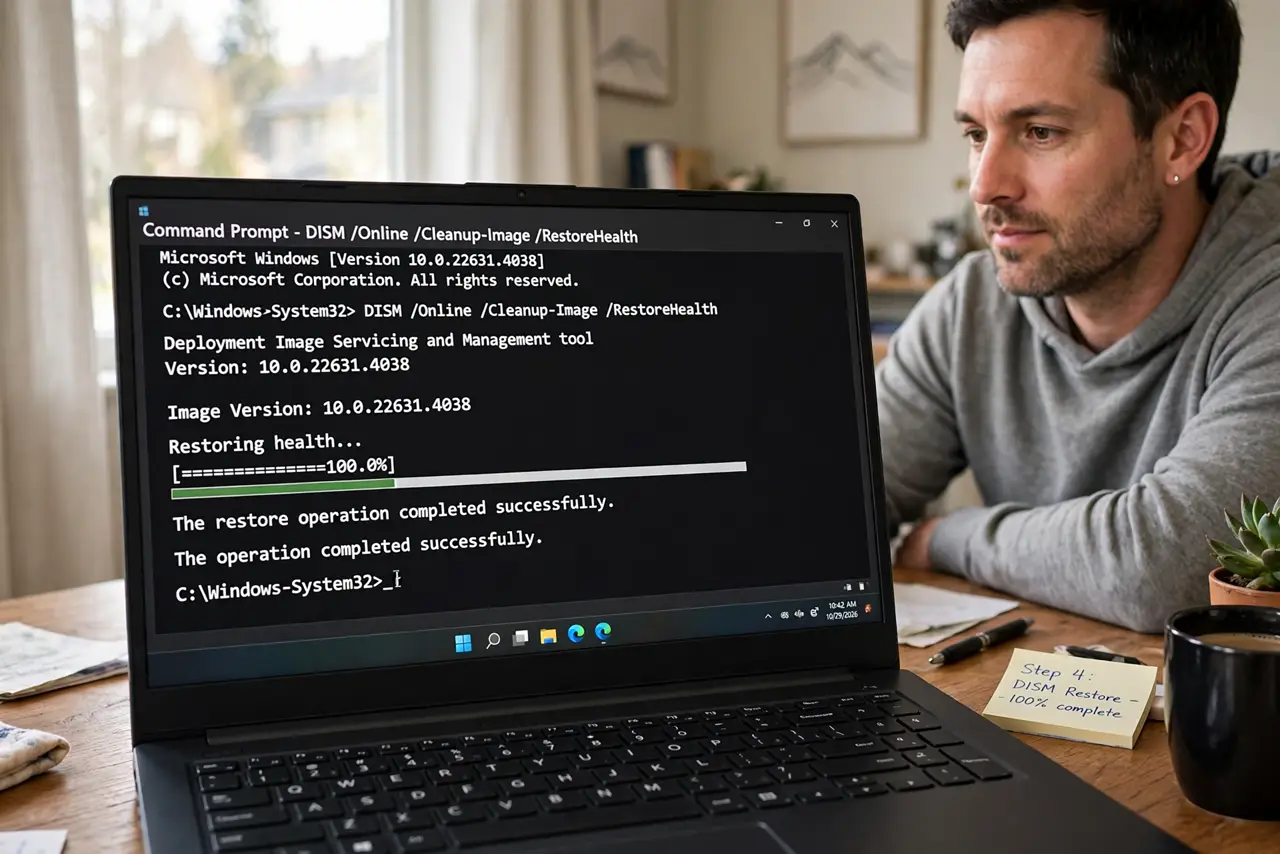
Quick fix: open Command Prompt as administrator and run DISM /Online /Cleanup-Image /RestoreHealth. It downloads clean files from Windows Update and repairs the component store — takes 15-30 minutes. Then run sfc /scannow again; with its source repaired, SFC usually succeeds on the second pass.
Follow these steps
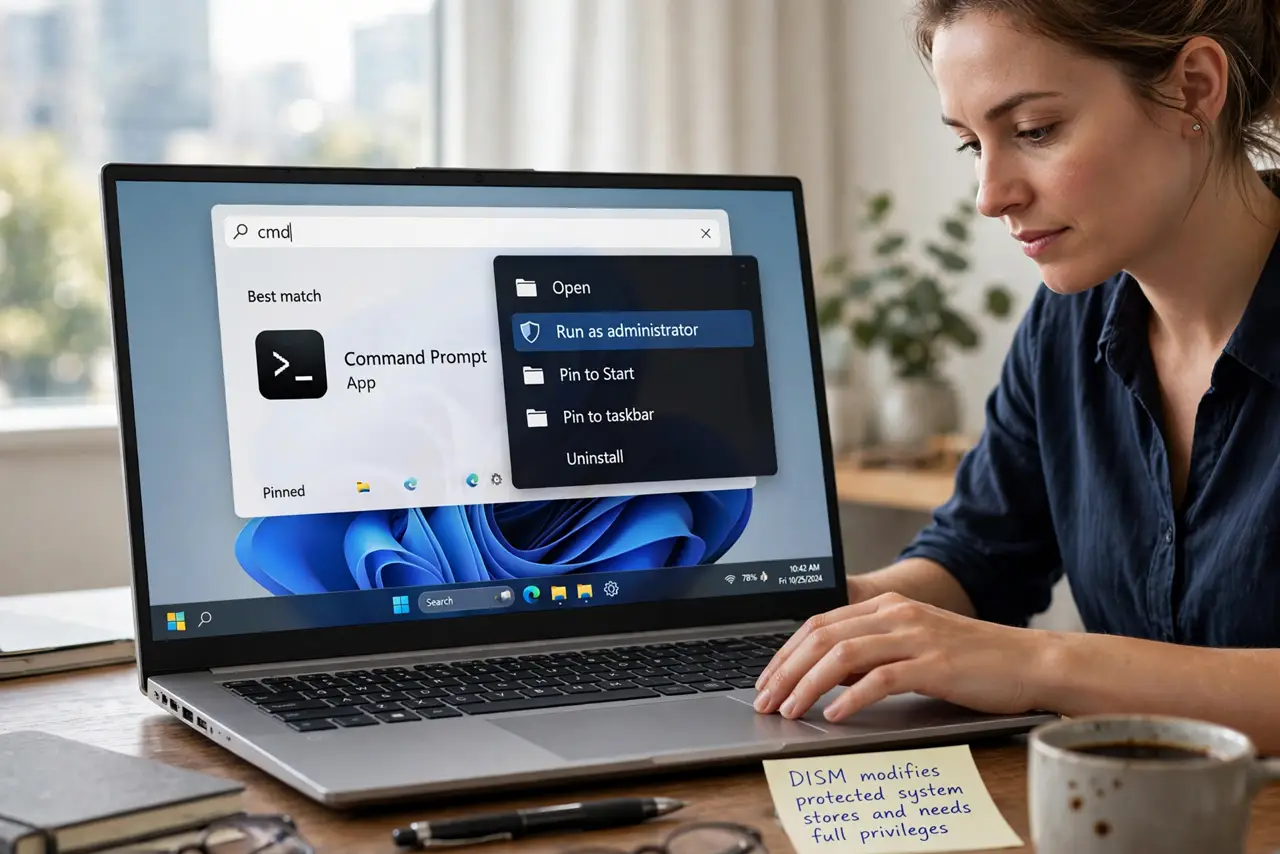
- Open an administrator Command Prompt. Press the Windows key, type cmd, right-click Command Prompt, Run as administrator. DISM modifies protected system stores and needs full privileges.
- Run the restore health command. Type DISM /Online /Cleanup-Image /RestoreHealth and press Enter. It scans the component store, downloads clean replacements from Windows Update, and repairs damage.
- Stay connected to the internet. RestoreHealth pulls clean files from Windows Update by default. On a metered or offline connection it can fail — connect to real internet first for the reliable path.
- Wait for 100 percent. The progress bar moves slowly and can stall at percentages like 62% — normal. Interrupting risks a half-repaired store, which is worse than the original problem.
- Run SFC again afterward. With the store repaired, run SFC once more — this is the designed sequence, and the second SFC pass now succeeds where the first failed.
- Reboot into recovery if Windows will not start. If corruption is so bad Windows will not boot, run DISM from the recovery environment command prompt instead — same tool, working from outside the broken system.
What NOT to do
- Do not skip straight to reinstalling Windows. The DISM-then-SFC sequence resolves most corruption without touching your files or apps.
- Do not run DISM offline without a source. RestoreHealth needs Windows Update or a specified install image — offline runs fail with confusing errors.
- Do not interrupt at a stuck percentage. DISM pauses are normal, especially around 60-80% — give it time before assuming failure.
- Do not confuse DISM errors with hopelessness. Error 0x800f081f means it cannot reach a source — fix the internet or specify an image, not the PC.
Frequently asked questions
How is DISM different from SFC?
SFC repairs individual system files from a local store; DISM repairs the store itself. SFC is the mechanic, DISM is the parts warehouse — fix the warehouse first when the mechanic fails.
Can DISM fix a PC that won't boot?
Yes, run from the recovery environment's command prompt with the appropriate offline switches — same repairs, applied from outside the broken Windows.
Do I need to run DISM regularly?
No — only when SFC fails or corruption is suspected. It is a repair tool, not maintenance.