Display Settings? Basics
Text too small, screen too dim, second monitor on the wrong side — nearly every display annoyance in Windows lives in one place: Display Settings. It controls resolution, brightness, scaling, orientation, and multi-monitor layout. Knowing this one panel saves you from squinting for years. Here is the tour.
TL;DR / Quick Fix
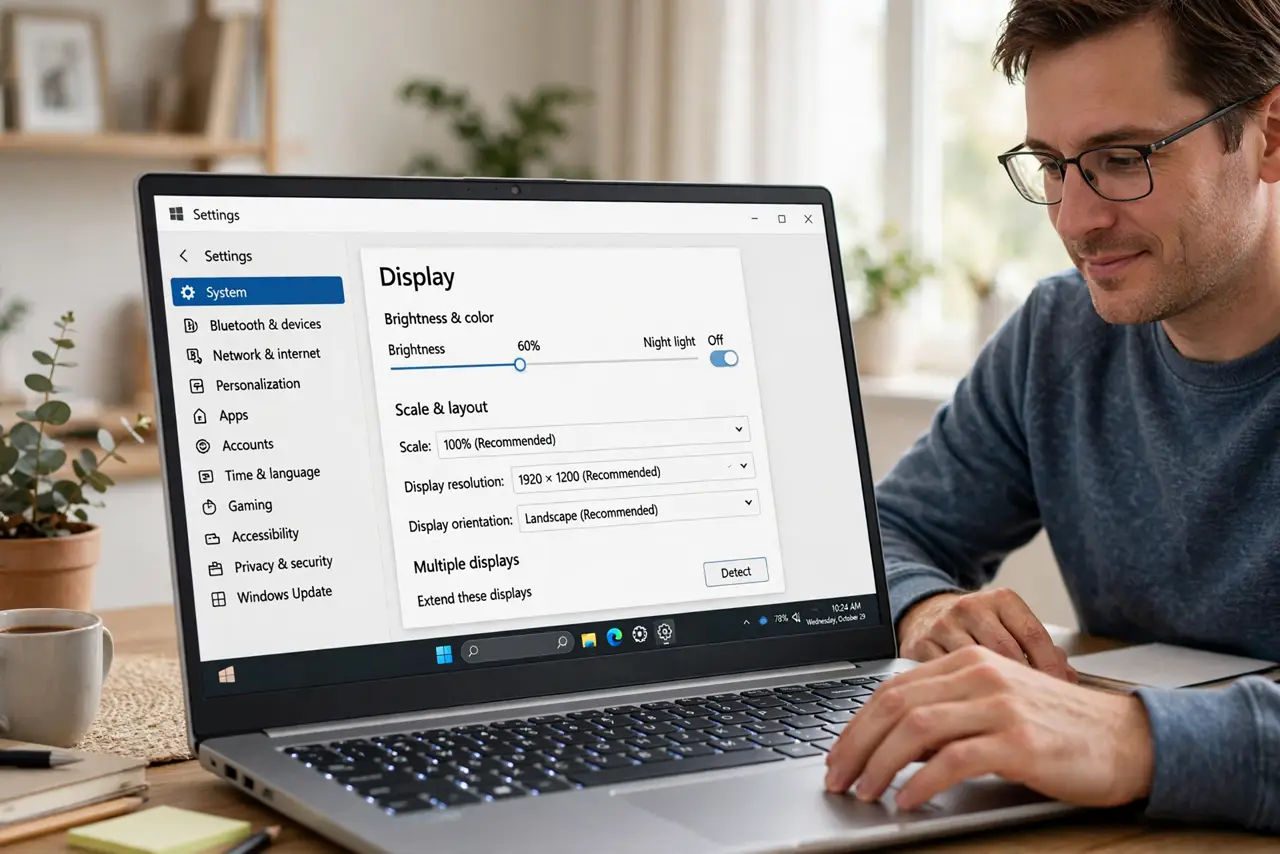
Quick fix: right-click the desktop and choose Display settings — this one panel controls brightness, resolution, text scaling, and multi-monitor layout. Set resolution to the recommended value, adjust scaling if text is tiny, and arrange multiple monitors by dragging their boxes.
Follow these steps
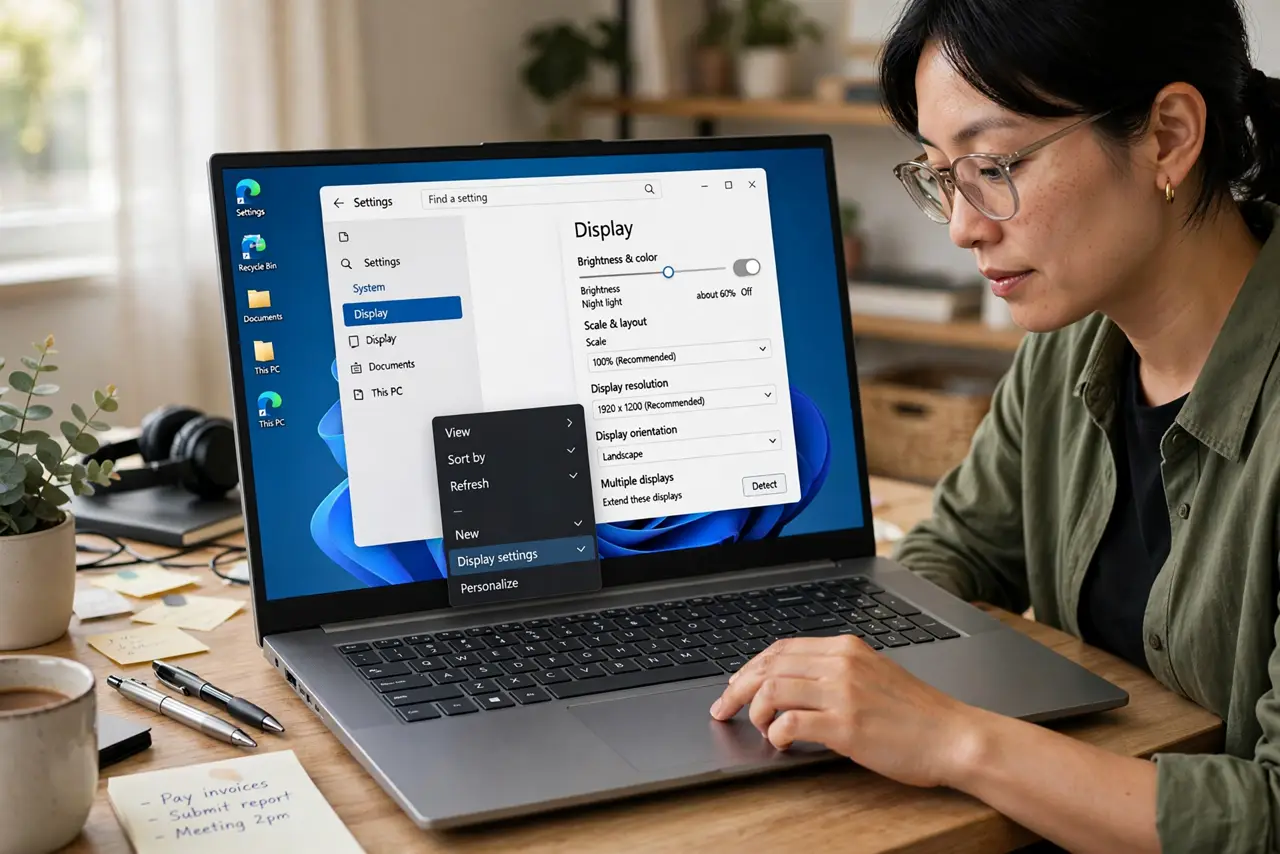
- Open Display Settings. Right-click an empty spot on the desktop and choose Display settings. Everything display-related lives here — no need to hunt through the old Control Panel.
- Set the recommended resolution. Choose the resolution marked Recommended — it matches your screen's native pixels. Anything lower looks blurry; anything higher is not actually available. Blurry text after changing monitors usually means this got set wrong — see blurry scaling.
- Adjust brightness. Use the brightness slider here (laptops) or your monitor's buttons (desktops). Match brightness to your room — glaring in a dark room causes eye strain; dim in a bright room causes squinting.
- Fix tiny or huge text with scaling. If text is uncomfortably small, raise the Scale setting (try 125% or 150%). Windows restarts some apps to apply it cleanly. See the display scaling guide for the details and the blurry-app fixes.
- Arrange multiple monitors. With two screens, drag the numbered boxes to match their physical positions — get this wrong and your mouse exits the wrong edge. Set your main display with the 'Make this my main display' checkbox.
- Try Night light for evenings. Night light warms the screen color at night, which many people find easier on the eyes. Schedule it to turn on automatically at sunset rather than toggling it manually.
What NOT to do
- Do not set a non-native resolution to make text bigger. Use scaling instead — wrong resolutions blur everything.
- Do not ignore the monitor arrangement. A backwards layout makes the mouse jump confusingly between screens.
- Do not max brightness in a dark room. Eye strain and headaches follow — match the screen to the room, not the slider's maximum.
- Do not forget Night light exists. Staring at a blue-white screen at midnight is a choice, and not a good one.
Frequently asked questions
Why is everything tiny on my new monitor?
High resolution on a smaller screen makes everything small. Raise the Scale setting to 125% or 150% instead of lowering the resolution.
My second monitor is on the wrong side. How do I fix it?
In Display Settings, drag the monitor boxes to match your desk. The numbers identify screens — click Identify if you are unsure which is which.
Can I use different scaling on each monitor?
Yes — select each display at the top, then set its scale independently. Windows handles mixed-DPI setups reasonably well now.