Control RGB Lighting
Your PC glows like a unicorn sneezed on it — fans, keyboard, RAM, each running its own rainbow, each demanding its own app. Windows Dynamic Lighting puts the chaos under one roof: one settings page to sync every compatible light to a single color or turn the circus off entirely.
TL;DR / Quick Fix
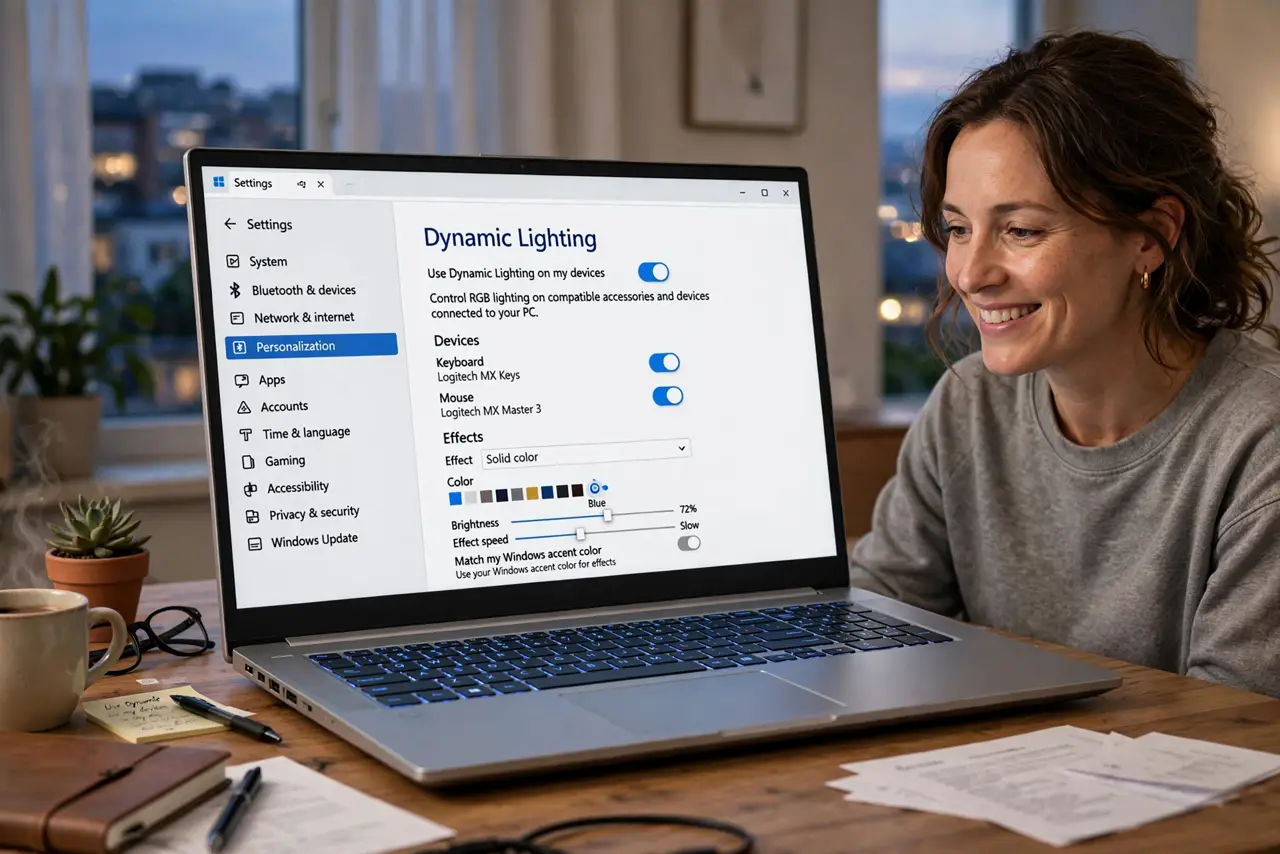
Quick fix: open Settings, Personalization, then Dynamic Lighting, and set one color and brightness for all compatible devices — or turn the lights off entirely. Uninstall the extra vendor apps once Windows handles it. One page replaces five conflicting rainbow utilities.
Follow these steps
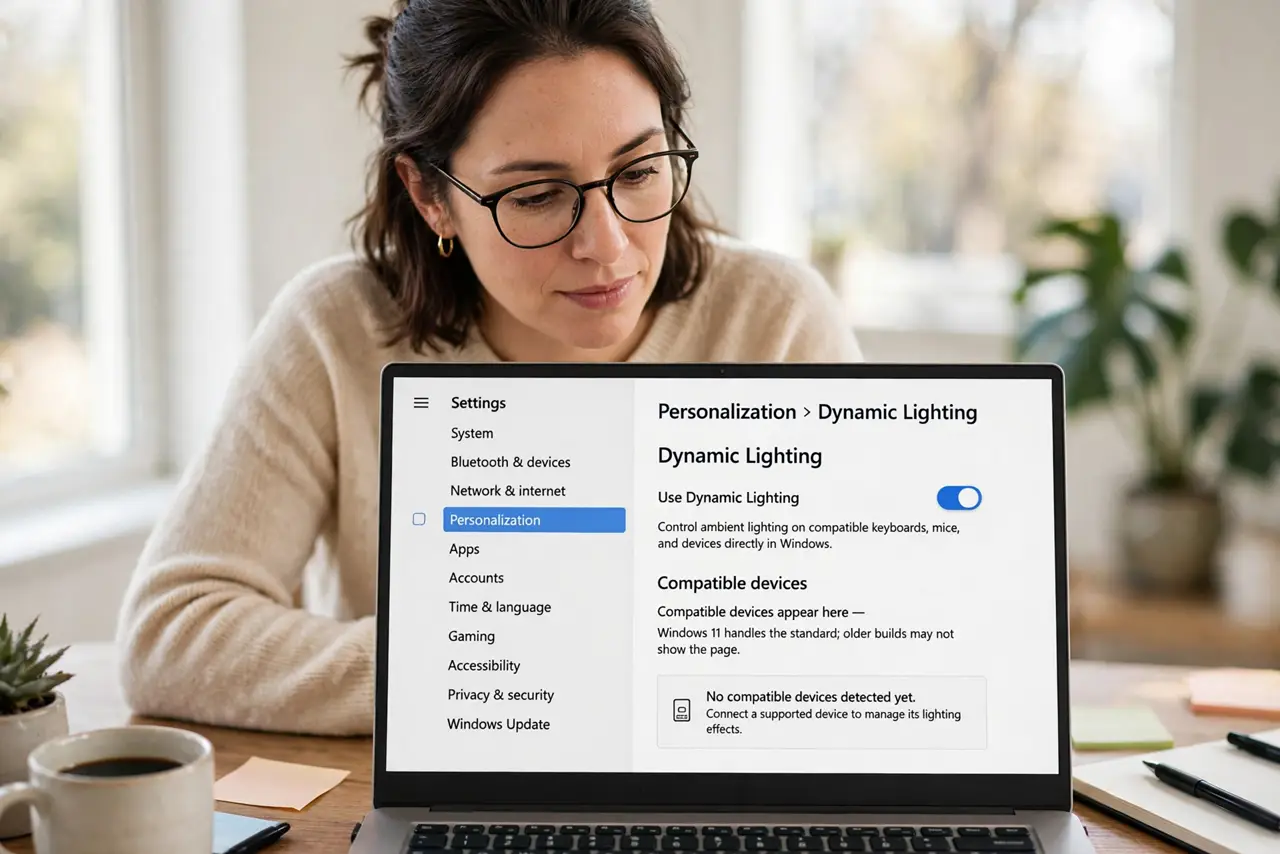
- Open Dynamic Lighting. Go to Settings, Personalization, then Dynamic Lighting. Compatible devices appear here — Windows 11 handles the standard; older builds may not show the page.
- Pick one color for everything. Set a single static color and a sane brightness. The rainbow wave is the default because it photographs well, not because anyone enjoys it daily.
- Turn off what you hate. All lights off is a valid aesthetic. The setting sticks across reboots — no more light show every startup.
- Remove the vendor bloat. Once Windows controls the lights, uninstall the extra RGB utilities. Fewer background apps, fewer conflicts — see the software conflict notes if lights still fight.
- Sync with the room. Match the PC glow to your desk lighting for a coherent setup. Subtle beats spectacular for daily use.
- Know the limits. Not every device speaks the Windows standard — some still need their makers app. Check compatibility before uninstalling everything.
What NOT to do
- Do not install five RGB apps at once. They conflict, fight over devices, and each eats background resources.
- Do not max brightness on every LED. Full-blast rainbow is distracting and ages the LEDs faster.
- Do not expect ancient hardware to comply. The Windows standard needs recent firmware — old strips stay on their own apps.
- Do not chase perfect sync across brands. Close enough is the realistic goal; pixel-perfect rarely happens.
Frequently asked questions
What is Dynamic Lighting?
Windows 11s built-in standard for controlling RGB devices — keyboards, mice, fans — from one Settings page.
Why do my lights reset on reboot?
A vendor app is fighting Windows for control. Remove the extra app and the setting sticks.
Can I turn all RGB off?
Yes — set brightness to zero or toggle the devices off. Darkness is a supported configuration.