Speed Up Edge Launch
You click Edge and... wait. And wait. The browser eventually opens, but those seconds of staring at nothing happen every single time. Edge has a Startup Boost feature designed exactly for this: it preloads browser processes in the background so the window appears instantly. This guide enables it and clears the other usual launch-time drags.
TL;DR / Quick Fix
Quick fix: if Edge takes forever to open, enable Startup Boost in Settings under System and performance — it preloads Edge in the background so it launches instantly. Also clear old extensions you no longer use, since each one slows launch. A quick settings cleanup usually fixes it.
Follow these steps
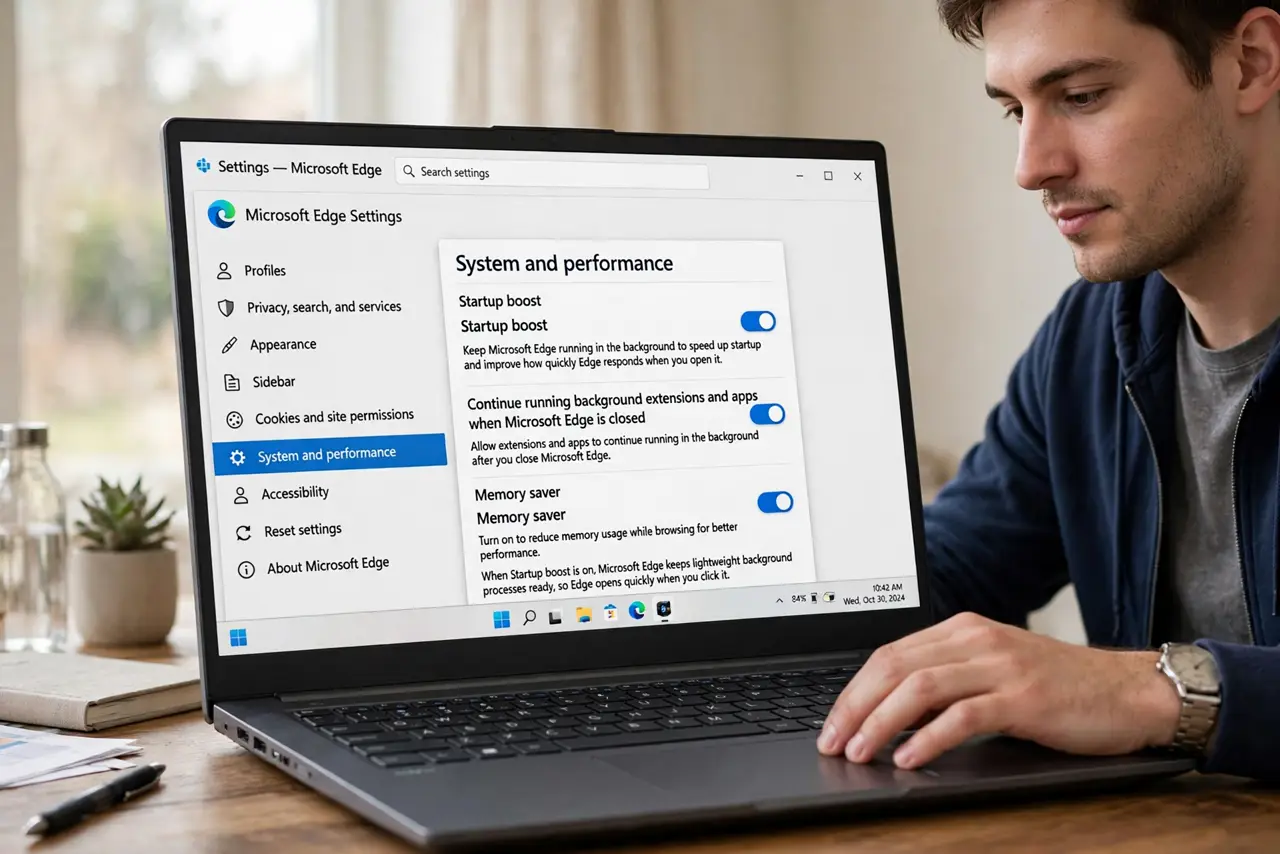
- Enable Startup Boost. Open Edge Settings, go to System and performance, and turn on Startup Boost. Edge then keeps lightweight background processes ready, so clicking the icon opens the window immediately instead of cold-starting everything.
- Trim your extensions. Every extension adds launch time. Open the extensions page and remove anything you do not recognize or have not used in months — most people carry several they installed once for one task.
- Clear the startup pages. If Edge opens a dozen old tabs every launch, that is your delay. Set startup to open a new tab page instead — you can reopen yesterday's tabs on demand rather than every time.
- Check what launches with Windows. Some Edge components register at Windows startup. Review startup apps and disable the ones you do not need — a faster Windows boot means a faster everything.
- Update Edge. An outdated Edge can launch slowly due to bugs long since fixed. Check for updates in Settings — it takes seconds and rules out the easy cause.
- Test with a clean profile if still slow. Create a fresh Edge profile and compare launch speed. If the new profile is instant, your main profile has accumulated cruft — migrate bookmarks over and switch.
What NOT to do
- Do not install 'browser booster' utilities. Third-party speed-up tools are usually junkware — Edge's built-in Startup Boost is the legitimate version of what they promise.
- Do not disable Startup Boost to save tiny RAM. The background footprint is small by design; the launch speed is worth far more than the megabytes.
- Do not keep 50 tabs as your startup set. Restoring a tab army every launch is self-inflicted slowness — bookmark the set instead.
- Do not confuse slow launch with slow internet. If pages load slowly after Edge opens fine, the problem is the connection, not the startup.
Frequently asked questions
Does Startup Boost slow down my PC?
Barely — it keeps minimal processes preloaded, using little memory and no CPU until you open the browser. The tradeoff overwhelmingly favors keeping it on.
Why is Edge slow even with Startup Boost?
Usually extensions or a bloated profile. Disable extensions one by one to find the culprit — a single bad extension can dominate launch time.
Should I reinstall Edge?
Rarely needed. A fresh profile fixes most profile-related slowness without the hassle of reinstalling — try that first.