Tame Hungry Apps
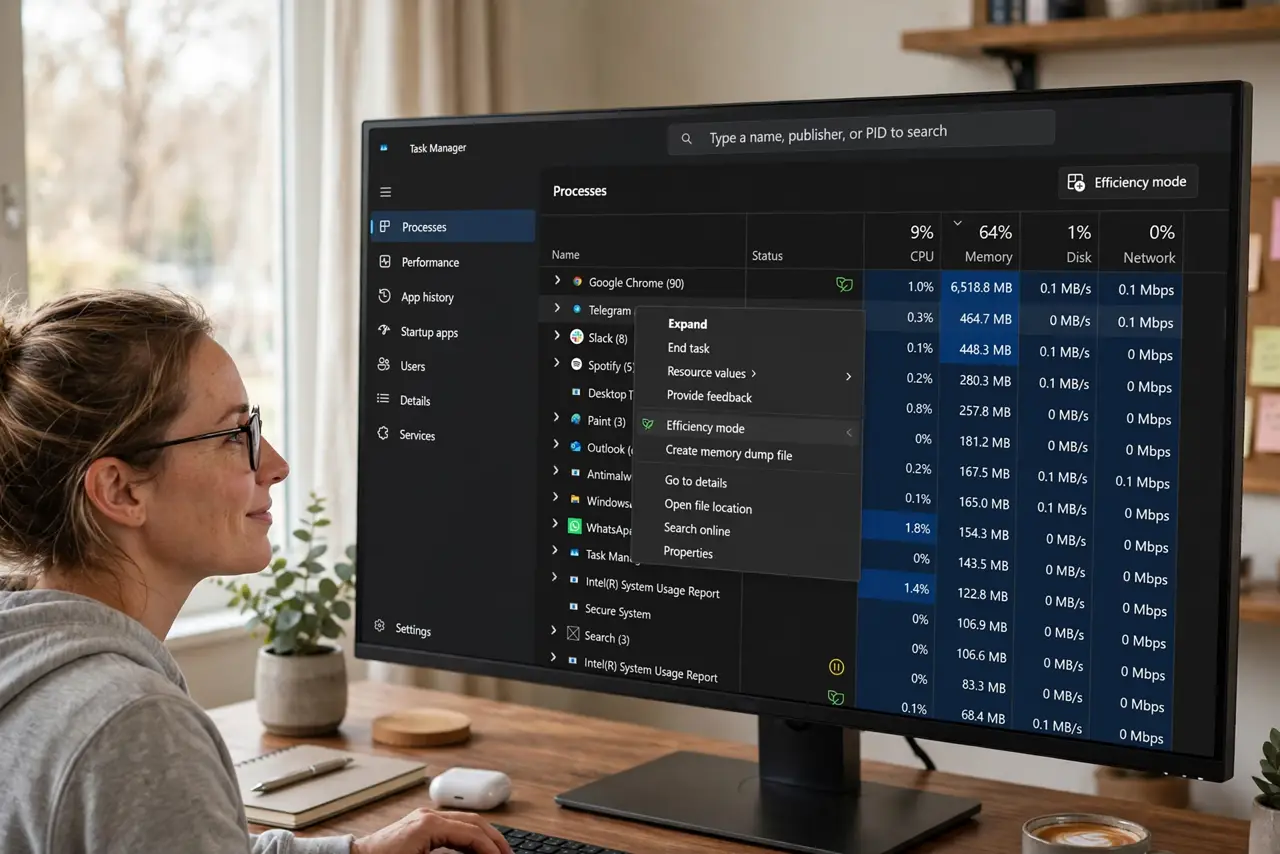
One app is eating your CPU alive — the fan screams, everything else lags, and closing it is not an option because you need it. Windows 11 has a built-in answer most people never meet: Efficiency mode, which throttles a misbehaving app's background hunger without closing it. It is two clicks in Task Manager, fully reversible, and surprisingly effective. If you first need to identify the hog, see GPU and CPU per app.
TL;DR / Quick Fix
Quick fix: when one app hogs the CPU, open Task Manager, right-click the app on the Details tab, and set Efficiency mode — Windows throttles its background hunger without closing it. For a foreground app, lower its settings first. Efficiency mode is reversible and safe to try on any app.
Follow these steps
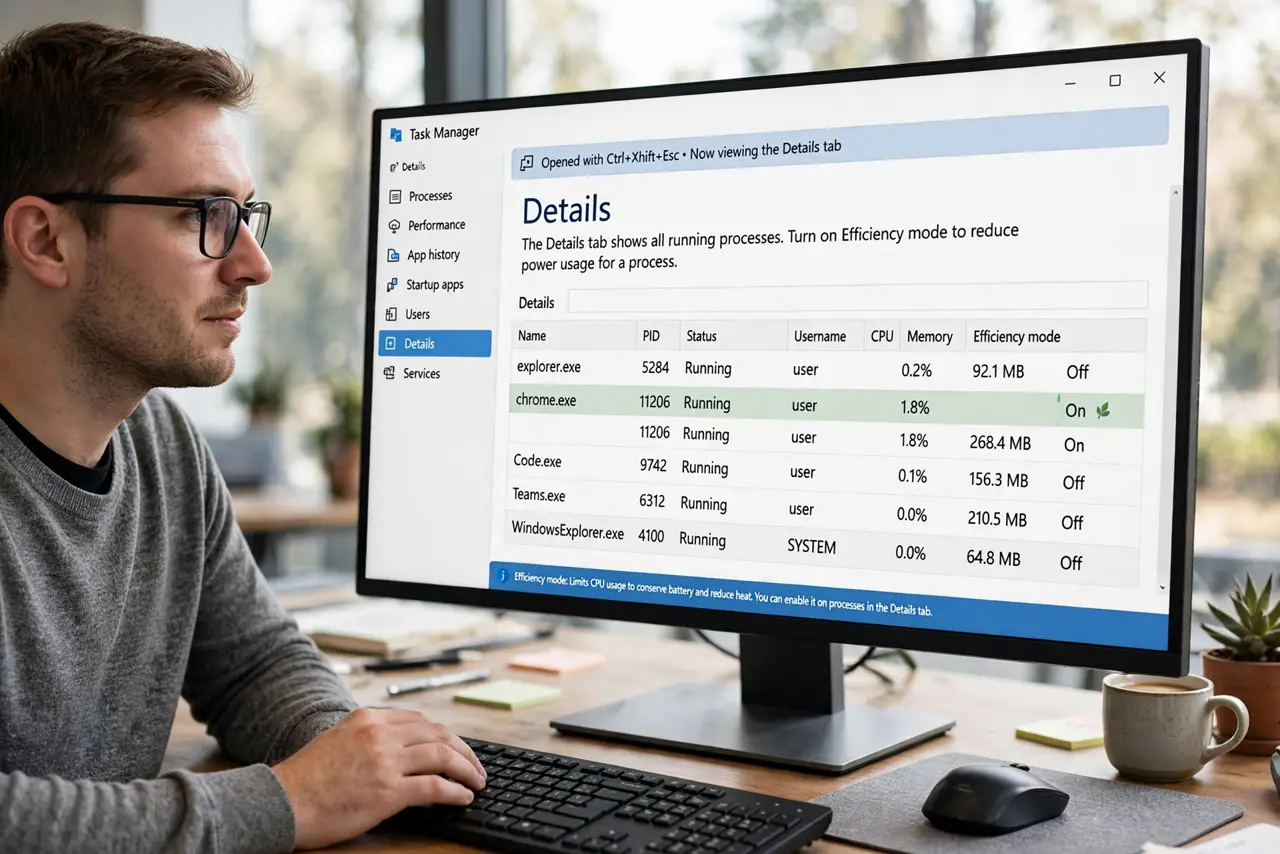
- Open Task Manager. Press Ctrl+Shift+Esc. Head to the Details tab for the full process list — that is where Efficiency mode lives.
- Find the hungry app. Sort by CPU to see the offender at the top. Confirm it is the app you think — throttling the wrong process just moves the mystery.
- Enable Efficiency mode. Right-click the process and choose Efficiency mode, then confirm. Windows immediately caps its CPU priority and background aggression — the fan should calm within a minute.
- Check the app still works. Use the app normally for a few minutes. Efficiency mode slows background greed, not the features you use — if something feels sluggish, it may need full power after all.
- Lower in-app settings for foreground apps. For games and editors you actively use, Efficiency mode is the wrong tool — reduce their internal quality, frame-rate, or background options instead. Throttle the background, tune the foreground.
- Turn it off when done. Right-click and disable Efficiency mode once the heavy job finishes. It is a per-session tool, not a permanent label — though leaving it on a chronic offender is fine.
What NOT to do
- Do not set Efficiency mode on system processes. Windows core services need full priority — throttle third-party apps only.
- Do not expect miracles on a single-core-era machine. Efficiency mode manages hunger; it cannot create CPU that does not exist.
- Do not throttle your game while playing it. Foreground performance apps need full power — Efficiency mode is for background greed.
- Do not ignore a permanently hungry app. If one app always needs throttling, something is wrong with it — update, reinstall, or replace it.
Frequently asked questions
Is Efficiency mode the same as power throttling?
Related but different: power throttling is automatic battery saving (see what power throttling is); Efficiency mode is your manual throttle on a specific process. Same family, different driver.
Will it make the app crash?
No — it only lowers scheduling priority. The app runs the same code, just with less CPU eagerness. It is one of the safest tweaks in Task Manager.
Can I set it permanently?
The setting persists per process name across restarts in most cases — but verify after updates, which sometimes reset it.