Open the Emoji Panel Fast
You want to drop an emoji into a message, and you are googling copy-paste emoji like it is 2009. Windows has a built-in emoji panel — one shortcut, searchable, with symbols and kaomoji too. Most people discover it by accident years after getting their PC. Here is the shortcut and the fixes for when it refuses to appear.
TL;DR / Quick Fix
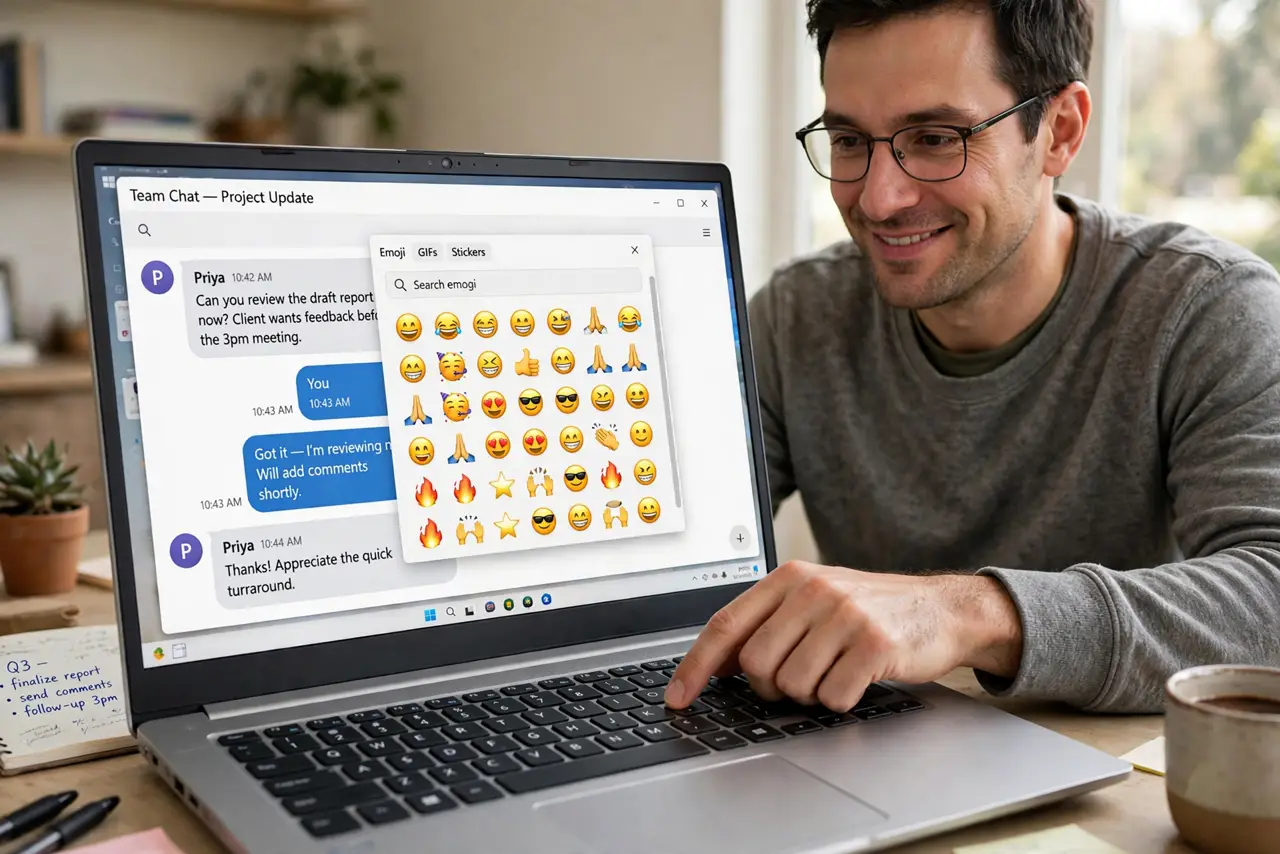
Quick fix: press Windows key plus period to open the emoji panel anywhere you can type. Search or browse categories, click to insert, and keep typing — the panel stays out of your way. If it never appears, check that the shortcut is not stolen by another app.
Follow these steps
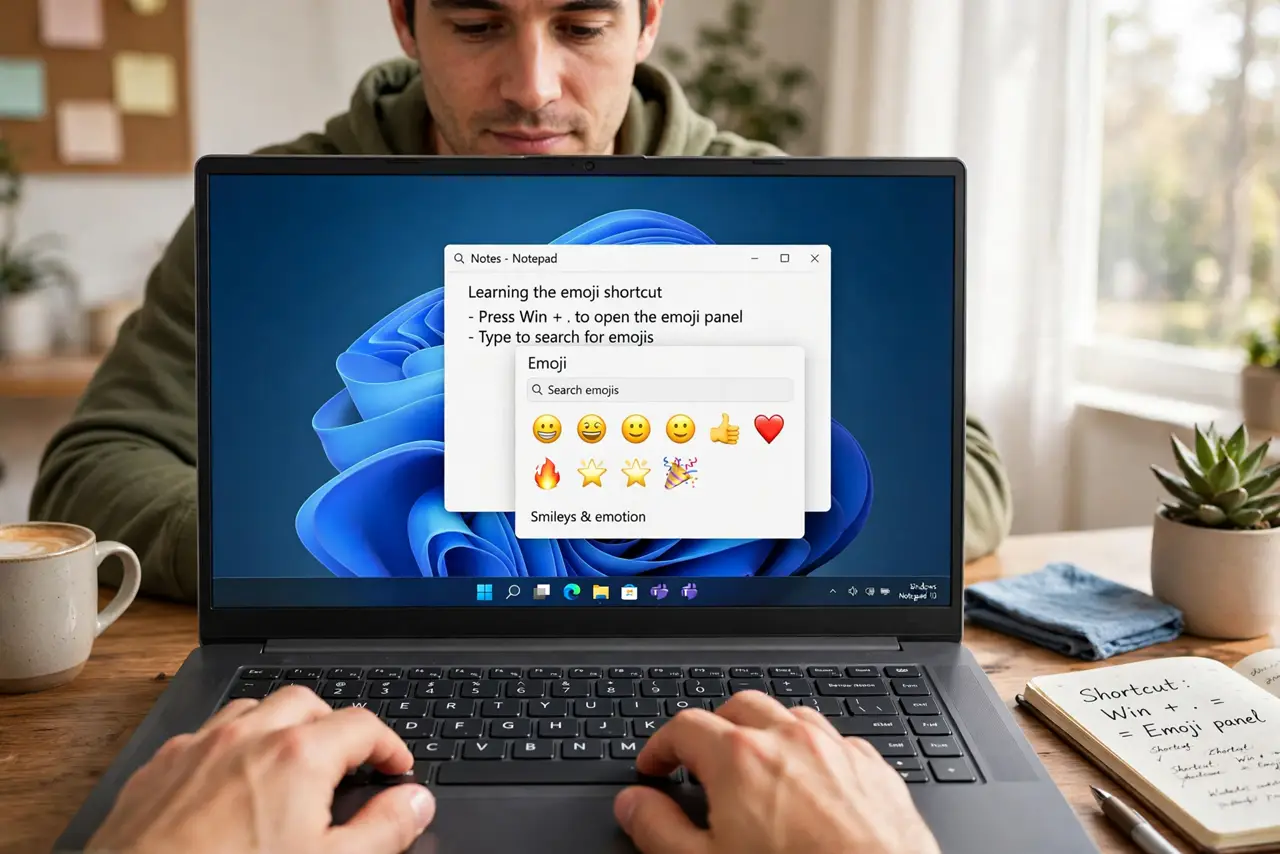
- Learn the shortcut. Press the Windows key and the period key together — Win + . — anywhere you can type. Win + ; works identically. The panel pops up at your cursor.
- Search instead of browsing. Start typing a word — happy, arrow, check — and the panel filters instantly. Searching beats scrolling through fifteen categories of faces.
- Explore beyond emoji. The panel has tabs for symbols, and the kaomoji tab (the Japanese emoticons) is a hidden gem. The Mac equivalent works similarly for Apple users.
- Click to insert, keep typing. Click an emoji to insert it and keep typing — the panel stays open for multiples. Press Escape when done.
- Fix the no-show. If nothing appears, another app may have stolen the shortcut, or the touch keyboard service is disabled. Check the panel not opening guide for the step-by-step fix.
- Set your skin tone default. Long-press a person emoji to pick a skin tone, or set the default once — Windows remembers your preference across sessions.
What NOT to do
- Do not google copy-paste emoji sites. Sketchy emoji sites are ad traps; the built-in panel is faster anyway.
- Do not assume it works everywhere. Some old applications and password fields block the panel — that is by design.
- Do not remap Win + . casually. It is muscle memory gold; give the shortcut to the emoji panel, not a macro.
- Do not forget Win + ;. If period is awkward on your layout, semicolon does the same thing.
Frequently asked questions
What is the emoji shortcut on Windows?
Windows key + period (or semicolon). It works in nearly any text field across Windows 10 and 11.
Why doesn't the emoji panel open?
Usually a conflicting app shortcut or a disabled touch keyboard service. Close overlay apps and check the troubleshooting guide linked above.
Can I use emoji in file names?
Technically yes, but do not — emoji in filenames break scripts, backups, and some cloud syncs. Keep filenames boring.