Filter Event Viewer Noise
Open Event Viewer and drown: thousands of warnings and errors, most of them harmless noise Windows logs for its own purposes. The tool is powerful once you filter it — Critical and Error only, narrowed by source or event ID. Start friendlier with Reliability History; come here for the details.
TL;DR / Quick Fix
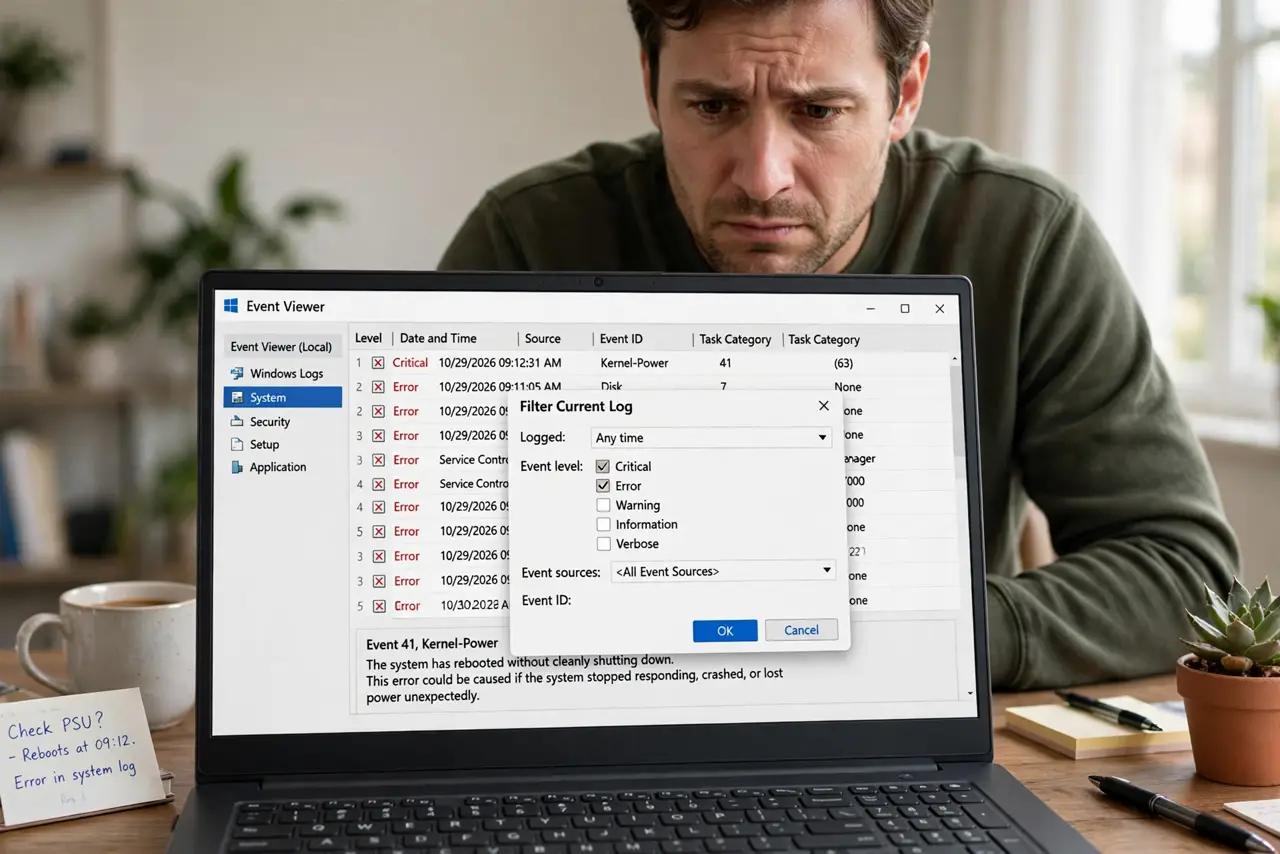
Quick fix: open Event Viewer, go to Windows Logs > System, and click Filter Current Log — tick only Critical and Error to hide the noise. Filter by Event ID once you know the culprit. For most people, Reliability History is the friendlier start; Event Viewer is for details.
Follow these steps
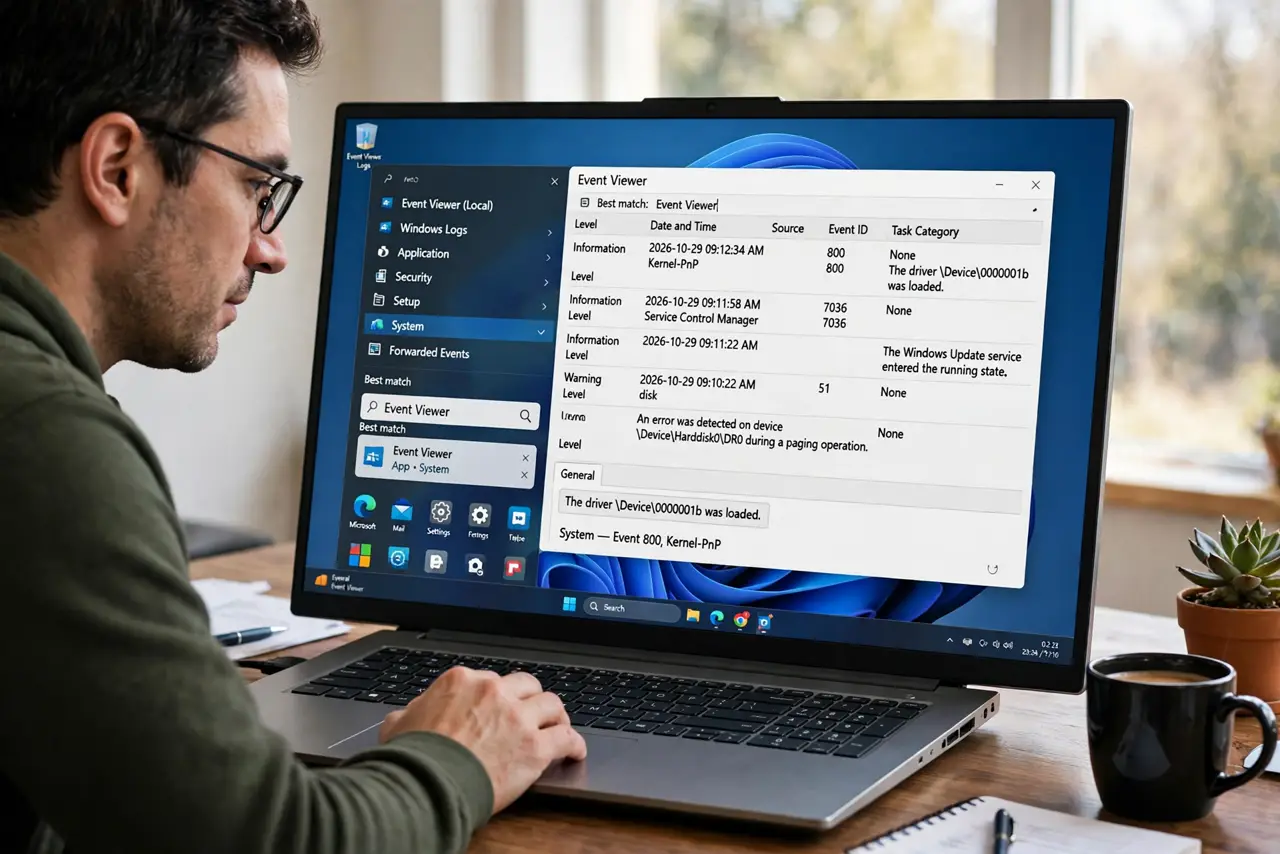
- Open Event Viewer. Search the Start menu for “Event Viewer” and open it. Head to Windows Logs > System — that is where hardware and driver events live.
- Filter the current log. In the right-hand Actions pane, click “Filter Current Log.” Tick only Critical and Error. Thousands of entries collapse to the handful that might matter.
- Read one event properly. Double-click an event: the General tab describes it in plain-ish language, and the Event ID plus Source identify it precisely — those two fields are your search terms.
- Filter by Event ID. Once you know the culprit's Event ID, filter the log to just that ID. A timeline of one specific failure is far more useful than a mixed soup.
- Filter by source. Alternatively, filter by Source (the driver or component name) to see everything one component has complained about lately.
- Save it as a Custom View. In the Actions pane, “Create Custom View” saves your filter. Next time, one click reopens the exact filtered lens — no re-filtering.
What NOT to do
- Do not panic at the error count. Healthy Windows logs plenty of errors that mean nothing — context and repetition matter, not raw counts.
- Do not clear the logs to “fix” errors. Clearing destroys the diagnostic history and fixes nothing.
- Do not chase every warning. Warnings are informational 99% of the time — start with Critical, then Error, then stop.
- Do not edit the registry based on a forum's Event ID guess. Identify first, verify second, change last — and back up.
Frequently asked questions
What is the difference from Reliability Monitor?
Reliability History shows a friendly timeline of what happened; Event Viewer shows the raw log entries behind it.
Which log should I check?
System for hardware/drivers, Application for crashing apps. Those two cover nearly all home diagnostics.
Can I break anything by filtering?
No — filtering only changes the view, never the data. Filter freely.