Show the Status Bar in File Explorer
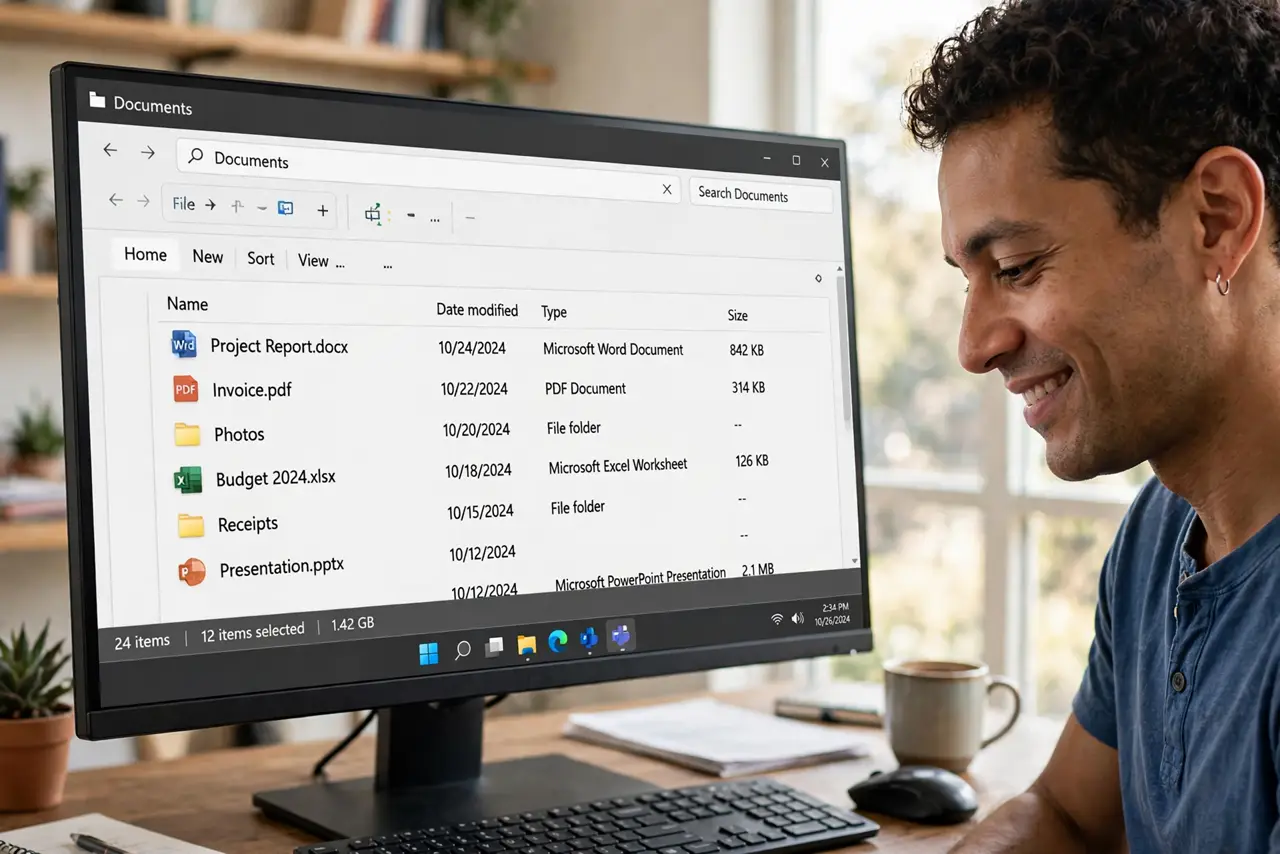
The bottom strip of Explorer that used to say '15 items, 3 selected' has vanished, and with it your quick sense of folder size. Windows 11 hides the classic menus — including the status bar toggle — behind the Alt key. One checkbox brings the strip back for good.
TL;DR / Quick Fix
In File Explorer press Alt, open the View menu, and check 'Status bar' — it returns along the bottom showing item counts and sizes. The Alt key reveals the classic menu Windows 11 hides by default. If the bar appears empty, select a file: it only reports on the selection.
Follow these steps
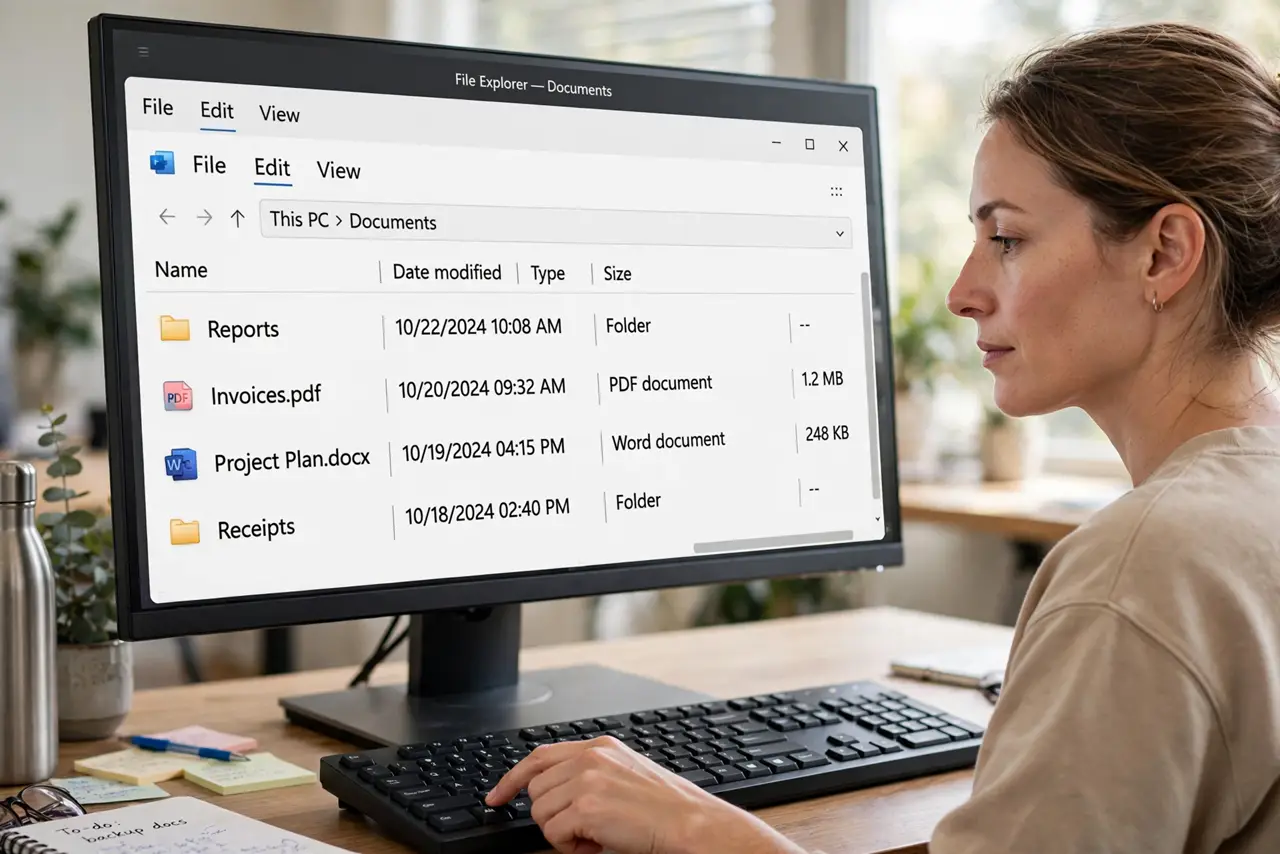
- Press Alt in File Explorer. With an Explorer window active, tap the Alt key. The classic menu bar — File, Edit, View — appears at the top.
- Open the View menu. Click View in the revealed menu bar to open the classic View dropdown.
- Check 'Status bar'. Click the Status bar entry so it gains a checkmark. The strip appears along the bottom of the window immediately.
- Select a file to see it work. The bar reports on your selection: '1 item selected, 2.4 MB'. With nothing selected it shows the folder's total item count.
- Leave it on permanently. The checkbox persists across windows and restarts. Set it once and every Explorer window shows the bar.
- Use it to sanity-check copies. After copying a folder, compare the item counts in source and destination status bars — a quick way to catch incomplete copies.
What NOT to do
- Do not confuse the status bar with the details pane. The bar is the thin strip at the very bottom; the pane is the side panel — different toggles.
- Do not expect the bar in Open/Save dialogs. Those simplified windows never show the status bar, even with it enabled.
- Do not hunt for it in the new command bar. The toggle lives only in the classic Alt-key View menu on Windows 11.
- Do not assume an empty bar is broken. With no selection and an empty folder, there is simply nothing to report.
Frequently asked questions
What does the status bar actually show?
Item counts, selected-file sizes, and the total size of the selection — a quick summary of whatever you have highlighted.
Why is the status bar option hidden?
Windows 11 replaced the ribbon with a compact command bar. The classic menu — and this toggle — still exists behind the Alt key.
Can I customize what the status bar shows?
No. Unlike the columns above it, the status bar's content is fixed — counts and sizes, nothing more.