When Fast Startup Hurts
Your PC boots fast but acts haunted — USB devices missing, dual-boot broken, settings that refuse to stick, shutdowns that never quite shut down. Fast Startup is the suspect: it hibernates the kernel instead of truly shutting down, so glitches survive reboots. Turning it off trades seconds of boot time for a clean slate every time.
TL;DR / Quick Fix
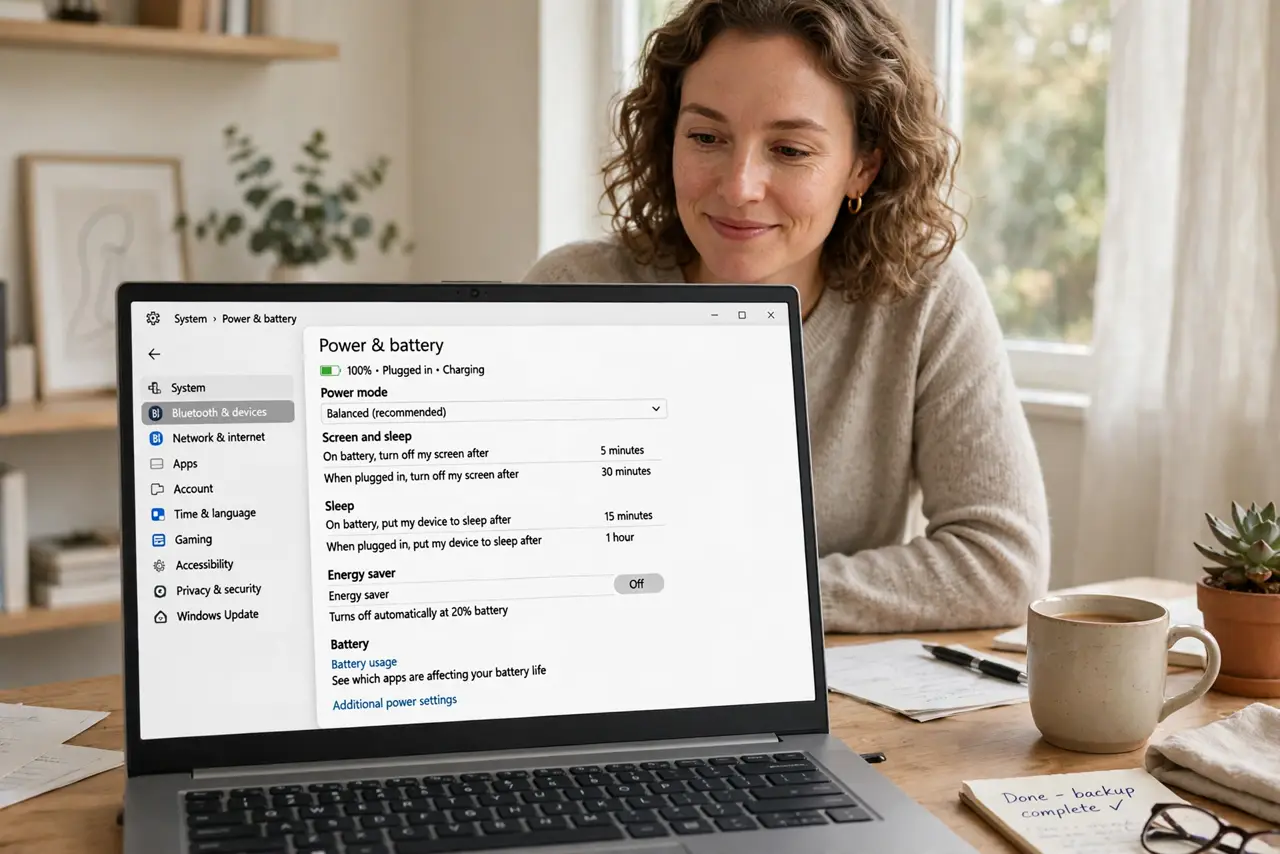
Quick fix: open Control Panel, Power Options, Choose what the power buttons do, and uncheck Turn on fast startup. Shut down fully — not restart — and the haunted behavior usually vanishes. Re-enable it later if you miss the faster boots; the toggle is harmless to flip.
Follow these steps
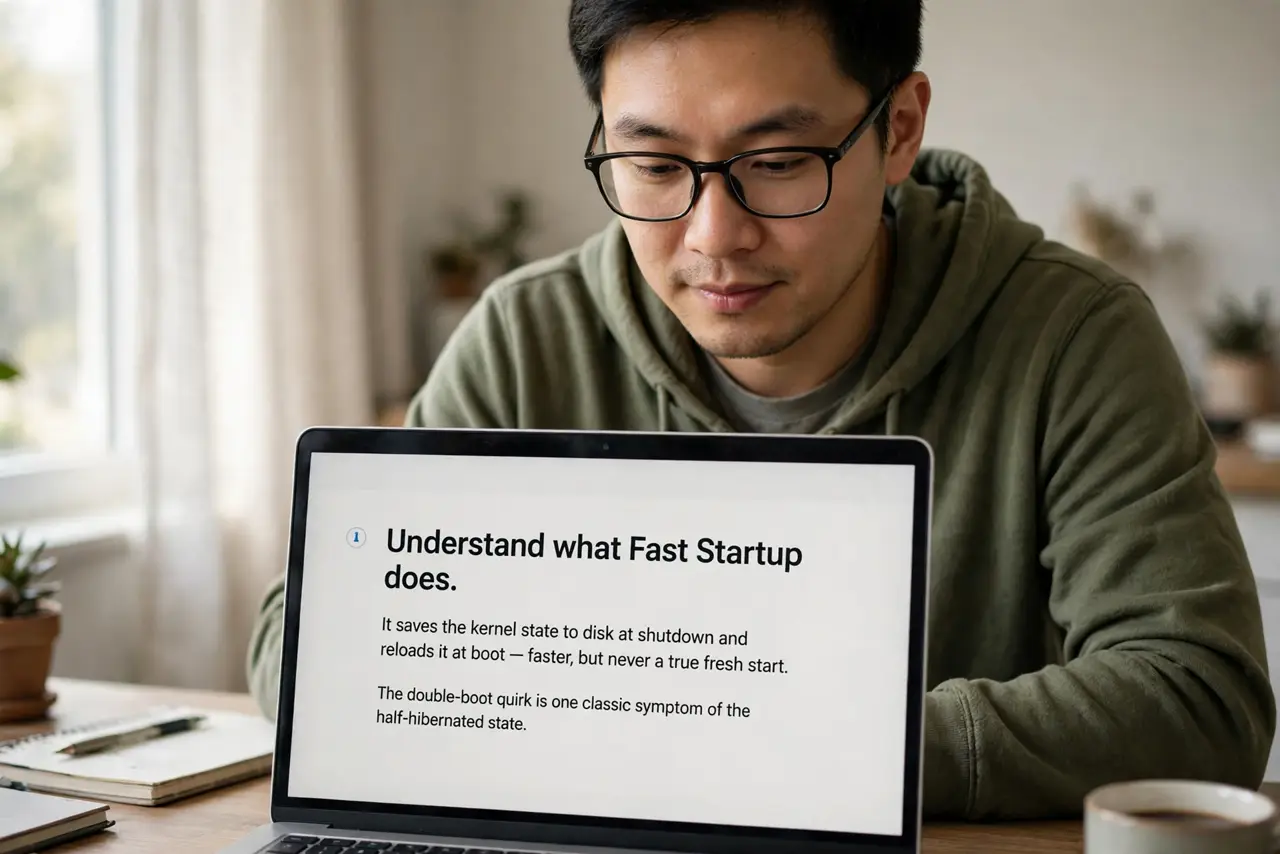
- Understand what Fast Startup does. It saves the kernel state to disk at shutdown and reloads it at boot — faster, but never a true fresh start. The double-boot quirk is one classic symptom of the half-hibernated state.
- Open the power button settings. Control Panel, Power Options, Choose what the power buttons do. The fast startup checkbox hides here — the off switch walkthrough has the screenshots.
- Uncheck Turn on fast startup. You may need to click Change settings that are currently unavailable first — admin rights unlock the checkbox. Uncheck, save, done.
- Shut down fully. Use Shut down, not Restart — Restart already bypasses Fast Startup, which is why restarts sometimes fix what shutdowns do not. The full shutdown is the test.
- Verify the fix. Check the haunted behavior: USB devices back, dual-boot menu appearing, settings sticking. Fresh kernel, fresh start — most ghosts exorcised.
- Re-enable if you miss it. Faster boots are nice on healthy systems. Flip it back on anytime — now you know the toggle and the tradeoff.
What NOT to do
- Do not leave it on with dual-boot. Fast Startup locks the disk and breaks Linux boot entries — dual-booters should keep it off.
- Do not confuse Restart with Shut down here. Restart bypasses Fast Startup already; the setting only affects shutdowns.
- Do not fear turning it off. The boot penalty is seconds on an SSD — trivial against the debugging hours it saves.
- Do not blame every glitch on it. It is a common cause, not the only cause — work the checklist before declaring victory.
Frequently asked questions
What is Fast Startup?
A Windows feature that hibernates the kernel at shutdown for faster boots — speed at the cost of never fully resetting.
Will turning it off slow my PC?
Boot takes a few seconds longer on SSDs. Once running, zero difference — it only affects startup.
Should I leave it off forever?
If your system is healthy, re-enabling is fine. Keep it off if you dual-boot or chase recurring glitches.