Turn Off Fast Startup
You click Shut down, the screen goes dark, and yet the next morning the PC boots in seconds with everything exactly as you left it. That is not a normal shutdown — it is Fast Startup, a hybrid mode that saves the system session to disk so the next boot is quicker. It feels exactly like sleep and hibernate, and it is the reason some updates and dual-boot setups misbehave.
TL;DR / Quick Fix
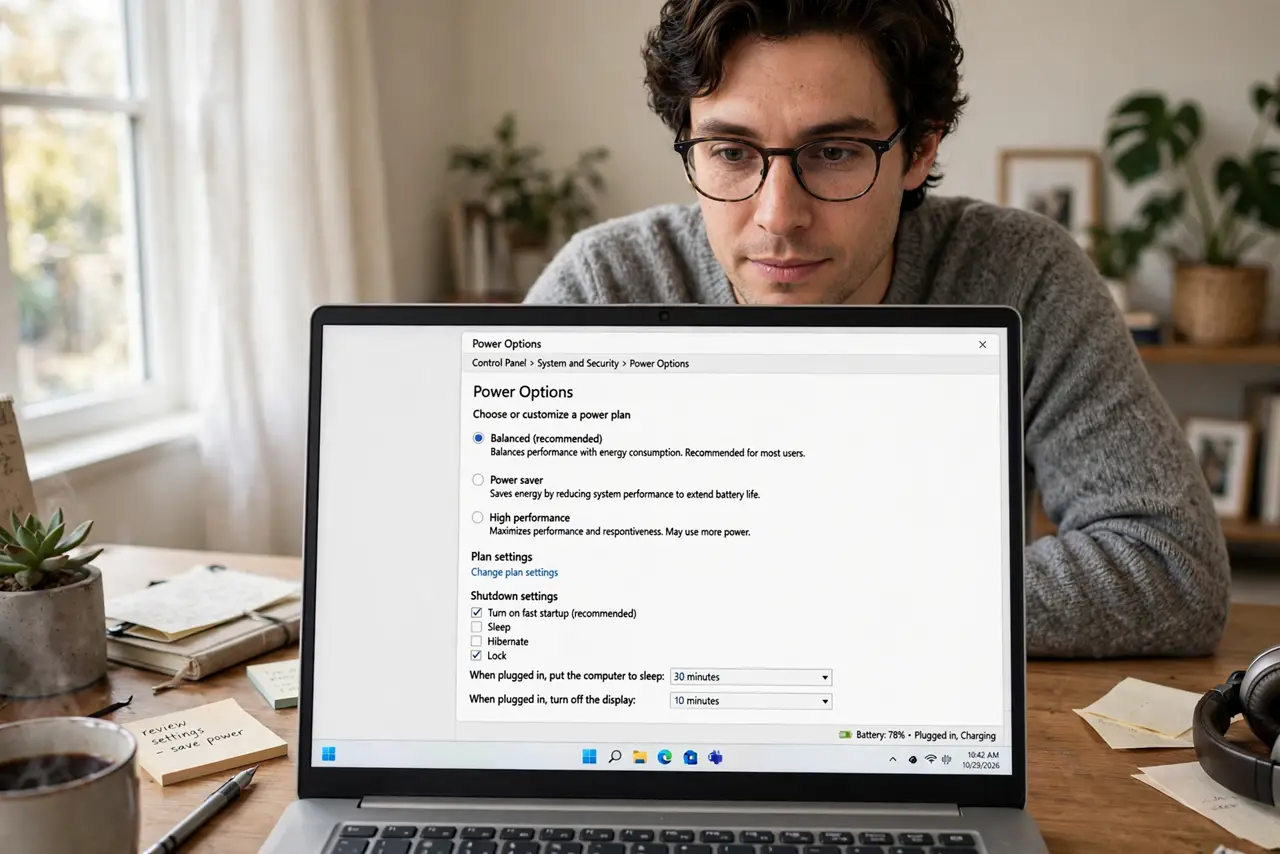
Quick fix: Fast Startup saves the Windows system session to disk at shutdown, so Shut down is a light hibernate — that is why it feels like sleep. In Control Panel, open Power Options, pick Choose what the power buttons do, uncheck Turn on fast startup, save, then restart once.
Follow these steps
- Open the classic Power Options panel. Fast Startup lives in the old Control Panel, not Settings. Search for Control Panel, open it, then go to Hardware and Sound, then Power Options.
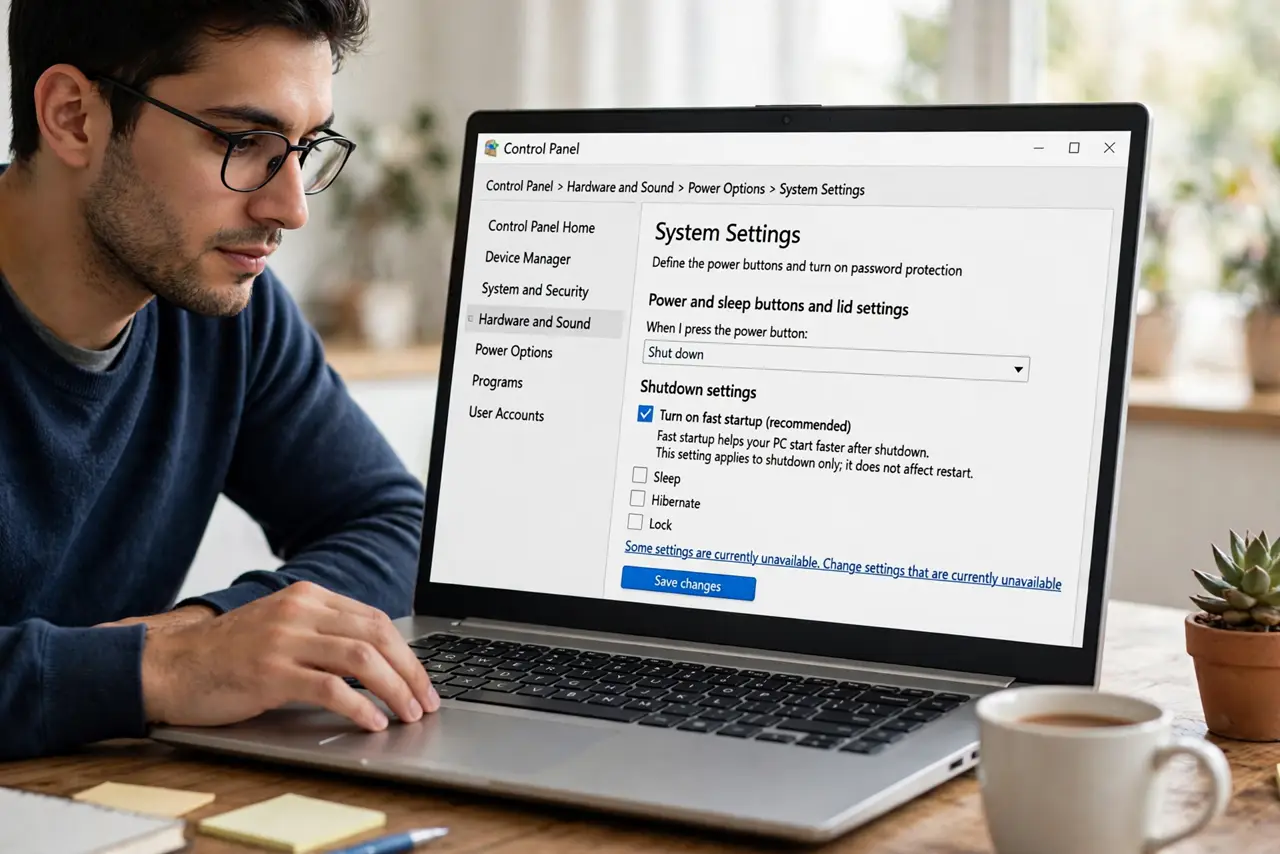
- Open what the power buttons do. Click 'Choose what the power buttons do' in the left sidebar. If the shutdown settings are greyed out, click 'Change settings that are currently unavailable' at the top to unlock them.
- Uncheck Turn on fast startup. Under Shutdown settings, clear the checkbox for 'Turn on fast startup (recommended)'. This makes Shut down a full shutdown again, flushing the session instead of saving it.
- Save the changes. Click 'Save changes' at the bottom. Nothing else on the page needs touching — your sleep and hibernate options stay exactly as they were.
- Restart once to finish. A restart always ignores Fast Startup, so one manual restart clears the saved session and puts the machine into a clean state from now on.
- Verify the change stuck. Shut the PC down fully, wait a few seconds, then power it on. The boot will take a bit longer and feel like a genuine cold start — that confirms the hybrid shutdown is gone. If you boot twice in a row, this fix usually stops that too.
What to avoid
- Do not confuse this with turning off sleep. Fast Startup only changes shutdown; your sleep timers and lid behavior are untouched.
- Do not disable it hoping for faster boot. Turning it off makes cold boots slower, not faster — the gain is correctness, not speed.
- Do not edit the registry to do this. The checkbox is the supported path; registry edits are unnecessary risk for this fix.
- Do not panic if updates take longer afterward. Major Windows updates sometimes rely on real shutdowns to install cleanly — that is a feature, not a bug.
Frequently asked questions
Will this make my PC boot slower?
Slightly — a cold boot reads everything fresh instead of resuming a saved session. On an SSD the difference is a few seconds; on an old hard drive it is more noticeable.
Does this affect hibernation?
No. Hibernation is a separate option and keeps working as before — see the hibernation option guide if yours is missing.
Should I turn it off permanently?
Keep it off if you dual-boot, encrypt drives, or troubleshoot often — those cases need real shutdowns. For a simple single-OS laptop, leaving it on is harmless.