File Explorer Address Bar Types Slowly
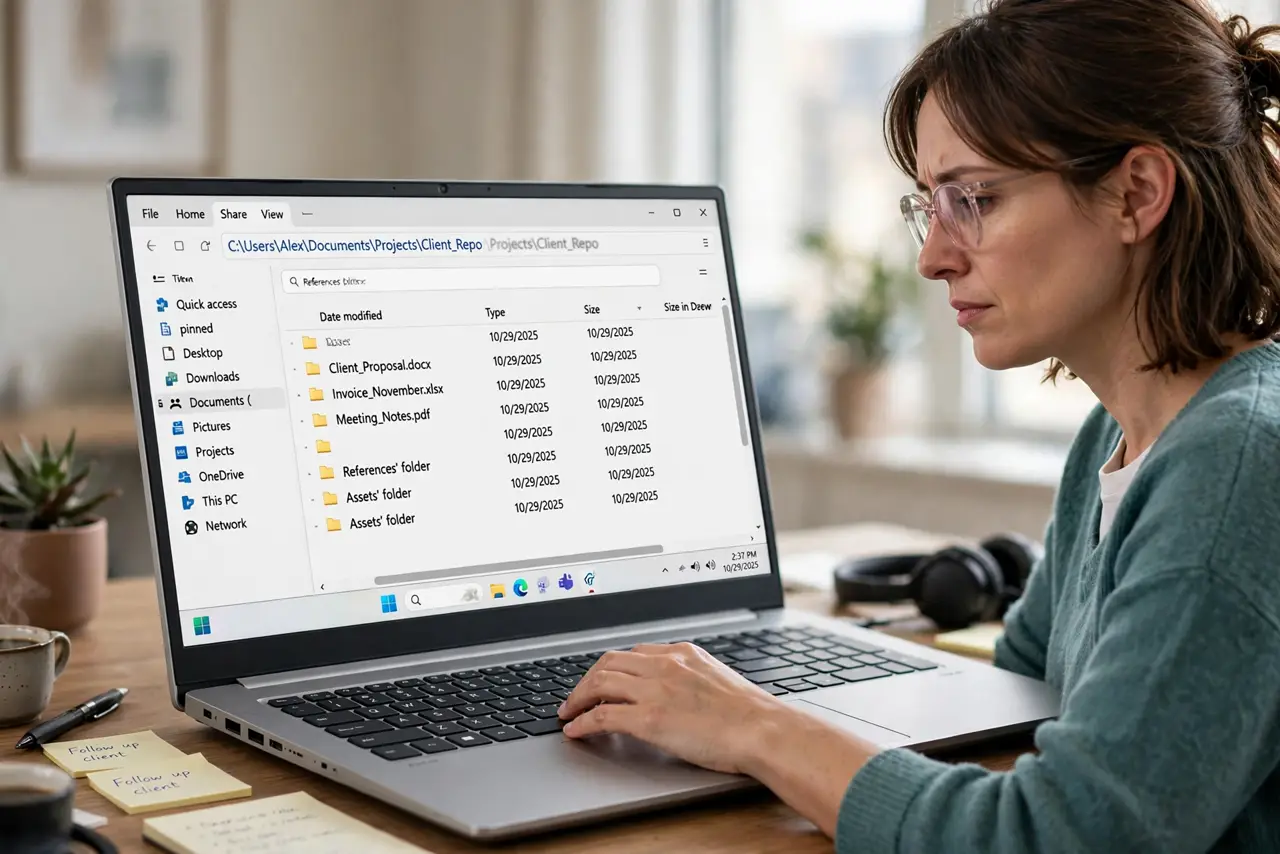
Typing in the File Explorer address bar lags seconds behind your keystrokes, with each letter appearing late. The lag usually comes from the address bar trying to autocomplete against slow network locations or a bloated history. Clearing the history and trimming the suggestions fixes it — the same family as the slow right-click menu problem, where Explorer waits on something slow.
TL;DR / Quick Fix
Quick fix: clear the File Explorer address bar history in Folder Options, which removes the bloated suggestion list the bar searches through. If the lag persists, check whether the current folder is a slow network location — typing lags most when Explorer queries an unreachable path for suggestions.
Follow these steps
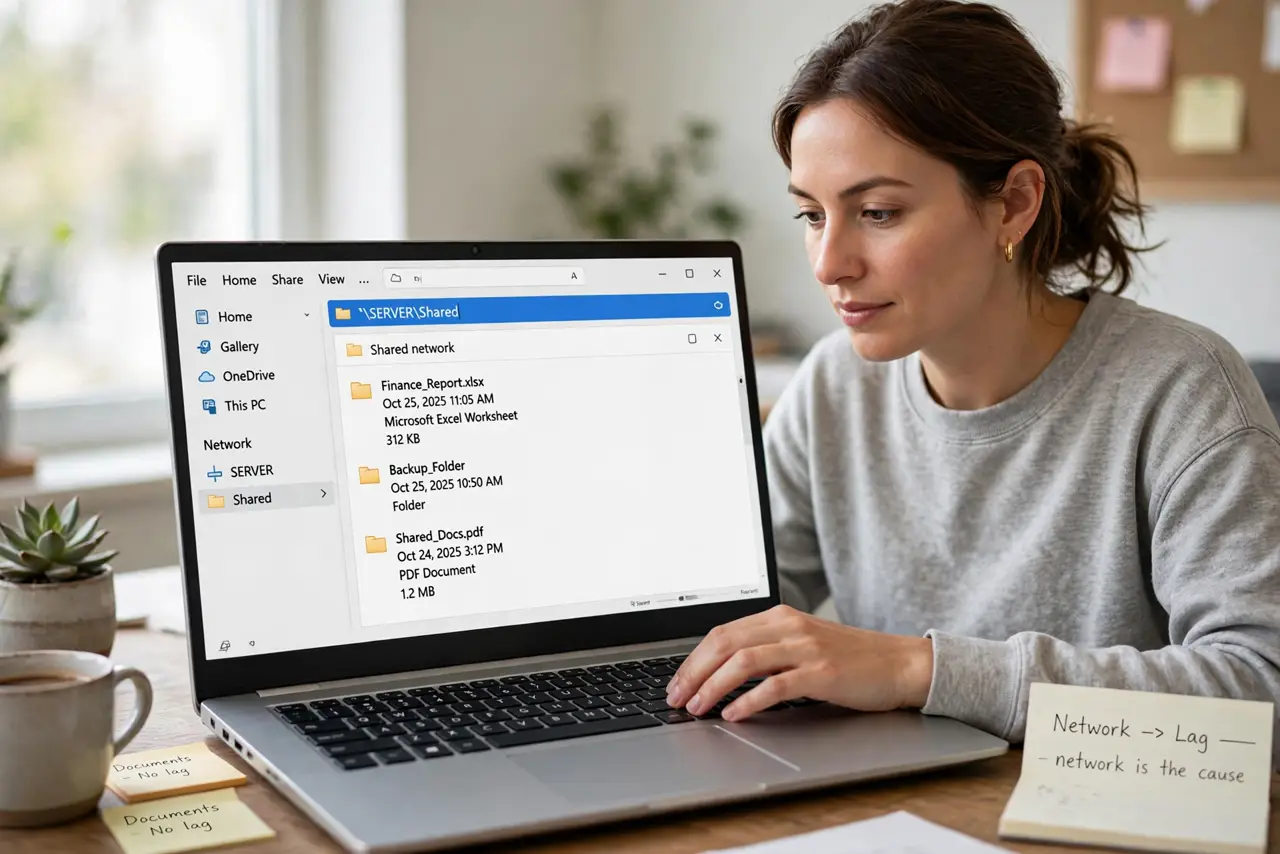
- Confirm where the lag happens. Type in the address bar in a local folder like Documents, then in a network folder. Lag only on network paths means the network is the cause, not Explorer itself.
- Clear the File Explorer history. Open Folder Options and use the Clear button on the privacy history. This wipes the address bar's suggestion database, which is the usual source of the lag.
- Turn off unwanted suggestion sources. Check whether typed-paths history or network suggestions are enabled and trim them. Fewer suggestion sources mean less work per keystroke.
- Disconnect stale network drives. Open This PC and look for disconnected or red-X network drives. Explorer queries these ghosts for suggestions, and each query waits for a timeout.
- Test typing in a plain local folder. After the cleanup, type a path in a local folder. Snappy typing here confirms the fix; remaining lag points at a still-connected slow location.
- Restart Explorer to clear its state. Restart the Explorer process so the cleared history and dropped connections take full effect.
What NOT to do
- Do not reinstall Windows for a laggy address bar. This is a history and network-timeout issue, fixed in minutes.
- Do not map more network drives as a workaround. More mapped drives mean more suggestion sources and potentially more lag.
- Do not disable the address bar. It is the fastest way to jump between folders once the lag is gone.
- Do not ignore a single slow network location. One unreachable server can stall the bar everywhere, so find and disconnect the culprit.
Frequently asked questions
Why does the address bar lag but search does not?
Because the address bar autocompletes against paths and history on every keystroke, while search runs as a separate indexed query.
Can a full hard drive cause this?
Indirectly. A nearly full system drive slows everything, but address-bar-specific lag is almost always history or network timeouts.
Will clearing history delete my files?
No. It only clears the tracked lists of typed paths and recent items; your files are untouched.