File History Says Its Drive Is Disconnected
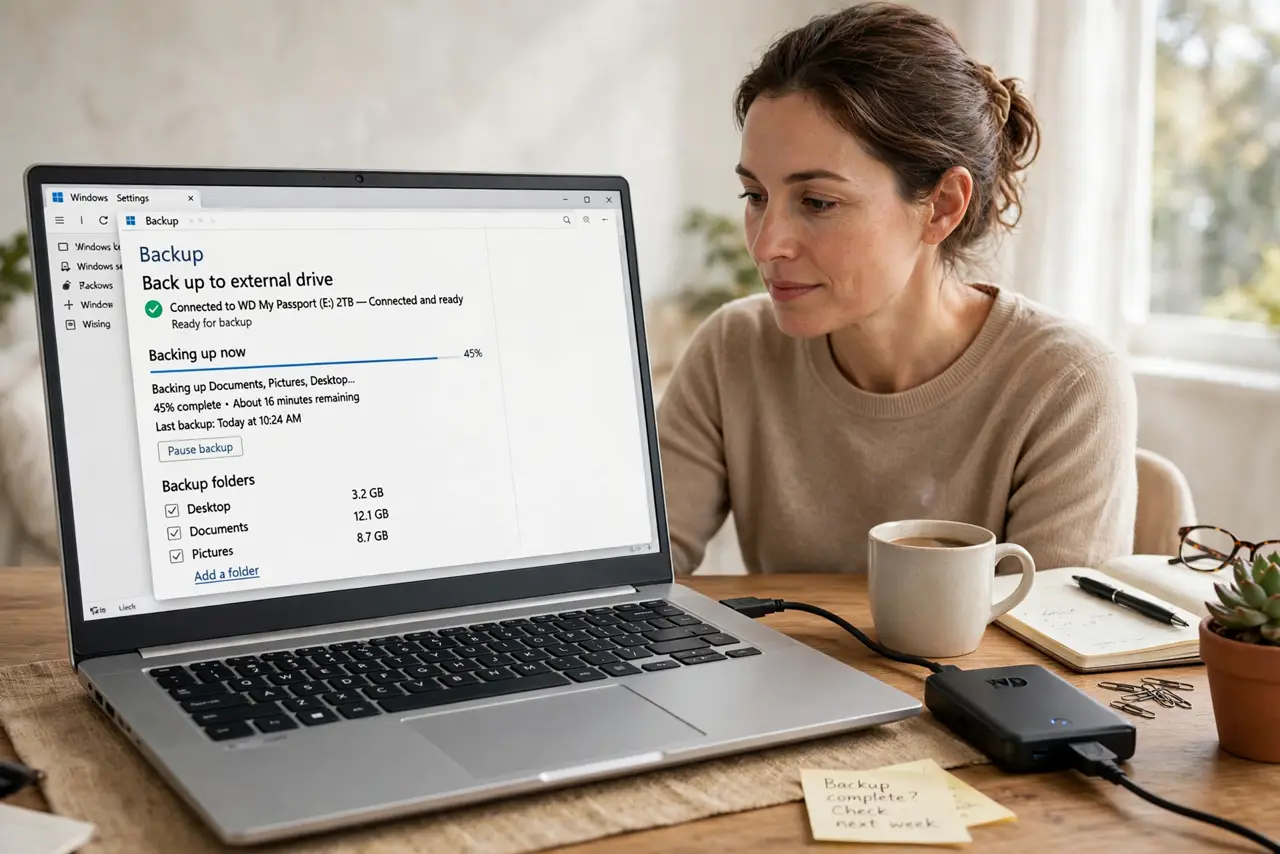
File History backs up file versions to an external drive, and when that drive disconnects, sleeps, or changes letter, backups stop with a disconnected warning. This guide reconnects the drive and resumes backups. If cloud placeholders are your issue instead, see OneDrive placeholders not opening offline.
TL;DR / Quick Fix
Quick fix: Reconnect the drive firmly. Check the drive appears in File Explorer. Then work through the remaining steps in order, checking one change at a time, and stop for a technician if you see damage, swelling, or a burning smell.
Follow these steps
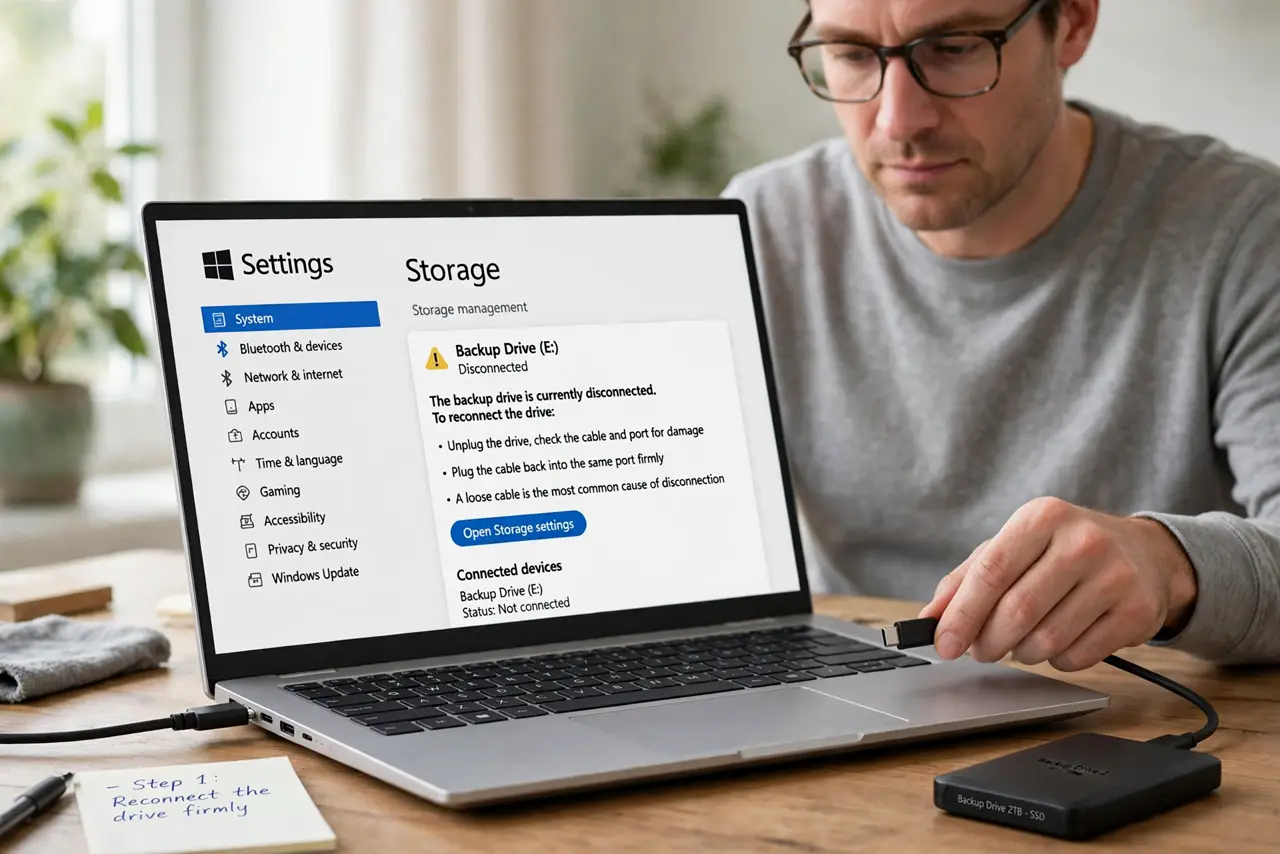
- Reconnect the drive firmly. Unplug the backup drive, check the cable and port for damage, then plug it into the same port firmly. A loose cable is the most common disconnected cause.
- Check the drive appears in File Explorer. Open File Explorer and confirm the backup drive shows with its usual letter and size. If it does not appear, the drive or port, not File History, is the problem.
- Open File History settings. Open Settings, then System, then Storage, then Advanced storage settings, then Backup options, and confirm File History sees the drive. If it shows a different drive, reselect the correct one.
- Run File History by hand. In the same Backup options page, choose Back up now and watch for errors. A manual run proves the drive works before you trust automatic backups again.
- Check the drive letter did not change. If File History points to a drive letter that now belongs to another device, change the backup drive back or reselect the drive in settings. A changed letter breaks the backup path silently.
- Test a file version restore. Open a backed-up folder, right-click a file, and check its previous versions. A visible version history proves backups resumed, not just that the warning cleared.
What NOT to do
- Do not ignore a disconnected warning for weeks. Every week without backups is a week of file versions you cannot recover.
- Do not use the backup drive as everyday storage. Extra files on it can fill it, which stops File History with a different error.
- Do not format the backup drive to fix a warning. Formatting erases all saved versions, while reconnecting preserves them.
- Do not assume cloud sync replaces File History. Sync mirrors current files, while File History keeps older versions you can restore.
Frequently asked questions
How often does File History back up?
By default every hour, for folders such as Documents, Pictures, and Desktop, while the drive is connected.
Can File History use a network drive?
Yes, if the network location stays reachable, but an external drive is simpler and more reliable for most people.
Does File History back up the whole PC?
No. It backs up personal folders and their versions, not programs or the full system, so keep a system backup too if you need one.