Ignore Shaky Keypresses
Your fingers bounce on keys and every word comes out with doubled letters — 'hello' becomes 'hhellllo.' It is not bad typing, it is key bounce, and Windows has a purpose-built fix: Filter Keys, which ignores brief repeated presses. This guide enables it, tunes the timing, and knows when the keyboard itself is the problem. For the one-handed chord helper, see Sticky Keys.
TL;DR / Quick Fix
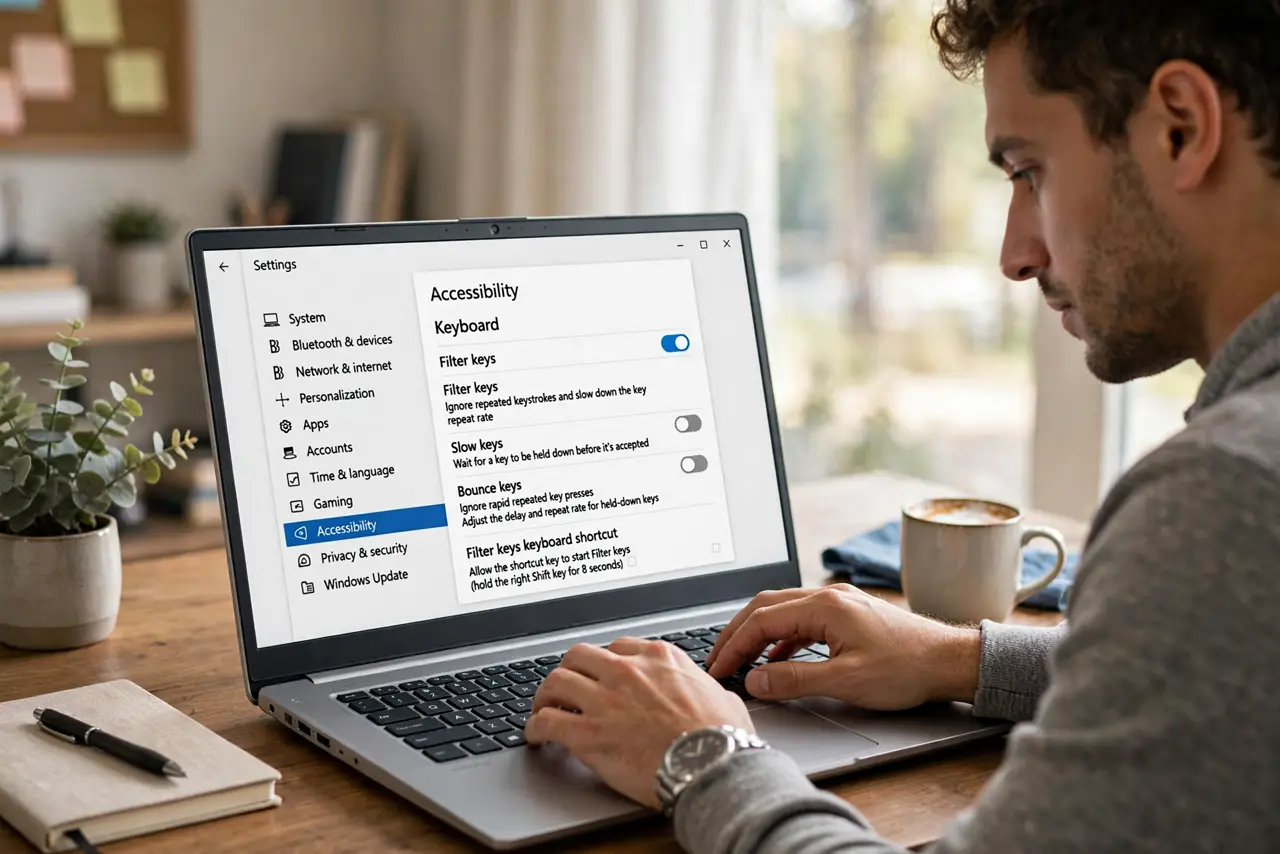
Quick fix: open Settings, go to Accessibility, then Keyboard, and turn on Filter Keys — Windows will ignore brief accidental repeats. Tune the repeat acceptance timing to your hands. If keys physically stick or double constantly, the keyboard hardware itself may need cleaning or replacing.
Follow these steps
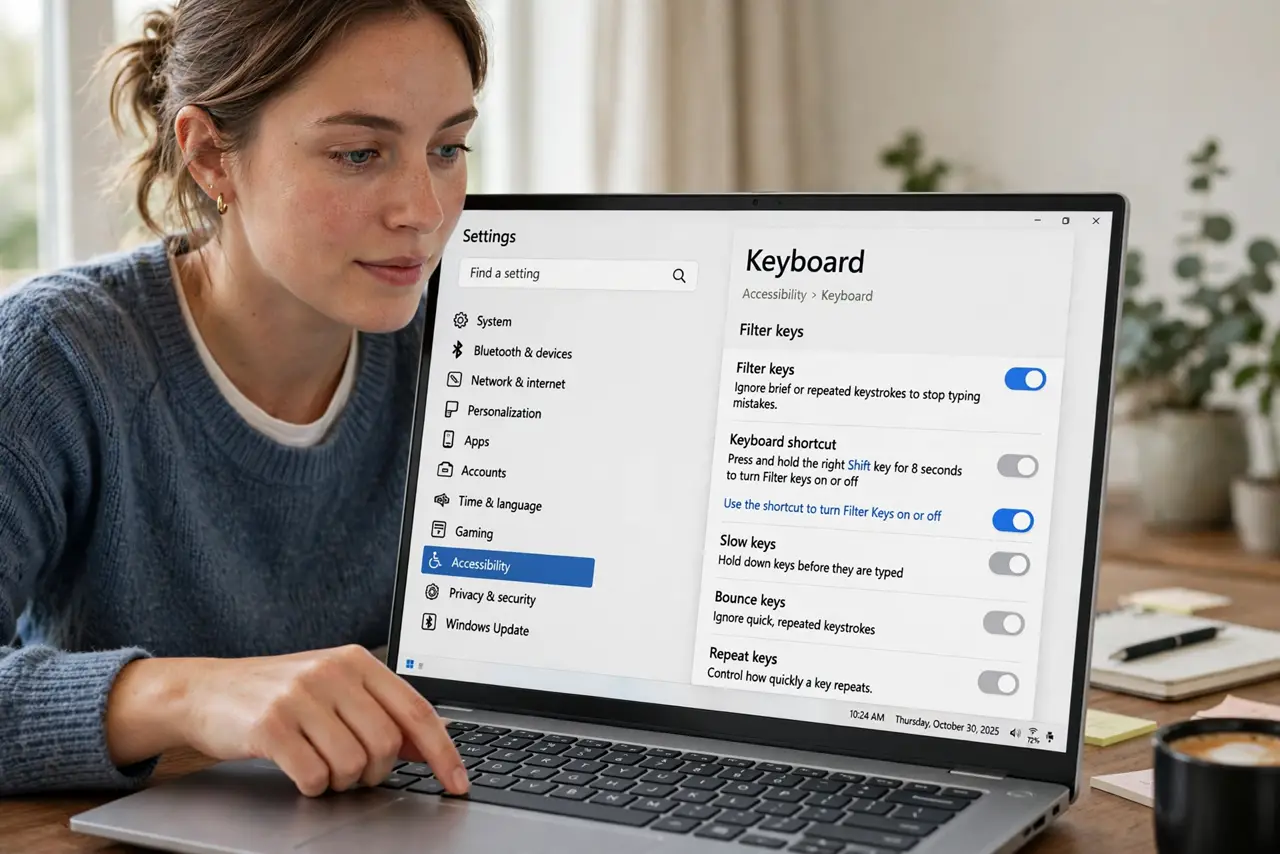
- Turn on Filter Keys. Go to Settings, then Accessibility, then Keyboard, and switch on Filter Keys. Windows immediately starts ignoring the rapid accidental repeats.
- Tune the timing. In the Filter Keys settings, adjust how long a key must be held and how quickly repeats are accepted. Slower settings suit shakier hands — test in a text box.
- Try Bounce Keys mode. Enable the bounce-keys behavior to ignore repeated presses within a short window. This is the specific fix for the doubled-letter problem.
- Test with real typing. Type a paragraph of normal text. The goal: intentional repeats work, accidental bounces do not. Adjust until that balance feels right.
- Rule out hardware. If one specific key doubles constantly while others are fine, that key's switch is likely failing — no software setting fixes a dying switch. Try another keyboard to confirm.
- Combine with Sticky Keys if needed. Tremors often need both: Filter Keys for the bounce, Sticky Keys for the chords. Accessibility features stack well together.
What NOT to do
- Do not crank the timing to maximum immediately. Overly aggressive filtering eats intentional keypresses too — tune gradually.
- Do not use Filter Keys to mask a dying keyboard. One key doubling constantly is hardware; settings cannot fix a failing switch.
- Do not forget it affects gaming. Fast repeated keypresses in games get filtered too — toggle it off for gaming sessions if needed.
- Do not ignore the shortcut trigger. Holding right-Shift for eight seconds offers Filter Keys — disable the shortcut if it pops up unwanted.
Frequently asked questions
Will Filter Keys slow my typing?
Slightly, at first — the acceptance delay adds milliseconds. Most people adapt within days and type cleaner overall.
Is this only for disabilities?
No — anyone with bouncy keys, a worn keyboard, or shaky hands benefits. It is a tool, not a label.
Can I set it per keyboard?
The setting is system-wide, but it matters most on the keyboard you type on — external keyboards follow the same rules.