Find What's Using Your Disk
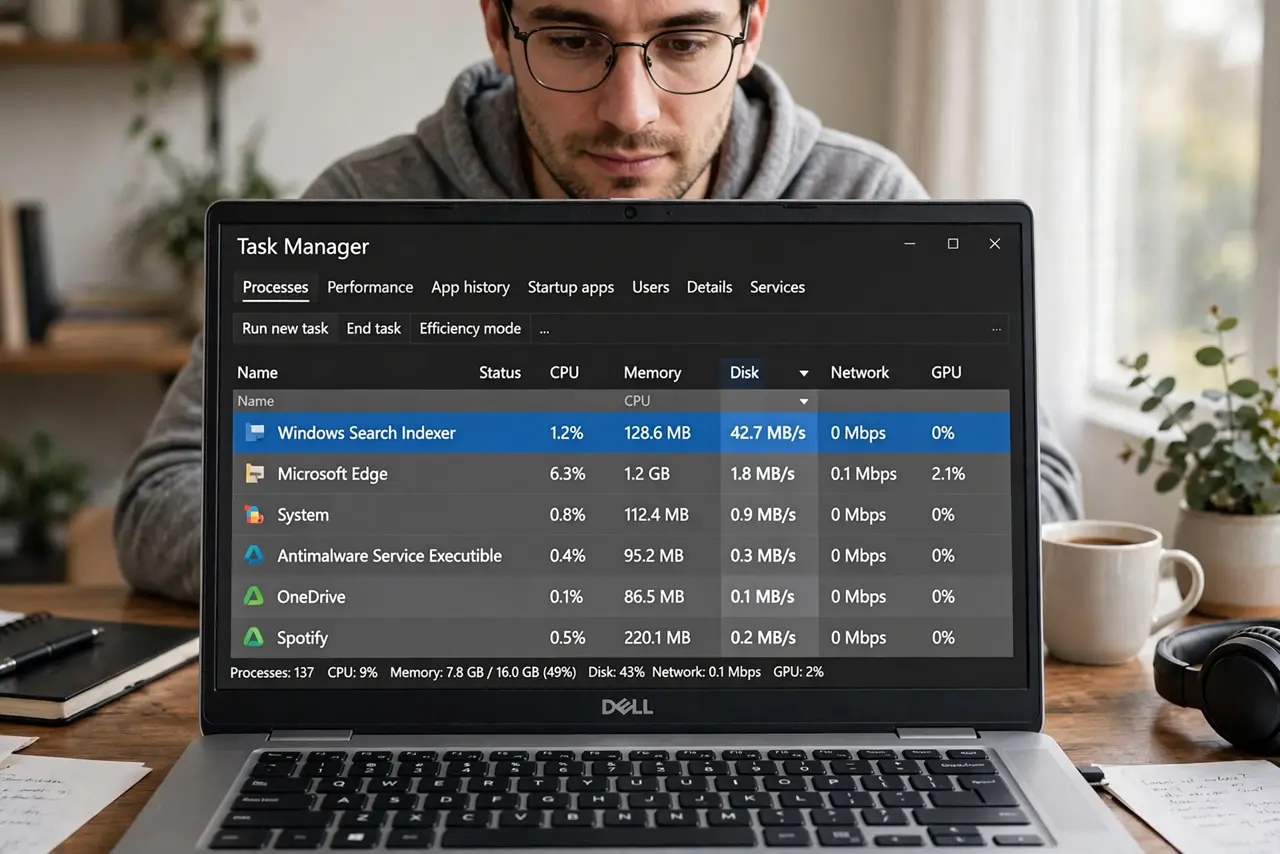
Task Manager shows disk at 100% and the PC crawls — but which process is the hog? The Disk column sorts the suspects instantly, and the usual culprits (antivirus scans, updates, indexing) are innocent more often than guilty. For measuring which part is truly the bottleneck, see Perfmon.
TL;DR / Quick Fix
Quick fix: open Task Manager, sort by the Disk column, and see which process is hammering the drive — antivirus scans and updates are the usual suspects. Let them finish before judging. If disk sits at 100% with no clear cause, check the drive's health and consider an SSD upgrade.
Follow these steps
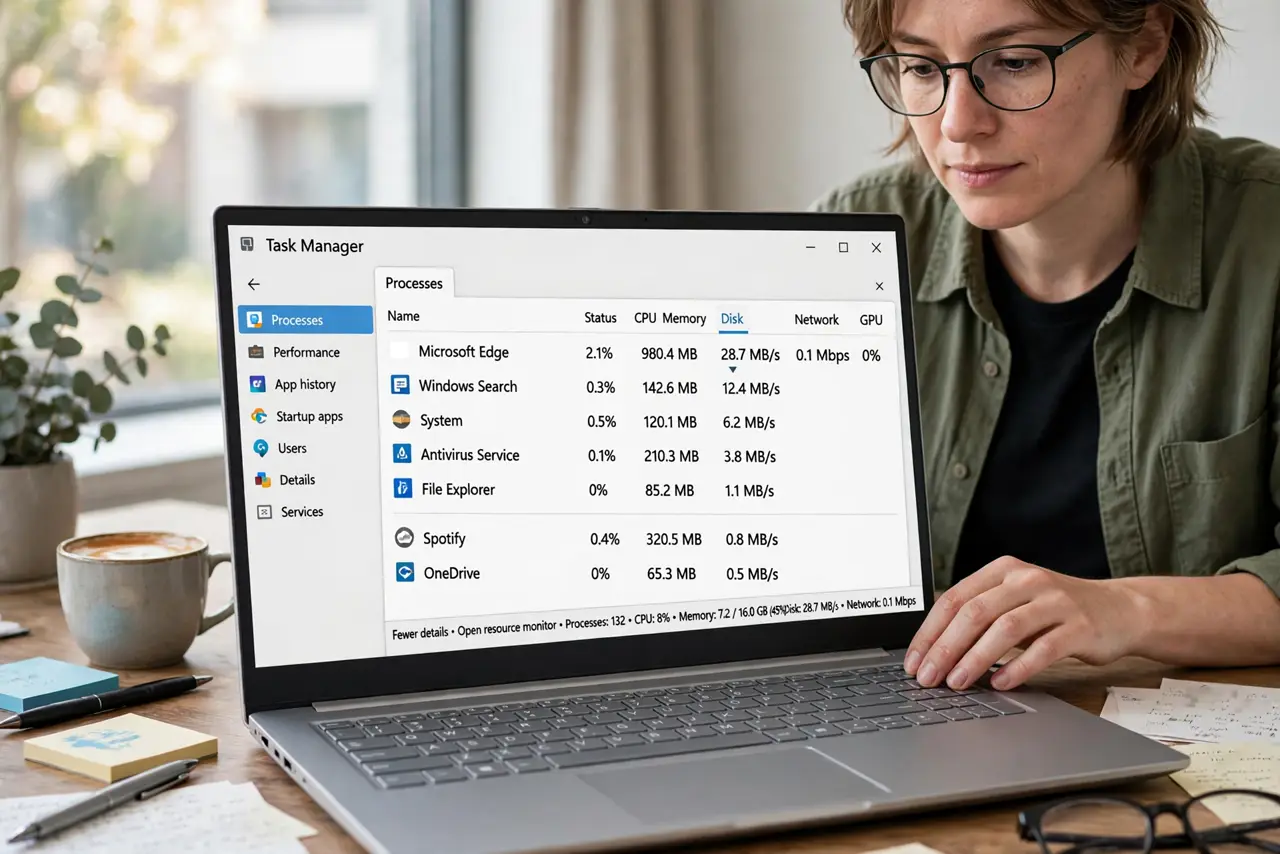
- Open Task Manager sorted by disk. Press Ctrl+Shift+Esc, go to the Processes tab, and click the Disk column header. The hungriest process jumps to the top — your prime suspect.
- Identify the usual suspects. Antivirus scans, Windows Update, and search indexing top the list. These are legitimate — note them, then let them finish before declaring a problem.
- Let legitimate work finish. A scan or update at 100% disk is the system doing its job. Give it time; judging mid-scan leads to “fixes” that break things.
- Check for the repeat offender. Same non-system process hogging disk every day? That is your culprit — update it, reconfigure it, or replace it.
- Run Storage Sense cleanup. Settings > System > Storage > Storage Sense clears temp files and empties the recycle bin. It will not fix a hog, but it reclaims the space hogs hide in.
- Check drive health. If disk sits at 100% with no clear process, the drive itself may be failing — check its SMART health and back up. A dying drive mimics a software hog.
What NOT to do
- Do not disable Windows services at random. Forum “fixes” that gut Superfetch or Search often cause weirder problems than they solve.
- Do not kill antivirus mid-scan. Let it finish — interrupting scans leaves the system in a worse state.
- Do not assume 100% disk means a virus. Malware is possible but far down the list; scans and updates are far more common.
- Do not ignore a failing drive's warnings. Clicking sounds plus 100% disk means back up first, troubleshoot second.
Frequently asked questions
Why is disk at 100% on startup?
Startup is the busiest disk moment: antivirus, updates, and indexing all collide. It should settle within minutes.
Will an SSD fix this?
Dramatically — most chronic 100%-disk misery is a spinning hard drive. An SSD is the single best upgrade for an old PC.
What is “System” using so much disk?
Usually updates, indexing, or memory compression — legitimate Windows work. Persistent mystery usage deserves the reliability timeline.